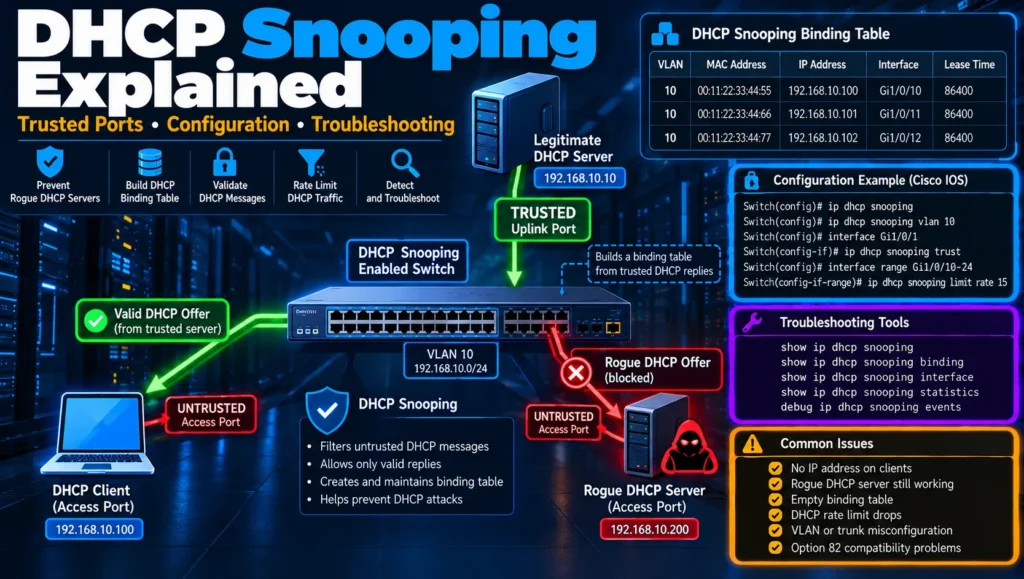
DHCP Snooping Explained: Configuration, Trusted Ports & Troubleshooting
A single unauthorized DHCP server can disrupt an entire office network.
Imagine an employee connecting a consumer router to an Ethernet wall socket without disabling its DHCP service. Suddenly, computers begin receiving incorrect IP addresses, default gateways, or DNS settings. Some devices lose internet connectivity, while others start communicating through unexpected network paths.
The same behavior can be exploited intentionally by an attacker running a rogue DHCP server.
DHCP snooping is a Layer 2 security feature that protects networks against unauthorized DHCP server responses by inspecting DHCP messages and enforcing trust boundaries on switch interfaces.
When correctly configured, it allows legitimate DHCP communication while preventing rogue servers connected to untrusted access ports from supplying network configuration to clients.
However, DHCP snooping must be deployed carefully. Incorrect trusted-port settings, unexpected Option 82 behavior, or aggressive rate limits can prevent legitimate devices from receiving IP addresses.
This guide explains how DHCP snooping works, how to configure it on Cisco switches, and how to troubleshoot common problems in real enterprise networks.
What Is DHCP Snooping?
DHCP snooping is a network security feature supported by many managed Ethernet switches.
It monitors DHCP traffic passing through the switch and distinguishes between:
- Trusted connections to authorized DHCP infrastructure.
- Untrusted connections to ordinary network clients.
The switch uses this distinction to validate DHCP messages and block certain unauthorized responses.
For example, when a legitimate DHCP server sends an address assignment through a trusted uplink, DHCP snooping permits the response.
But when an unauthorized DHCP server sends a DHCPOFFER through an untrusted access port, the switch can discard that packet.
DHCP snooping also learns legitimate DHCP address assignments and records them in a binding database.
This information can support other security functions, including Dynamic ARP Inspection and IP Source Guard.
To understand the address-assignment process itself, read our DHCP Explained: DORA, Ports, Leases & Troubleshooting guide.
Why Is DHCP Snooping Important?
DHCP normally provides clients with important network configuration automatically.
That configuration typically includes:
- IPv4 address.
- Subnet mask.
- Default gateway.
- DNS server addresses.
- DHCP lease duration.
- Optional network-specific parameters.
Because DHCPv4 does not inherently authenticate ordinary server responses, an unauthorized device may attempt to provide misleading configuration information.
DHCP snooping helps reduce this risk at the switching layer.
It is especially useful in:
- Enterprise office networks.
- Educational campuses.
- Branch offices.
- Shared Ethernet environments.
- Access networks containing unmanaged devices.
- Networks with centralized DHCP servers.
It is one part of a broader security architecture, not a replacement for endpoint security, network segmentation, or access control.
For a wider perspective on these controls, see Network Access Control (NAC): How It Works, 802.1X and Network Security.
How DHCP Snooping Works
DHCP snooping operates by inspecting DHCP traffic on VLANs where the feature is enabled.
The switch applies security rules based on the interface receiving the packet, the DHCP message type, and applicable validation settings.
Example Network Topology
Consider this simplified environment:
                Authorized DHCP Server
                    192.168.100.10
                           |
                     Core Network
                           |
                  Distribution Switch
                      DHCP Relay
                           |
                     Gi1/0/48
                     TRUSTED
                           |
                +-------------------+
                |   Access Switch   |
                |   DHCP Snooping   |
                |     VLAN 10       |
                +-------------------+
                    |           |
                 Gi1/0/10    Gi1/0/20
                 UNTRUSTED   UNTRUSTED
                    |           |
               Employee PC   Rogue DHCP
                    |          Server
                    |             |
               Valid DHCP     DHCP Offers
                Requests       BLOCKED
In this example:
- VLAN 10 contains employee endpoints.
- The legitimate DHCP server is located elsewhere in the network.
- A Layer 3 device performs DHCP relay where required.
- Gi1/0/48 is the trusted uplink toward the authorized DHCP infrastructure.
- Gi1/0/10 and Gi1/0/20 are untrusted access ports.
When the employee computer requests an IP address, its DHCP messages can pass through the switch.
The authorized server’s response arrives through the trusted uplink.
If the rogue DHCP server attempts to supply an address from Gi1/0/20, DHCP snooping rejects its server response.
This is the main protection mechanism.
DHCP Snooping and the DORA Process
The normal DHCPv4 address allocation process is commonly described as DORA:
- Discover
- Offer
- Request
- Acknowledge
DHCP snooping evaluates messages at these stages.
| DHCP message | Typical sender | Security behavior |
|---|---|---|
| DHCPDISCOVER | Client | Permitted from an untrusted port, subject to validation |
| DHCPOFFER | Server | Normally rejected when received on an untrusted port |
| DHCPREQUEST | Client | Permitted, subject to applicable checks |
| DHCPACK | Server | Normally rejected when received on an untrusted port |
| DHCPNAK | Server | Normally rejected when received on an untrusted port |
Actual validation rules depend on the switch platform and configuration.
For protocol details, consult the official RFC 2131 DHCP specification.
DHCP Snooping Trusted vs Untrusted Ports
Understanding interface trust is essential before configuring DHCP snooping.
Trusted Ports
A trusted interface is a port through which authorized DHCP server responses are expected to arrive.
Typical trusted interfaces include:
- A port directly connected to a legitimate DHCP server.
- An uplink toward a switch carrying legitimate server responses.
- An infrastructure-facing port that receives DHCP traffic from an authorized relay or server path.
On supported Cisco IOS XE platforms, an interface can be marked trusted with:
Switch(config)# interface GigabitEthernet1/0/48
Switch(config-if)# ip dhcp snooping trust
The configuration instructs the switch to treat DHCP traffic received on this interface as trusted for the relevant snooping checks.
A trusted port should not be treated as a general-purpose security bypass. Only designated DHCP infrastructure paths should receive this status.
Untrusted Ports
Untrusted interfaces normally connect to:
- Desktop computers.
- Laptops.
- Printers.
- IP phones.
- User devices.
- Other endpoint equipment.
On many Cisco Catalyst platforms, interfaces are untrusted by default.
You can explicitly configure an interface as untrusted:
Switch(config)# interface GigabitEthernet1/0/10
Switch(config-if)# no ip dhcp snooping trust
An untrusted interface can still carry legitimate DHCP client traffic.
The main restriction is that server-originated DHCP responses received through that interface are normally blocked.
Trusted vs Untrusted: Comparison
| Characteristic | Trusted port | Untrusted port |
|---|---|---|
| Intended connection | DHCP infrastructure | Client devices |
| Server responses | Allowed, subject to applicable checks | Normally dropped |
| Client requests | Allowed according to forwarding rules | Allowed with validation |
| Rate limiting | Platform-dependent configuration | Commonly recommended |
| Typical usage | Uplinks and DHCP server connections | Access interfaces |
| Security risk | Incorrect trust creates exposure | Incorrect restrictions can disrupt clients |
A common deployment mistake is configuring every switch uplink as trusted without checking where DHCP server traffic actually originates.
Trust should follow the legitimate DHCP server response path, not simply the physical network hierarchy.
DHCP Snooping Configuration on Cisco Switches
The following configuration illustrates a common Cisco Catalyst access-switch deployment.
Important: Commands and supported options vary by switch family and Cisco IOS or IOS XE software release. Verify the appropriate configuration guide for your exact platform before making changes.
Example Requirements
Assume the following network design:
| Component | Configuration |
|---|---|
| Client VLAN | VLAN 10 |
| Client subnet | 192.168.10.0/24 |
| DHCP server | 192.168.100.10 |
| Trusted uplink | Gi1/0/48 |
| Client ports | Gi1/0/1–24 |
| DHCP relay | Configured upstream |
| DHCP snooping | Enabled for VLAN 10 |
The access switch is operating as a Layer 2 switch in this example.
Step 1: Verify the Existing Network Configuration
Before enabling DHCP snooping, inspect the current switch configuration.
show version
show vlan brief
show interfaces trunk
show running-config interface GigabitEthernet1/0/48
show ip dhcp snooping
Confirm that:
- VLAN 10 exists.
- Client interfaces belong to the correct VLAN.
- The uplink carries VLAN 10.
- The DHCP relay or local server is operating correctly.
- The uplink actually leads toward authorized DHCP responses.
- Existing DHCP snooping settings do not conflict with the planned configuration.
If DHCP is already failing, diagnose the existing problem before introducing additional security controls.
Step 2: Enable DHCP Snooping Globally
Enter global configuration mode:
configure terminalEnable DHCP snooping:
ip dhcp snoopingThis enables the feature globally on platforms using this command structure.
However, VLAN-specific activation is also required in the following step.
Step 3: Enable DHCP Snooping on VLAN 10
Configure DHCP snooping for the client VLAN:
ip dhcp snooping vlan 10For a deployment covering multiple client VLANs, supported syntax commonly allows a list or range:
ip dhcp snooping vlan 10,20,30Only enable the feature for VLANs whose DHCP paths and trust relationships have been verified.
Avoid enabling DHCP snooping across every VLAN without understanding the network topology.
Step 4: Configure the Trusted Uplink
Assume Gi1/0/48 connects toward the authorized DHCP infrastructure.
interface GigabitEthernet1/0/48
 description TRUSTED-UPLINK-TO-DISTRIBUTION
 ip dhcp snooping trust
 exit
This allows legitimate DHCP server responses to enter the switch through the trusted connection.
If the DHCP server is connected directly to a different interface, verify that actual path instead.
Step 5: Configure Client Access Ports
Client-facing interfaces should remain untrusted.
For example:
interface range GigabitEthernet1/0/1 - 24
 description CLIENT-ACCESS-PORTS
 no ip dhcp snooping trust
 exit
The interface range is illustrative and assumes these ports are dedicated to client access.
Do not apply it to uplinks, infrastructure links, or interfaces that have different operational requirements.
Step 6: Configure DHCP Rate Limiting
DHCP rate limiting can help prevent excessive DHCP traffic from overwhelming switch resources or the DHCP infrastructure.
On supported Cisco platforms, an example is:
interface range GigabitEthernet1/0/1 - 24
 ip dhcp snooping limit rate 15
 exit
This example sets a DHCP packet-rate threshold of 15 packets per second per configured interface.
15 packets per second is not a universal recommended value.
The correct threshold depends on:
- Number of clients behind the interface.
- DHCP renewal activity.
- IP phones and downstream devices.
- Wireless access-point architecture.
- Virtualization environments.
- Switch platform behavior.
- Expected packet bursts.
An interface connected to many DHCP clients may require a higher threshold.
On some Cisco platforms, exceeding the configured limit can cause the interface to enter an error-disabled state. Therefore, test rate limiting carefully before deploying it widely.
Step 7: Review DHCP Option 82 Behavior
DHCP Option 82 allows relay or access infrastructure to add information identifying the network attachment point of a client.
Some Cisco platforms insert Option 82 information when DHCP snooping is enabled.
Depending on the network, DHCP server, and relay configuration, this may work normally or create compatibility problems.
Before changing the default behavior, inspect the current setting:
show ip dhcp snoopingIf Option 82 insertion causes a verified compatibility problem, a commonly supported Cisco command is:
configure terminal
no ip dhcp snooping information option
end
This disables DHCP snooping Option 82 insertion on platforms supporting that syntax.
It should not be applied as a universal default.
Option 82 may be important for subscriber identification, centralized DHCP policies, and other network services.
The correct configuration depends on the end-to-end DHCP architecture.
Step 8: Verify the Final Configuration
Exit configuration mode:
endRun:
show ip dhcp snooping
show ip dhcp snooping binding
show running-config | include ip dhcp snooping
Also inspect the relevant interfaces:
show running-config interface GigabitEthernet1/0/48
show running-config interface GigabitEthernet1/0/10
Verify that:
- DHCP snooping is enabled.
- VLAN 10 is protected.
- Gi1/0/48 is trusted.
- Client interfaces remain untrusted.
- The configured rate limits are appropriate.
- Option 82 behavior matches the network design.
Example Configuration Summary
A simplified configuration for the example topology is:
configure terminal

ip dhcp snooping
ip dhcp snooping vlan 10

interface GigabitEthernet1/0/48
 description TRUSTED-UPLINK-TO-DISTRIBUTION
 ip dhcp snooping trust
 exit

interface range GigabitEthernet1/0/1 - 24
 description CLIENT-ACCESS-PORTS
 no ip dhcp snooping trust
 ip dhcp snooping limit rate 15
 exit

end
This is a training example, not a universal production configuration.
Save the configuration only after validating DHCP connectivity, security behavior, and operational requirements.
Cisco provides platform-specific guidance in its DHCP Snooping operation and troubleshooting documentation.
How to Verify DHCP Snooping
Successfully entering configuration commands does not guarantee that DHCP snooping is operating correctly.
You must confirm that clients still obtain addresses and unauthorized DHCP server responses are blocked.
Check the Global DHCP Snooping State
show ip dhcp snoopingThis command helps identify:
- Whether DHCP snooping is enabled.
- Which VLANs are protected.
- Which interfaces are trusted.
- Rate-limit settings, where displayed.
- Option 82-related settings.
- Relevant verification configuration.
The exact output varies by Cisco software version.
Check DHCP Snooping Bindings
show ip dhcp snooping bindingThe binding table records DHCP-learned information about client devices.
A representative output might resemble:
MacAddress          IpAddress       Lease(sec)  Type     VLAN  Interface
------------------  --------------  ----------  -------  ----  ----------
00:11:22:33:44:55   192.168.10.100  7200        dhcp-snooping  10  Gi1/0/10
00:11:22:33:44:66   192.168.10.101  7100        dhcp-snooping  10  Gi1/0/11
This output is illustrative and not copied from a live switch.
Important fields include:
MAC address: The client’s hardware address.
IP address: The IPv4 address assigned to the client.
Lease time: The remaining DHCP lease duration.
VLAN: The VLAN associated with the client.
Interface: The switch interface where the client was learned.
These details help security and operations teams associate DHCP-learned addresses with switch ports.
Check Interface Trust Settings
On platforms supporting the command:
show ip dhcp snooping interfaceIf the command is unavailable on your platform, inspect the global snooping output and individual interface configurations.
Check DHCP Snooping Statistics
Where supported:
show ip dhcp snooping statisticsStatistics and counters can help identify discarded DHCP messages.
Some platforms provide different commands or debugging features for individual drop reasons.
Always consult the software documentation rather than assuming that every Cisco Catalyst switch exposes identical diagnostic commands.
DHCP Snooping Binding Table Explained
The DHCP snooping binding database is one of the most useful features for both network security and troubleshooting.
As the switch observes legitimate DHCP exchanges, it can learn:
- Client MAC address.
- Assigned IPv4 address.
- VLAN.
- Receiving interface.
- DHCP lease information.
- Binding type.
This produces a relationship between the device identity, its assigned address, and its network attachment point.
Why Are DHCP Snooping Bindings Important?
Bindings can be used for several purposes.
Operational visibility: Administrators can identify where DHCP clients connect.
Incident investigation: Security teams can correlate a suspicious IP address with a recorded MAC address and switch interface.
Dynamic ARP Inspection: Supported switches can validate ARP packets against legitimate address bindings.
IP Source Guard: Supported implementations can use binding information to enforce source IP address restrictions.
For readers new to IP addressing and packet forwarding, our TCP/IP Explained: Complete Guide to the TCP/IP Model provides useful networking foundations.
Why Might the Binding Table Be Empty?
An empty binding table does not automatically mean DHCP snooping is disabled.
Possible explanations include:
- Clients have not completed a DHCP exchange since snooping was enabled.
- The relevant VLAN is not enabled for DHCP snooping.
- The client uses a statically configured IP address.
- DHCP messages are not traversing the expected switch.
- DHCP server responses are being dropped.
- The topology or platform does not support the expected learning behavior.
- Dynamic binding information was lost after a restart.
- A validation or Option 82 problem interrupted the exchange.
A useful first test is to renew an authorized test client’s DHCP lease and observe whether the switch creates a binding.
Do not force DHCP lease renewal across an entire production network simply to populate the table.
DHCP Snooping Database Persistence
On applicable Cisco platforms, DHCP snooping can maintain binding information in a database file.
This can help preserve dynamically learned binding information across a switch restart.
A representative configuration syntax is:
ip dhcp snooping database flash:dhcp-snooping.dbThe storage location and availability of this feature depend on the switch platform and software release.
Some environments use a supported remote storage destination instead.
Before configuring database persistence:
- Verify platform support.
- Confirm available storage.
- Review file-system and database-agent behavior.
- Check time synchronization requirements.
- Understand how binding records are restored after reloads.
On supported platforms, the following command can provide database-agent information:
show ip dhcp snooping databaseDo not assume that adding a database command immediately protects every client binding against power loss or restart. Verify database writes and restoration behavior on the actual platform.
DHCP Snooping and Option 82 Explained
Option 82 is formally known as the DHCP Relay Agent Information Option.
It allows network infrastructure to include additional information about where a DHCP client is connected.
Common suboptions include:
- Circuit ID.
- Remote ID.
The Circuit ID may identify a network attachment point, such as a switch interface or VLAN-related circuit.
The Remote ID may identify the relevant relay or access device.
The exact contents depend on the device implementation.
Option 82 is defined in RFC 3046: DHCP Relay Agent Information Option.
Why Is Option 82 Useful?
Option 82 can support:
- Subscriber identification.
- DHCP policy selection.
- Access-circuit identification.
- Centralized address assignment.
- Auditing and troubleshooting.
An authorized DHCP server may use this information to determine which address pool or policy applies to a requesting client.
How Can Option 82 Cause DHCP Failures?
Problems can occur when:
- An upstream DHCP relay and an access switch both manipulate relay information.
- A DHCP server rejects or mishandles the inserted information.
- DHCP packets containing relay information arrive on interfaces configured to reject them.
- The network contains an aggregation switch that receives DHCP traffic from another snooping-enabled switch.
- Trust relationships differ from the intended design.
For example, Cisco documentation describes situations in which DHCP packets carrying unexpected Option 82 information or a nonzero relay-agent address are dropped on untrusted interfaces.
Troubleshooting Option 82
Start by checking:
show ip dhcp snoopingDetermine whether Option 82 insertion is enabled.
Next, review:
- DHCP server logs.
- DHCP relay configuration.
- Switch trust settings.
- The actual direction of DHCP messages.
- Any DHCP snooping drop messages.
Only after confirming the cause should you change Option 82 behavior.
Disabling Option 82 without understanding the network may break valid DHCP policies elsewhere.
DHCP Snooping Rate Limiting Explained
A rogue device or malfunctioning endpoint may generate an unusually high number of DHCP packets.
Rate limiting allows a supported switch to restrict DHCP traffic on selected interfaces.
For example:
interface GigabitEthernet1/0/10
 ip dhcp snooping limit rate 15
This is an example threshold, not a best-practice value for every environment.
Where Should Rate Limiting Be Applied?
It is commonly applied to client-facing access ports.
However, different endpoint categories can produce different traffic patterns.
For example:
| Interface type | Considerations |
|---|---|
| Single workstation | Usually a small number of DHCP clients |
| IP phone with attached PC | More than one device may use the port |
| Wireless access point | Could represent many wireless clients |
| Downstream managed switch | Multiple clients may generate DHCP traffic |
| Virtualization host | Multiple virtual machines may request leases |
A rate limit appropriate for one computer may be unsuitable for an interface serving dozens of clients.
What Happens When the Limit Is Exceeded?
Behavior depends on the switch platform.
On some Cisco devices, exceeding the threshold can trigger an error-disabled state.
Check interface status with:
show interfaces status
show interfaces GigabitEthernet1/0/10
Also inspect relevant system messages.
If an interface has been error-disabled, investigate the underlying traffic before restoring service.
Do not simply increase every rate limit or automatically re-enable every failed port without determining the cause.
DHCP Snooping Troubleshooting: Step-by-Step
DHCP snooping failures often appear as ordinary IP connectivity problems.
A client may display:
- No valid IPv4 address.
- An automatic private address such as 169.254.x.x.
- An expired DHCP lease.
- A DHCP timeout.
- An unexpected gateway or DNS configuration.
A systematic workflow can distinguish DHCP snooping problems from VLAN, relay, routing, and server-side failures.
Step 1: Confirm the Client Problem
On Windows, use:
ipconfig /allReview:
- IPv4 address.
- Subnet mask.
- Default gateway.
- DHCP Enabled status.
- DHCP server address.
- Lease obtained and expiration times.
On Linux, useful commands may include:
ip -4 addr show
ip route
Depending on the DHCP client and operating system, additional lease information may be available through NetworkManager, systemd-networkd, or the active DHCP client.
Do not assume that every Linux distribution uses the same DHCP management tool.
Step 2: Verify the VLAN
On the switch:
show vlan brief
show interfaces trunk
Confirm that the client interface belongs to the intended VLAN.
Also verify that the VLAN is allowed on the correct uplinks.
For example, a DHCP server may be functioning normally while client DHCP broadcasts never reach the relay because the client VLAN is missing from a trunk.
Our VLAN Explained: Access vs Trunk, 802.1Q & Inter-VLAN Routing guide explains this behavior in detail.
Step 3: Check DHCP Snooping Activation
Run:
show ip dhcp snoopingConfirm that the feature is enabled globally and on the appropriate VLAN.
Check whether the client VLAN is included in the protected VLAN list.
Step 4: Verify the Trusted Interface
Identify the actual interface receiving authorized DHCP server responses.
Then check its configuration:
show running-config interface GigabitEthernet1/0/48If legitimate server replies are arriving on an untrusted Layer 2 interface, DHCP snooping may discard them.
Do not mark an interface trusted until you verify that it is an authorized DHCP infrastructure path.
Step 5: Check the DHCP Relay
If the DHCP server is outside the client subnet, a DHCP relay is normally required.
On Cisco Layer 3 interfaces, a typical DHCP relay configuration uses:
interface Vlan10
 ip helper-address 192.168.100.10
This command belongs on the appropriate Layer 3 gateway or relay device, not automatically on every access switch.
Check that:
- The relay address is correct.
- The DHCP server is reachable.
- Routing exists between the relay and server.
- The DHCP server contains the correct address scope.
- DHCP traffic is not blocked by ACLs or firewalls.
If the client and authorized server are in the same broadcast domain, a relay may not be necessary.
Step 6: Inspect the Binding Table
show ip dhcp snooping bindingIf a client successfully receives an address but does not appear in the binding table, investigate whether the DHCP exchange traverses the switch and whether bindings can be learned under the current configuration.
Step 7: Review DHCP Snooping Drops
Use supported diagnostic commands and switch logs.
For example:
show loggingOn supported platforms:
show ip dhcp snooping statisticsPotential indicators include:
- Untrusted server messages.
- MAC address validation failures.
- Unexpected Option 82 information.
- Nonzero relay-agent address values.
- Interface or binding inconsistencies.
- Rate-limit violations.
Step 8: Verify the DHCP Server
If the switching configuration appears correct, inspect the server itself.
Verify:
- DHCP service availability.
- Scope activation.
- Available addresses.
- Lease allocation logs.
- Correct subnet configuration.
- DHCP policies.
- Relay information handling.
- Firewall permissions.
The DHCP server must have an appropriate scope for the client network.
Step 9: Capture DHCP Traffic When Necessary
When the cause remains unclear, a packet capture can show whether DHCP messages are reaching the expected network points.
Useful filters in Wireshark include:
bootpor:
udp.port == 67 || udp.port == 68Capture at more than one appropriate point if possible.
For example:
- Client-facing connection.
- Access-switch uplink.
- DHCP relay.
- DHCP server-side network.
Compare which messages appear at each point.
If the DHCPOFFER reaches the access-switch uplink but never reaches the client, inspect switch filtering and the trust configuration.
If the DHCPDISCOVER never reaches the relay, investigate access VLANs, trunks, and packet forwarding.
Packet captures provide evidence that configuration inspection alone may miss.
Common DHCP Snooping Problems and Fixes
Problem 1: Clients Cannot Obtain IP Addresses After DHCP Snooping Is Enabled
Symptoms
- Clients report DHCP timeouts.
- Windows devices may fall back to 169.254.x.x addresses.
- Existing clients may continue working temporarily until lease renewal.
Possible causes
- Server-facing interface is untrusted.
- Incorrect protected VLAN configuration.
- DHCP relay or server path problem.
- Unexpected Option 82 behavior.
- Rate-limit violations.
Troubleshooting
show ip dhcp snooping
show vlan brief
show interfaces trunk
show logging
Resolution
Identify where legitimate DHCP replies enter the switch and correct the trust configuration if necessary.
Verify the protected VLAN and inspect relay or Option 82 behavior.
Problem 2: DHCP Snooping Is Enabled but a Rogue Server Still Works
Possible causes
- DHCP snooping is not enabled on the affected VLAN.
- The rogue device is connected through a trusted interface.
- DHCP traffic bypasses the snooping-enabled switch.
- The client and rogue server communicate within another switching domain.
Troubleshooting
show ip dhcp snooping
show running-config | include ip dhcp snooping
Trace the physical and logical path of the rogue DHCP server.
Resolution
Ensure that the relevant VLAN is protected and that unauthorized client-facing connections remain untrusted.
Do not attempt to solve the problem by disabling the legitimate DHCP service.
Problem 3: DHCP Snooping Binding Table Is Empty
Possible causes
- No new DHCP exchanges were observed.
- The client uses a static address.
- The protected VLAN is incorrect.
- A DHCP validation problem is preventing lease completion.
- The traffic path does not match the assumed topology.
Troubleshooting
show ip dhcp snooping binding
show ip dhcp snooping
Observe an authorized test client’s normal DHCP renewal.
Resolution
Correct the missing VLAN, forwarding, or validation issue identified during troubleshooting.
Do not manually create binding records unless the platform and security design specifically require supported static bindings.
Problem 4: DHCP Stops Working After an Uplink Change
Possible causes
- DHCP responses now arrive through a different interface.
- The new uplink is not trusted.
- Trunk VLAN membership changed.
- A new network hop introduced different Option 82 behavior.
Resolution
Revalidate the complete DHCP response path.
If the authorized server response now enters through another interface, update the trust configuration only after confirming that connection is part of the legitimate DHCP infrastructure.
Problem 5: DHCP Clients Fail Behind a Wireless Access Point
Possible causes
- Multiple DHCP clients share the same switch interface.
- The configured DHCP rate limit is too restrictive.
- VLAN tagging is incorrect.
- The wireless infrastructure changes how DHCP traffic is forwarded.
Resolution
Check the AP’s uplink, VLAN configuration, client population, and DHCP traffic volume.
Apply rate limits suitable for the actual number of clients represented by the port.
Problem 6: DHCP Packets Are Dropped Because of Option 82
Possible causes
- Relay information is inserted more than once.
- An upstream switch rejects the Option 82-bearing packet.
- The DHCP server or relay does not support the current handling.
- Trust boundaries are incorrectly designed.
Resolution
Inspect the full client-to-server path and determine which device inserts, forwards, or removes relay information.
Change Option 82 settings only when the compatibility issue is understood.
Problem 7: An Interface Enters Error-Disabled State
Possible cause
The interface exceeded a DHCP snooping packet-rate threshold on a platform that enforces the threshold using errdisable behavior.
Troubleshooting
show interfaces status
show logging
Resolution
Determine whether the traffic represents legitimate client bursts, a misconfiguration, or an attack.
Correct the cause before restoring the interface.
DHCP Snooping vs Dynamic ARP Inspection vs IP Source Guard
DHCP snooping is frequently deployed alongside two additional switching security features.
DHCP Snooping
DHCP snooping protects the DHCP assignment process from unauthorized server responses.
It also generates a dynamic binding database.
Dynamic ARP Inspection
Dynamic ARP Inspection, or DAI, helps protect against ARP spoofing by validating ARP traffic against trusted information, often including DHCP snooping bindings.
For example, if a device claims ownership of an IP address that does not match the relevant binding information, DAI may reject the ARP packet.
IP Source Guard
IP Source Guard helps prevent unauthorized source IPv4 addresses from being used on protected switch interfaces.
Depending on the platform and configuration, it can use DHCP snooping bindings or explicitly configured source bindings.
Comparison
| Feature | Primary purpose | Uses DHCP binding information |
|---|---|---|
| DHCP Snooping | Prevent rogue DHCP server responses | Creates dynamic bindings |
| Dynamic ARP Inspection | Reduce ARP spoofing | Often yes |
| IP Source Guard | Restrict unauthorized source IP use | Often yes |
These features provide complementary protection.
However, enabling DAI or IP Source Guard without understanding DHCP bindings and static-addressed devices can interrupt legitimate connectivity.
Deploy them in stages and test their effects on production traffic.
For broader network defense concepts, read our Network Security Basics guide.
DHCP Snooping vs DHCP Relay
DHCP snooping and DHCP relay perform different functions.
A DHCP relay forwards DHCP communication between clients and servers that are not on the same IP subnet.
DHCP snooping inspects and controls DHCP traffic according to trust and validation rules.
For example:
Client VLAN 10
       |
       v
DHCP Snooping Access Switch
       |
       v
Layer 3 Gateway / DHCP Relay
       |
       v
Authorized DHCP Server
The relay enables the cross-subnet DHCP exchange.
DHCP snooping helps prevent unauthorized server messages from entering through untrusted client connections.
Both functions can be required in the same network.
DHCP Snooping Security Limitations
DHCP snooping improves network security, but its protection has boundaries.
It Does Not Authenticate Every User
DHCP snooping does not establish the identity or authorization of every network endpoint.
802.1X and NAC technologies are better suited to network admission control.
It Does Not Encrypt DHCP Traffic
Standard DHCP snooping does not provide encryption for DHCP messages.
It Does Not Prevent Every Form of IP Spoofing
DHCP snooping mainly protects DHCP exchanges and supplies binding information.
Additional controls may be necessary to enforce source address restrictions.
It Does Not Replace Firewall Policies
Firewalls protect traffic between networks and security zones.
DHCP snooping addresses a different problem at the access-switching layer.
It Primarily Addresses DHCPv4
DHCPv4 snooping and DHCPv6 security are not interchangeable.
IPv6 environments may require DHCPv6 Guard, Router Advertisement Guard, and other IPv6-specific first-hop security features supported by the platform.
It Depends on Correct Trust Boundaries
If an unauthorized DHCP server can send responses through an incorrectly trusted path, the expected protection may be weakened or bypassed.
This is why topology documentation and configuration review are important.
DHCP Snooping Best Practices
1. Identify Legitimate DHCP Paths Before Deployment
Document every authorized DHCP server and relay.
Confirm the interfaces through which DHCP server responses enter the switches.
2. Keep Client Ports Untrusted
Client-facing connections should normally remain untrusted.
Grant trusted status only where justified by the network design.
3. Enable DHCP Snooping on the Correct VLANs
Protect relevant client VLANs.
Avoid blindly enabling the feature across infrastructure VLANs without verifying the topology.
4. Use Appropriate DHCP Rate Limits
Begin with platform guidance and actual observed DHCP traffic.
Do not assume one threshold is appropriate for every interface.
5. Review Option 82 Compatibility
Check whether the access switch, DHCP relay, and DHCP server handle Option 82 consistently.
6. Monitor the Binding Database
Review bindings during troubleshooting and security investigations.
Consider database persistence where supported and operationally appropriate.
7. Integrate Switch Logs with Monitoring
Monitor:
- DHCP snooping drops.
- Rate-limit violations.
- Interface state changes.
- Unexpected DHCP server behavior.
- Binding database problems.
These events can help detect mistakes or attempted abuse.
8. Test Before Enterprise-Wide Rollout
Enable DHCP snooping on a limited set of test VLANs and interfaces first.
Verify successful address allocation and lease renewal.
9. Document Exceptions
Record any infrastructure interfaces requiring trusted status.
Also document devices and deployment types needing special DHCP handling.
10. Combine with Additional Security Controls
Where appropriate, combine DHCP snooping with:
- 802.1X.
- Network Access Control.
- VLAN segmentation.
- Dynamic ARP Inspection.
- IP Source Guard.
- Firewall policies.
- Network monitoring.
The goal is defense in depth rather than reliance on a single switch feature.
Real-World DHCP Snooping Deployment Example
Consider a company with three departments:
| Department | VLAN | Network |
|---|---|---|
| Administration | 10 | 192.168.10.0/24 |
| Engineering | 20 | 192.168.20.0/24 |
| Guest access | 30 | 192.168.30.0/24 |
A centralized DHCP server provides addressing for all three VLANs.
The network uses Layer 3 gateways or relay agents to forward DHCP requests to the server.
Access switches enforce DHCP snooping on the client VLANs.
A simplified configuration on a supported Cisco switch might be:
configure terminal

ip dhcp snooping
ip dhcp snooping vlan 10,20,30

interface GigabitEthernet1/0/48
 description AUTHORIZED-DHCP-PATH
 ip dhcp snooping trust
 exit

interface range GigabitEthernet1/0/1 - 24
 description ENDPOINT-CONNECTIONS
 no ip dhcp snooping trust
 exit

end
Optional rate limiting should be added after evaluating the actual client population and device behavior.
Before production rollout, administrators should verify that authorized DHCP replies arrive through the trusted path for every affected VLAN.
A test plan should confirm:
- Administration clients receive addresses from the correct scope.
- Engineering clients receive addresses from the correct scope.
- Guest clients receive only guest-network settings.
- DHCP lease renewal works correctly.
- An authorized test rogue DHCP server cannot distribute offers through an untrusted test port.
- DHCP snooping binding entries are populated as expected.
- Switch logs do not show unexpected validation failures.
Rogue-server testing should be performed only in an isolated or explicitly authorized environment to avoid disrupting users.
DHCP Snooping Deployment Checklist
Before enabling DHCP snooping, verify the following:
-
The switch model and software version support DHCP snooping.
-
Authorized DHCP servers are identified.
-
DHCP relay paths are documented.
-
Client VLANs are correctly configured.
-
Trusted uplinks are verified.
-
Client access ports remain untrusted.
-
Existing DHCP allocation works.
-
Option 82 behavior is understood.
-
DHCP rate limits are appropriate.
-
A rollback plan exists.
-
Switch configuration is backed up.
-
Test clients can obtain and renew addresses.
-
DHCP snooping bindings are verified.
-
Monitoring and logging are enabled where appropriate.
-
Any additional DAI or IP Source Guard dependencies have been evaluated.
Frequently Asked Questions About DHCP Snooping
What is DHCP snooping in networking?
DHCP snooping is a Layer 2 security feature that inspects DHCP messages and helps prevent unauthorized DHCP servers from sending address-assignment responses through untrusted switch interfaces.
It also maintains a database of legitimate DHCP-learned client bindings.
What is a DHCP snooping trusted port?
A trusted port is a switch interface authorized to receive legitimate DHCP server responses.
Typical examples include a connection to an authorized DHCP server or an uplink toward valid DHCP infrastructure.
Are switch ports trusted by default?
On many Cisco Catalyst platforms, DHCP snooping interfaces are untrusted by default.
However, administrators should verify defaults against the specific switch platform and software release.
What happens if the DHCP server port is untrusted?
If legitimate server responses arrive through an untrusted Layer 2 interface, DHCP snooping may drop those messages.
Clients may fail to obtain or renew IP addresses.
What is the DHCP snooping binding table?
It is a database containing DHCP-learned information about clients, such as MAC addresses, IPv4 addresses, VLANs, switch interfaces, and lease information.
The bindings may also support Dynamic ARP Inspection and IP Source Guard.
What is DHCP Option 82?
Option 82 is the DHCP Relay Agent Information Option.
It allows network infrastructure to add information identifying the client attachment circuit or related access device.
This information can help DHCP servers apply policies or identify subscriber connections.
How do I verify DHCP snooping on a Cisco switch?
A common verification command is:
show ip dhcp snoopingYou can also inspect learned bindings using:
show ip dhcp snooping bindingAdditional commands depend on the switch software.
Why is my DHCP snooping binding table empty?
Possible reasons include no observed DHCP lease exchanges, static client addressing, an incorrect VLAN configuration, DHCP packet drops, or a mismatch between the actual traffic path and the assumed topology.
An empty table alone does not prove that DHCP snooping is disabled.
Does DHCP snooping prevent DHCP starvation attacks?
DHCP snooping rate limiting can reduce some excessive DHCP traffic.
However, DHCP snooping alone does not guarantee protection against all DHCP starvation techniques, especially attacks involving spoofed client identities.
Additional controls and monitoring may be required.
Is DHCP snooping required for Dynamic ARP Inspection?
On many switch implementations, Dynamic ARP Inspection uses DHCP snooping bindings to validate ARP packets from dynamically addressed clients.
Some platforms also support static ARP inspection information or explicit bindings.
The exact dependency depends on the platform and configuration.
Can DHCP snooping break network connectivity?
Yes.
Incorrect trusted-port assignments, inappropriate VLAN selection, Option 82 incompatibility, or restrictive rate limits can interfere with legitimate DHCP traffic.
Testing and staged deployment are important.
Does DHCP snooping work with IPv6?
Traditional DHCP snooping usually refers to DHCPv4 protection.
IPv6 uses different first-hop security mechanisms, including DHCPv6 Guard and Router Advertisement Guard on supported platforms.
Conclusion
DHCP snooping is an important protection mechanism for enterprise access networks.
It helps prevent rogue DHCP servers from distributing unauthorized IP configuration, provides visibility into DHCP-learned devices, and supports additional Layer 2 security features.
The most important deployment principles are straightforward:
Enable DHCP snooping on the correct VLANs, trust only verified DHCP infrastructure paths, keep ordinary client ports untrusted, and validate the configuration before applying additional restrictions.
The most frequent problems arise not from the basic configuration commands, but from misunderstandings about network topology, relay paths, Option 82, interface trust, and rate limiting.
By following a structured deployment and troubleshooting process, network administrators can reduce rogue DHCP risks while preserving legitimate DHCP connectivity.
For further networking and security guidance, explore CorgiNetwork’s articles on DHCP fundamentals, VLAN configuration, Network Access Control, and Network Security Basics.
Official Technical References
The examples and concepts in this guide are supported by the following authoritative documentation:
- Cisco: Operate and Troubleshoot DHCP Snooping on Catalyst 9000 Switches
- Cisco: Understanding DHCP Snooping for Packets Crossing Layer 3 Hops
- RFC 2131: Dynamic Host Configuration Protocol
- RFC 3046: DHCP Relay Agent Information Option
Technical note: Configuration examples are provided for educational purposes. Exact commands, defaults, feature interactions, and packet-handling behavior depend on the Cisco switch model and software release. Validate changes in a lab or maintenance window before production deployment.