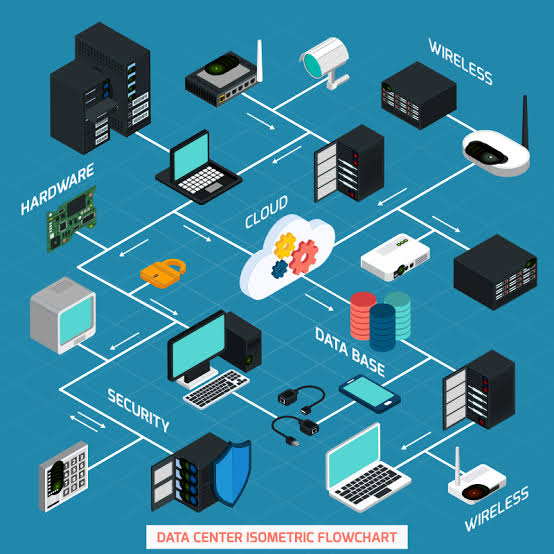
Servers and Infrastructure Explained 2026 : Complete IT Guide | CorgiNetwork
Linux Server Administration: A Complete Guide to Managing Linux Servers
Linux powers a large part of modern server infrastructure, from web servers and databases to cloud platforms, containers, virtualization hosts, networking appliances, and enterprise applications. Learning Linux server administration therefore provides one of the strongest foundations for careers in system administration, cloud computing, DevOps, networking, and cybersecurity.
However, Linux administration is not simply about memorizing terminal commands. A production Linux server operates as part of a broader server infrastructure that includes networking, storage, virtualization, monitoring, identity, security, backup, automation, and disaster recovery.
A Linux administrator needs to understand how these layers interact.
A simplified production environment might look like this:
Users
  |
Internet
  |
Firewall / Load Balancer
  |
Linux Web Servers
  |
Application Servers
  |
Database
  |
Storage / Backup
The server itself may also run inside a virtual machine, private cloud, public cloud platform, or container environment.
This guide explains Linux server administration from a practical infrastructure perspective, including system installation, users, permissions, networking, SSH, services, storage, processes, logs, security, monitoring, backup, automation, and troubleshooting.
For a deeper understanding of Linux directories, filesystems, mount points, permissions, and inodes, also see Linux File System Explained.
1. What Is Linux Server Administration?
Linux server administration is the process of installing, configuring, maintaining, securing, monitoring, and troubleshooting Linux systems that provide services to users or other systems.
A Linux administrator may be responsible for:
- Installing operating systems
- Managing users and permissions
- Configuring networking
- Managing services
- Installing software
- Applying security updates
- Monitoring system health
- Managing storage
- Configuring backups
- Troubleshooting failures
- Automating repetitive tasks
- Maintaining documentation
A Linux server can perform many different roles.
Examples include:
- Web server
- Database server
- DNS server
- Application server
- File server
- Container host
- Monitoring server
- Proxy server
- Backup server
- Virtualization host
The exact administration tasks depend heavily on the role of the server.
2. Understanding the Linux Server Stack
A Linux server should be understood as a collection of interconnected layers.
Applications
     |
Services / Daemons
     |
Operating System
     |
Linux Kernel
     |
CPU / Memory / Storage / Network
     |
Physical or Virtual Infrastructure
At the bottom is physical or virtual hardware.
Above that, the Linux kernel manages resources such as:
- CPU scheduling
- Memory
- Devices
- Networking
- Filesystems
- Processes
System services then provide functions such as SSH, networking, DNS clients, web hosting, databases, logging, and scheduled tasks.
Applications run on top of these services.
This layered model is extremely useful during troubleshooting because failures at one layer can appear as problems at another.
For example, a web application may appear broken when the real cause is:
- DNS failure
- A full filesystem
- A firewall rule
- A failed database
- Memory exhaustion
- A stopped systemd service
Linux server administration therefore overlaps strongly with networking and infrastructure engineering.
3. Initial Linux Server Configuration
After installing a Linux server, several baseline tasks should normally be completed before placing it into production.
Start by identifying the system:
uname -aYou can inspect operating-system information with:
cat /etc/os-releaseCheck the hostname:
hostnamectlReview network interfaces:
ip addrReview routing:
ip routeThen verify time configuration, package updates, storage, user accounts, remote access, logging, and firewall rules.
Update the System
Package updates should be applied according to your organization’s maintenance and testing procedures.
On Debian or Ubuntu systems:
sudo apt update
sudo apt upgrade
On Red Hat-family systems, package management commonly uses DNF.
Production environments should not blindly install every update without understanding the operational impact. Important systems may require testing, maintenance windows, rollback planning, and application compatibility checks.
Official enterprise guidance for Linux administration is available through resources such as Red Hat documentation.
4. Users, Groups and sudo
Linux is fundamentally a multi-user operating system.
Each user has an identity, and access can be controlled through:
- User IDs
- Group IDs
- File ownership
- Permissions
- sudo policy
- Application-specific authorization
Create a user with tools appropriate to your distribution, for example:
sudo useradd usernameMany distributions also provide higher-level utilities such as adduser.
You can inspect the current user with:
whoamiand view identity information with:
idGroups
Groups allow administrators to grant access to sets of users.
For example, several administrators may belong to an operations group with access to specific files or commands.
You can inspect group membership using:
groups usernamesudo
The sudo mechanism allows authorized users to execute privileged commands without continuously operating as root.
This supports the principle of least privilege.
Instead of working permanently as root, an administrator can perform privileged operations only when necessary.
Production environments should carefully control sudo access because excessive administrative privileges increase both operational and security risk.
5. Linux File Permissions
Linux permissions determine who can access files and directories.
The traditional permission model uses:
- Read —
r - Write —
w - Execute —
x
Permissions apply to:
- Owner
- Group
- Others
Inspect permissions with:
ls -lExample:
-rw-r----- 1 alice admins 2048 report.txtThis indicates different permission sets for the owner, group, and everyone else.
Numeric Permissions
Permissions are frequently represented numerically.
For example:
7 = read + write + execute
6 = read + write
5 = read + execute
4 = read
A permission such as:
chmod 640 file.txtprovides read/write to the owner, read access to the group, and no access to others.
Avoid using overly broad permissions such as 777 merely to make an application work.
That approach can conceal the real ownership or access-control problem.
Ownership
Ownership can be changed using chown.
For example:
sudo chown user:group file.txtLinux permissions become especially important on web servers, application servers, file servers, and shared systems.
For an in-depth explanation of Linux directory structure, ownership, mount points, filesystem types, and inodes, see Linux File System Explained.
6. Package Management and Software Updates
Linux distributions use package-management systems to install and maintain software.
| Distribution Family | Common Package Tools |
|---|---|
| Debian / Ubuntu | apt, dpkg |
| RHEL / Rocky / AlmaLinux | dnf, rpm |
| Older RHEL-based systems | yum |
| SUSE | zypper |
Package managers handle dependencies and maintain databases of installed software.
Before installing software on a production server, administrators should consider:
- Whether the package is required
- Whether the source is trusted
- Version compatibility
- Security support
- Application dependencies
- Whether a service will automatically start
- Whether firewall exposure changes
Removing unnecessary software is also an important security practice because every additional package can increase the attack surface.
7. Managing Linux Services with systemd
Many modern Linux distributions use systemd to manage system services.
A service can be inspected with:
systemctl status nginxStart a service:
sudo systemctl start nginxStop it:
sudo systemctl stop nginxRestart:
sudo systemctl restart nginxEnable it at boot:
sudo systemctl enable nginxService State vs Service Health
A service showing as “running” does not always mean the application is healthy.
For example:
systemd says nginx is running
        |
        v
Port 443 listening?
        |
        v
Application responding?
        |
        v
Database reachable?
        |
        v
Users receiving valid responses?
Administration should therefore combine service status with network tests, logs, monitoring, and application-level checks.
The official systemd project provides detailed technical documentation through its manual pages and project documentation.
8. Linux Networking
Networking is one of the most important skills for Linux administrators.
A server can be fully operational internally but unavailable to users because of incorrect networking.
Important concepts include:
- IP addresses
- Subnets
- Default gateways
- Routing
- DNS
- TCP and UDP
- Ports
- Firewalls
- VLANs
- Network interfaces
If these concepts are unfamiliar, Computer Networking Explained provides the broader foundation, while TCP/IP Explained explains the protocol model behind network communication.
Inspect Interfaces
Use:
ip addrInspect Routes
ip routeA typical routing table may contain:
default via 192.168.1.1 dev eth0
192.168.1.0/24 dev eth0
The default route determines where traffic is sent when no more specific route exists.
Inspect Listening Ports
Use:
ss -tulnFor example, an HTTPS server may be listening on TCP port 443.
If the application is running but no expected port is listening, investigate the service configuration before changing firewall rules.
The Linux Network Tools Guide covers commands such as ip, ss, ping, traceroute, dig, and curl in greater detail.
9. DNS and Name Resolution
Linux servers constantly depend on DNS.
Applications may use DNS to locate:
- APIs
- Databases
- Cloud services
- Package repositories
- Authentication systems
- Other servers
A DNS failure can therefore affect many applications simultaneously.
Test name resolution with:
dig example.comor:
nslookup example.comA useful troubleshooting distinction is:
Can reach IP address
        +
Cannot reach hostname
        =
Possible DNS problem
But DNS should not be blamed automatically.
If name resolution succeeds and the destination is still unreachable, investigate routing, firewalls, services, ports, TLS, or application behavior.
For the complete resolution process, caching, TTL, records, authoritative servers, and DNSSEC, see DNS Explained.
10. SSH and Remote Administration
SSH is one of the primary methods for managing Linux servers remotely.
A normal connection looks like:
ssh user@serverSSH provides encrypted remote access and supports authentication using passwords, public keys, and other mechanisms.
The official OpenSSH documentation provides detailed information about the client, server, keys, configuration, and authentication behavior.
SSH Security Principles
Production SSH configuration should consider:
- Key-based authentication where appropriate
- Strong authentication policies
- Limited administrative access
- MFA where supported
- Firewall restrictions
- Management networks or VPN access
- Logging
- Account lifecycle management
Avoid exposing unnecessary management interfaces directly to the entire Internet.
A safer architecture may look like:
Administrator
     |
VPN / Trusted Network
     |
Firewall
     |
SSH
     |
Linux Server
This connects Linux administration directly with broader server infrastructure design.
11. Linux Storage and Filesystems
Administrators should monitor both filesystem capacity and underlying storage behavior.
Use:
df -hto inspect filesystem capacity.
Use:
du -sh /pathto estimate directory usage.
These commands answer different questions.
df asks:
How much space is available in this filesystem?
du asks:
How much space is used by these files and directories?
Mount Points
Linux uses a unified directory hierarchy rooted at:
/Additional storage is mounted into this hierarchy.
Example:
/
├── /home
├── /var
├── /srv
└── /data  → separate storage
Administrators should understand:
- Mount points
/etc/fstab- Filesystem types
- Disk usage
- Inodes
- LVM
- Storage performance
The Linux File System Explained article covers these topics in detail.
12. Processes, CPU and Memory
Linux servers run many processes simultaneously.
When performance degrades, administrators need to determine which resources are under pressure.
Useful commands include:
topand, where installed:
htopCPU Problems
High CPU may be caused by:
- Legitimate application demand
- Runaway processes
- Inefficient code
- Compression or encryption workloads
- Malware
- Misconfiguration
Do not restart the server immediately simply because CPU is high.
First determine which process is consuming resources.
Memory
Inspect memory with:
free -hLinux uses available memory for caches, so low “free” memory alone does not necessarily mean the server has a problem.
Look for sustained memory pressure, swapping, out-of-memory events, application behavior, and workload characteristics.
Load Average
Linux load average can be inspected with:
uptimeLoad should be interpreted in context.
A load value that is harmless on a large multi-core system may indicate severe contention on a smaller server.
13. Linux Logs and Monitoring
Logs are essential for understanding what happened before, during, and after a failure.
On systemd-based systems:
journalctlcan query the journal.
To inspect a particular service:
journalctl -u nginxThe journalctl manual page available through man7.org provides detailed command behavior.
Common Log Categories
Linux servers can generate:
- System logs
- Authentication logs
- Kernel events
- Application logs
- Web server logs
- Database logs
- Security events
Logs should ideally be combined with monitoring metrics.
Linux Servers
     |
     +---- Metrics ----> Monitoring
     |
     +---- Logs -------> Central Logging / SIEM
     |
     +---- Alerts -----> Operations / Security
Operational monitoring tells administrators whether the system is healthy.
Security monitoring looks for suspicious or malicious activity.
For environments requiring centralized security analysis, SIEM Explained covers log collection, correlation, alerts, and investigation.
14. Linux Server Security and Hardening
Security should be incorporated during deployment rather than added after the server enters production.
A basic hardening process can include:
Install Linux
      |
Apply Updates
      |
Remove Unnecessary Software
      |
Disable Unused Services
      |
Configure Accounts
      |
Apply Least Privilege
      |
Configure Firewall
      |
Secure SSH
      |
Enable Logging
      |
Configure Monitoring
      |
Configure Backup
      |
Validate Security
Reduce Attack Surface
Every unnecessary service creates an additional potential exposure.
Inspect listening sockets:
ss -tulnIf a service does not need to be reachable, consider whether it should:
- Be stopped
- Be disabled
- Listen only locally
- Be restricted by firewall policy
Patch Management
Known vulnerabilities should be addressed through appropriate updates, mitigations, or compensating controls.
Patch management should account for availability requirements and application compatibility.
Least Privilege
Avoid giving applications or users privileges they do not need.
A web application rarely needs unrestricted root access.
Security Monitoring
Linux server security should also interact with network controls such as firewalls and IDS/IPS.
The Network Security Basics guide explains segmentation and defense-in-depth, while Intrusion Detection and Prevention Systems covers IDS/IPS deployment and network intrusion detection.
15. Linux Firewalls
Linux systems can enforce local firewall policies in addition to network-level firewalls.
Depending on the distribution and environment, administrators may work with technologies such as:
- nftables
- firewalld
- iptables compatibility tools
The correct configuration depends on the operating system, security architecture, and management standards.
A web server may conceptually allow:
Internet
   |
TCP 443
   |
Web Server
while restricting SSH administration to trusted networks:
Management Network
       |
      SSH
       |
Linux Server
Do not simply disable a firewall because an application is unreachable.
First determine:
- Whether the service is running.
- Whether it is listening.
- Whether it is listening on the expected interface.
- Whether routing is correct.
- Whether firewall rules allow the required traffic.
For a broader explanation of network filtering and firewall architecture, see Firewalls Explained.
16. Backup and Recovery
Every important Linux server should have a recovery strategy.
A backup plan should consider:
- What data must be backed up
- Backup frequency
- Retention
- Encryption
- Access control
- Off-site copies
- Recovery time requirements
- Recovery point requirements
- Restore testing
Do not confuse redundancy with backup.
A RAID array may tolerate some disk failures but does not protect against every scenario.
Similarly, replication may reproduce accidental deletion or application corruption.
A reliable strategy requires recoverable independent copies.
Test Restores
A backup that has never been restored should not automatically be assumed to work.
Recovery tests verify:
- Data integrity
- Credentials
- Documentation
- Backup availability
- Application dependencies
- Recovery procedures
Backup and disaster recovery are part of the broader architecture covered in Servers and Infrastructure Explained.
17. Linux in Virtualization, Cloud and Containers
Modern Linux servers frequently run as virtual machines or cloud instances rather than dedicated physical machines.
A simplified stack may be:
Physical Infrastructure
        |
Hypervisor / Cloud Platform
        |
Linux Virtual Machine
        |
Container Runtime
        |
Application Containers
This means Linux administrators increasingly need to understand technologies beyond the operating system itself.
Virtualization
Virtualization allows multiple virtual machines to share physical infrastructure.
See Virtualization Explained for the relationship between physical hosts, hypervisors, virtual machines, virtual storage, and networking.
Cloud Computing
Cloud platforms provide compute, networking, storage, identity, databases, and monitoring through software-defined infrastructure.
Cloud Computing Explained covers these broader concepts.
Containers
Linux is also fundamental to container infrastructure.
Containers isolate application processes while sharing the host kernel.
This means Linux knowledge remains highly relevant even in cloud-native environments.
18. Automation and Infrastructure as Code
Managing one server manually may be practical.
Managing hundreds of servers manually is usually inefficient and error-prone.
Automation can handle:
- Package installation
- User creation
- Configuration files
- Service management
- Security settings
- Application deployment
- Monitoring agents
A modern workflow can look like:
Git Repository
      |
Infrastructure / Configuration Code
      |
Automation
      |
Linux Servers
      |
Testing / Monitoring
Infrastructure as Code extends this approach to infrastructure resources themselves.
Tools and platforms may include:
- Terraform
- OpenTofu
- Ansible
- Cloud-native templates
- CI/CD pipelines
The key advantages are not simply speed.
Automation can also improve:
- Repeatability
- Reviewability
- Documentation
- Consistency
- Recovery
- Change tracking
See Infrastructure as Code Explained for a deeper explanation of these workflows.
19. A Practical Linux Server Troubleshooting Method
Random troubleshooting wastes time and can make incidents worse.
Use a structured process.
Step 1: Define the Problem
Avoid vague descriptions such as:
The server is broken.
Instead determine exactly what users experience.
Example:
The server responds to ping, but HTTPS connections fail.
Step 2: Determine Scope
Ask:
- One user or everyone?
- One service or all services?
- One server or several?
- One network or all networks?
- Did the problem begin after a change?
Step 3: Check Basic System Health
Inspect:
uptime
free -h
df -h
Then check processes and services.
Step 4: Check Networking
ip addr
ip route
ss -tuln
Test IP connectivity and DNS separately.
Step 5: Check the Service
systemctl status service-nameThen inspect logs:
journalctl -u service-nameStep 6: Check Dependencies
Applications may depend on:
- DNS
- Database
- Storage
- APIs
- Authentication
- Certificates
- Other internal services
Step 7: Review Recent Changes
Look for recent:
- Deployments
- Updates
- Firewall changes
- DNS changes
- Configuration changes
- Credential changes
- Certificate replacements
Step 8: Change One Variable at a Time
This is one of the most important troubleshooting rules.
Changing many things simultaneously may restore service but make the true root cause impossible to identify.
20. Example Troubleshooting Scenarios
Website Is Down
Use a logical sequence:
DNS
 |
Network
 |
Firewall
 |
Listening Port
 |
Web Server
 |
Application
 |
Database
Start with DNS:
dig example.comThen test HTTPS:
curl -I https://example.comThen inspect the server:
ss -tuln
systemctl status nginx
Disk Is Full
Check filesystem capacity:
df -hThen investigate usage:
du -xh /var | sort -h | tailCommon causes include:
- Logs
- Application data
- Database files
- Backups
- Temporary files
Do not blindly delete unfamiliar files from production.
High CPU
Check:
topDetermine which process is responsible before taking action.
A restart can temporarily hide a problem rather than solve it.
DNS Failure
Compare:
ping 8.8.8.8with:
ping example.comIf IP connectivity works but names cannot be resolved, DNS becomes a likely investigation area.
But always validate with tools such as dig instead of relying only on ping.
21. Linux Server Monitoring Strategy
Monitoring should cover multiple layers.
| Area | Example Signals |
|---|---|
| CPU | Utilization, load |
| Memory | Usage, swap, pressure |
| Storage | Capacity, latency, I/O |
| Network | Throughput, errors, packet loss |
| Services | Running state, availability |
| Applications | Response time, error rate |
| Logs | Authentication and service events |
| Security | Suspicious activity |
| Backup | Completion and restore health |
Monitoring only CPU and RAM is insufficient.
A server may show normal CPU usage while users cannot reach the service because:
- DNS is broken
- Certificate expired
- Database is unavailable
- Storage is full
- Firewall policy changed
Infrastructure monitoring must therefore follow service dependencies.
22. Linux Server Security Checklist
Before placing a Linux server into production, verify:
- Operating system is appropriately updated.
- Unnecessary software has been removed.
- Unnecessary services are disabled.
- Administrative access is restricted.
- Strong authentication is configured.
- SSH configuration is reviewed.
- Firewall policy is appropriate.
- Application accounts use least privilege.
- Logs are available.
- Monitoring is enabled.
- Backups are configured.
- Restore procedures are tested.
- Sensitive information is protected.
- Server ownership is documented.
- Vulnerability management is established.
- Network segmentation matches the server’s role.
Security should be treated as an ongoing operational process rather than a one-time installation checklist.
23. Production Linux Server Checklist
Before deployment, a practical workflow is:
Define Server Role
       |
Provision Infrastructure
       |
Install Linux
       |
Patch System
       |
Configure Users
       |
Configure Networking
       |
Configure DNS
       |
Configure SSH
       |
Configure Firewall
       |
Install Application
       |
Harden System
       |
Configure Logging
       |
Configure Monitoring
       |
Configure Backup
       |
Test Service
       |
Test Recovery
       |
Document
       |
Production
The exact workflow varies by organization, but repeatability is important.
The more critical the system becomes, the more valuable automation, documentation, monitoring, and change control become.
Linux Server Administration Command Reference
| Task | Command |
|---|---|
| Kernel/system information | uname -a |
| Distribution information | cat /etc/os-release |
| Memory usage | free -h |
| Filesystem usage | df -h |
| Directory usage | du -sh /path |
| Processes | top |
| IP configuration | ip addr |
| Routing table | ip route |
| Listening sockets | ss -tuln |
| DNS lookup | dig example.com |
| Service status | systemctl status service |
| Logs | journalctl |
| Remote login | ssh user@server |
| System uptime | uptime |
These commands provide useful starting points, but production administration requires understanding what the output means rather than simply memorizing syntax.
Frequently Asked Questions
What is Linux server administration?
Linux server administration is the management of Linux systems that provide applications, network services, storage, databases, or other infrastructure services.
Is Linux server administration difficult to learn?
The basics can be learned progressively. Networking, filesystems, permissions, processes, services, and troubleshooting are more important initially than memorizing hundreds of commands.
Which Linux distribution is best for servers?
There is no universal best distribution. Ubuntu Server, Debian, Red Hat Enterprise Linux, Rocky Linux, and AlmaLinux are all used in server environments. The correct choice depends on application requirements, support, organizational standards, and administrator experience.
Do Linux administrators need networking knowledge?
Yes. IP addressing, routing, DNS, ports, TCP/IP, firewalls, and network troubleshooting are essential because servers rely on networks to provide services.
What is systemd?
systemd is a system and service manager used by many modern Linux distributions. Administrators commonly interact with it through systemctl and journalctl.
Is SSH secure?
SSH provides encrypted remote administration, but overall security depends on configuration, authentication, access restrictions, key management, software updates, and operational practices.
Should root login be enabled over SSH?
There is no universal rule for every environment, but production systems commonly restrict direct root access and use controlled administrative accounts with sudo. Security policy should reflect operational requirements and available authentication controls.
Is chmod 777 safe?
Generally, it grants extremely broad permissions and should not be used simply to solve permission problems. Administrators should identify the required owner, group, and access mode instead.
How do I know why a Linux server is slow?
Check system health systematically: CPU, memory, storage, network, processes, services, application performance, databases, and external dependencies. Do not assume CPU is responsible.
How often should Linux servers be updated?
Update schedules depend on security risk, application compatibility, operational requirements, and organizational policy. Critical vulnerabilities may require rapid action, while production systems may require controlled testing and maintenance windows.
What is the difference between Linux server administration and DevOps?
Linux administration focuses heavily on operating systems and infrastructure operations. DevOps expands the scope to software delivery, automation, CI/CD, cloud platforms, containers, infrastructure as code, and collaboration between development and operations.
Do cloud engineers still need Linux?
Yes. Linux remains widely used for cloud servers, containers, CI/CD systems, Kubernetes nodes, networking tools, and cloud-native applications.
Is Linux administration relevant to cybersecurity?
Very much so. Linux administrators manage authentication, permissions, SSH, services, logs, firewalls, patching, and many systems that security teams depend on.
Conclusion
Linux server administration is not about learning a collection of commands in isolation.
A professional administrator must understand how the operating system interacts with:
- Networking
- Storage
- Applications
- Identity
- Security
- Virtualization
- Cloud infrastructure
- Monitoring
- Backup
- Automation
The most effective troubleshooting approach is therefore to think in layers.
Infrastructure
      ↓
Linux Operating System
      ↓
Network + Storage
      ↓
Services
      ↓
Application
      ↓
User Experience
When one layer fails, the symptom may appear somewhere else.
Understanding this relationship is what transforms command-line knowledge into real infrastructure administration.
Linux servers also rarely operate alone. They are components of larger environments involving routers, switches, DNS, firewalls, load balancers, storage platforms, monitoring systems, identity services, and cloud resources.
For that broader architecture, continue with Servers and Infrastructure Explained. For network diagnostics, use the Linux Network Tools Guide, and for Linux storage and directory structure, continue with Linux File System Explained.
The core principle is straightforward:
A reliable Linux server is not simply a machine that is running. It is a system that is secure, observable, maintainable, recoverable, and correctly integrated with the infrastructure around it.