VMware Workstation Pro 26H1: 64-Bit Architecture, ARM ESXi, Ubuntu 26.04, Fedora 44, FreeBSD 15 and VMware Tools 13.1.0
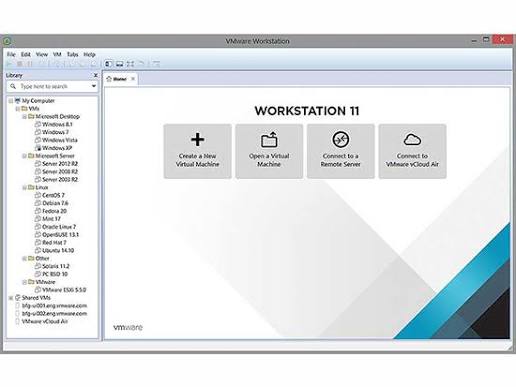
VMware Workstation Pro 26H1: A Major Step Toward Modern Desktop Virtualization
VMware Workstation Pro 26H1 is one of the more significant desktop virtualization releases in the VMware Workstation product line because it combines an architectural transition with broader operating-system support, improved virtual-machine management, and connectivity to ARM-based ESXi infrastructure.
Broadcom announced the general availability of VMware Workstation 26H1 on May 14, 2026. The release introduces a 64-bit Windows application architecture, new VM lifecycle visibility, integrated VM notes, improved credential identification, remote connectivity to ARM-based ESXi servers, and support for newer host and guest operating systems including Ubuntu 26.04 LTS, Fedora 43 and 44, SUSE Linux Enterprise 16, openSUSE 16.0, and FreeBSD 15.0.
The release is particularly interesting because desktop virtualization is increasingly becoming part of a much larger infrastructure workflow.
A modern engineer may work with:
- x86-64 servers
- ARM64 servers
- Linux
- Windows
- FreeBSD
- Containers
- Kubernetes
- Cloud infrastructure
- Infrastructure as Code
- CI/CD pipelines
- Network security systems
VMware Workstation can provide a local environment in which many of these technologies can be tested before they are deployed into larger infrastructure.
For readers new to virtualization, start with the CorgiNetwork guide Virtualization Explained: Hypervisors, Virtual Machines, Networking, Storage and High Availability, which explains the underlying concepts behind hypervisors, virtual hardware, storage, networking, snapshots, and high availability.
VMware Workstation Pro 26H1 at a Glance
| Feature | VMware Workstation Pro 26H1 |
|---|---|
| Release | 26H1 |
| Release date | May 14, 2026 |
| Windows architecture | 64-bit |
| ARM ESXi connectivity | Yes |
| ARM ESXi status | Tech Preview |
| Ubuntu 26.04 LTS | Supported |
| Fedora 43 | Supported |
| Fedora 44 | Supported |
| SUSE Linux Enterprise 16 | Supported |
| openSUSE 16.0 | Supported |
| FreeBSD 15.0 | Supported |
| VM creation timestamp | Added |
| Last power-on timestamp | Added |
| Folder notes | Added |
| Credential Manager improvements | Added |
| VMware Tools at release | 13.1.0 |
| VMware Tools 13.1.0 build | 25218885 |
Broadcom’s official announcement confirms the principal Workstation 26H1 changes and explicitly identifies ARM ESXi support as Tech Preview.
What Is VMware Workstation Pro?
VMware Workstation Pro is a desktop hypervisor that allows a physical computer to run multiple virtual machines simultaneously.
Instead of installing an operating system directly onto physical hardware, virtualization creates a layer of virtual hardware.
A simplified architecture looks like this:
Physical Hardware
       │
       ▼
Host Operating System
       │
       ▼
VMware Workstation Pro
       │
 ┌─────┼──────────────┐
 ▼     ▼              ▼
VM 1  VM 2           VM 3
 │     │              │
Linux Windows        FreeBSD
Each virtual machine can have its own:
- CPU allocation
- Memory
- Virtual disk
- Network adapter
- Virtual firmware
- Operating system
- Applications
- Network configuration
This makes virtualization extremely useful for development, testing, education, cybersecurity laboratories, networking experiments, and DevOps.
The networking component is especially important. Before building complex VMware labs, it is useful to understand Computer Networking Explained and TCP/IP Explained.
The Biggest Change: VMware Workstation for Windows Is Now 64-Bit
The most important architectural change in Workstation 26H1 is the move of the Windows client to a 64-bit application architecture.
Broadcom states that most binaries, libraries, and installer components now execute as 64-bit processes. The change is intended to align Workstation with modern hardware and software standards and provide a more modern foundation for demanding virtualized workloads.
This matters because virtualization software interacts with many parts of the host system:
Windows
  │
  ├── CPU virtualization
  ├── Memory management
  ├── Storage
  ├── Networking
  ├── Graphics
  ├── Security
  └── Device drivers
          │
          ▼
    VMware Workstation
A 64-bit application architecture is therefore a more natural fit for modern 64-bit Windows systems.
Why the 64-Bit Transition Matters
The transition is not simply about being able to use more memory.
Modern virtualization software must interact with:
- 64-bit operating-system APIs
- Hardware-assisted virtualization
- Modern security mechanisms
- Endpoint security products
- Development tools
- Virtual networking drivers
- Storage drivers
- Graphics subsystems
The 64-bit transition therefore represents a modernization of the Workstation client itself.
For developers and infrastructure engineers, it also makes Workstation more consistent with the architecture of the operating systems and development environments they are likely to run.
Installation Path Considerations
The architectural transition also changes the environment in which Workstation is installed.
The expected 64-bit Windows installation location is under:
C:\Program Files\VMware\
rather than the traditional 32-bit program directory:
C:\Program Files (x86)\VMware\
This is important for administrators who have automation scripts referencing VMware executables.
For example, a script should not blindly assume that:
C:\Program Files (x86)\VMware\VMware Workstation\
is always the correct location.
A more robust PowerShell approach is:
$paths = @(
    "$env:ProgramFiles\VMware\VMware Workstation",
    "${env:ProgramFiles(x86)}\VMware\VMware Workstation"
)

foreach ($path in $paths) {
    if (Test-Path $path) {
        Write-Host "VMware Workstation found: $path"
    }
}
This is especially useful when maintaining scripts across different Workstation generations.
VM Lifecycle Timestamps
Workstation 26H1 introduces additional lifecycle information for virtual machines.
Users can see:
- VM creation time
- Last power-on time
This may appear to be a small interface improvement, but it becomes increasingly useful when a workstation contains a large number of virtual machines.
Consider a development computer containing:
Ubuntu-Dev
Ubuntu-Test
Windows-Server-Lab
Fedora-Dev
FreeBSD-Lab
Kubernetes-Lab
Security-Lab
Docker-Lab
After several months, identifying unused VMs can become difficult.
Lifecycle timestamps make it easier to determine:
- Which VMs are active
- Which VMs are old
- Which test environments may be obsolete
- Which machines have not been used recently
Broadcom specifically describes the feature as helping users track long-term projects and clean up temporary test environments.
Integrated VM Folder Notes
Workstation 26H1 also brings VM notes directly into the folder interface.
This is useful for documenting the purpose of a virtual machine.
For example:
VM Name:
Ubuntu-Network-Lab

Purpose:
Network troubleshooting laboratory

Network:
Host-only

Services:
DNS
DHCP
Nginx

Owner:
Network Team

Status:
Testing
For larger VM libraries, documentation is not a cosmetic feature.
It becomes part of operational management.
Credential Manager Improvements
Broadcom also improved how Workstation-related credentials appear in the host Credential Manager.
Saved credentials associated with encrypted virtual machines and remote servers are made easier to distinguish.
This is particularly useful when a workstation is used to connect to multiple environments:
Local VMs
     │
     ├── Development
     ├── Testing
     └── Security Lab

Remote Infrastructure
     │
     ├── ESXi
     ├── Test Servers
     └── ARM ESXi
Clear credential identification reduces the possibility of confusion when managing multiple environments.
However, administrators should still follow strong credential-management practices and avoid storing unnecessary privileged credentials.
Remote ARM-Based ESXi Connectivity
One of the most strategically interesting additions is support for connecting to remote ARM-based ESXi servers.
Broadcom describes Workstation 26H1 as adding the ability to connect to remote ARM-based ESXi and manage virtual machines from Workstation or Fusion. Importantly, Broadcom identifies ARM ESXi Server support as Tech Preview.
This distinction matters.
Tech Preview functionality should be evaluated carefully before being treated as a production dependency.
Why ARM Virtualization Matters
ARM64 infrastructure has become increasingly important across cloud computing and server environments.
Examples include:
- AWS Graviton
- Ampere-based servers
- Edge computing
- ARM development platforms
- Energy-efficient server infrastructure
This creates an increasingly heterogeneous infrastructure landscape.
Instead of:
Everything = x86-64
engineers increasingly encounter:
x86-64
+
ARM64
That affects:
- Operating systems
- Virtual machines
- Container images
- Application binaries
- CI/CD pipelines
- Monitoring agents
- Security tools
- Build systems
ARM Host and ARM Guest Are Different Concepts
It is important not to confuse ARM ESXi support with universal compatibility between ARM and x86 workloads.
A simplified ARM virtualization environment looks like:
ARM64 Hardware
      │
      ▼
ARM-based ESXi
      │
      ├── ARM64 Linux VM
      ├── ARM64 Development VM
      └── Other supported ARM guests
An x86 virtualization environment is different:
x86-64 Hardware
      │
      ▼
x86-based Hypervisor
      │
      ├── x86 Linux
      ├── Windows x64
      └── BSD x86
The guest operating system and application architecture must therefore be considered separately from the architecture of the management client.
New Guest Operating-System Support
Workstation 26H1 expands support for modern operating systems.
Broadcom lists the following new guest operating systems:
- Ubuntu 26.04 LTS
- Fedora 43
- Fedora 44
- SUSE Linux Enterprise 16
- openSUSE 16.0
- FreeBSD 15.0
This is important for developers who want to test current Linux and BSD releases without changing the physical operating system.
Ubuntu 26.04 LTS in VMware Workstation
Ubuntu is one of the most widely used Linux distributions in development, cloud, networking, and server environments.
Workstation 26H1 officially adds Ubuntu 26.04 LTS support.
A developer can use an Ubuntu VM for:
Linux Development
      │
      ├── Git
      ├── Docker
      ├── Kubernetes
      ├── Terraform
      ├── Ansible
      ├── Nginx
      └── Network Tools
Broadcom’s host-OS compatibility documentation also lists Ubuntu 26.04 for Workstation 26H1, with the supported kernel condition specified by Broadcom.
Fedora 43 and Fedora 44
Fedora 43 and Fedora 44 are also included in the 26H1 support matrix.
Fedora is particularly useful for developers and administrators who want a modern Linux environment for testing:
- New kernels
- Development tools
- Containers
- Networking
- Security technologies
- Modern desktop environments
This makes Workstation useful as a controlled testing platform.
SUSE Linux Enterprise 16 and openSUSE 16.0
Workstation 26H1 also adds:
- SUSE Linux Enterprise 16
- openSUSE 16.0
These environments are relevant for enterprise Linux testing, system administration, software development, and infrastructure engineering.
Organizations that maintain mixed Linux environments can therefore use Workstation to reproduce different operating-system configurations without requiring separate physical machines.
FreeBSD 15.0
FreeBSD 15.0 is another important addition.
FreeBSD has long been relevant to:
- Networking
- Servers
- Storage
- Security
- UNIX administration
- Infrastructure engineering
A FreeBSD VM can be used to create an isolated laboratory for testing network services and server configurations.
For networking fundamentals, combine this environment with the CorgiNetwork guides on DNS, Network Security, and Firewalls.
New Host Operating-System Support
The release also adds host support for:
- Ubuntu 26.04 LTS
- Fedora 43
- Fedora 44
- SUSE Linux Enterprise 16 GA
- openSUSE 16.0
Broadcom’s compatibility documentation provides the supported-host matrix for Workstation 26H1.
This makes Workstation useful not only on Windows but also as a Linux-host virtualization platform.
VMware Tools 13.1.0
Alongside Workstation 26H1, Broadcom released VMware Tools 13.1.0.0, build 25218885, on May 12, 2026. Broadcom’s version database confirms the build and release date.
VMware Tools provides guest integration components that allow the guest operating system to interact more effectively with VMware’s virtual hardware environment.
A simplified model is:
Physical Hardware
       │
       ▼
Host OS
       │
       ▼
VMware Workstation
       │
       ▼
Virtual Hardware
       │
       ▼
Guest OS
       │
       ▼
VMware Tools
This is why upgrading Workstation and ignoring guest integration components can produce an incomplete upgrade strategy.
WDDM 2.0 Support
VMware Tools 13.1.0 adds WDDM 2.0 compatibility for supported Windows guests.
WDDM, or Windows Display Driver Model, is Microsoft’s graphics-driver architecture.
This matters for Windows virtual machines because graphics integration affects:
- Desktop rendering
- Virtual displays
- GUI applications
- 3D acceleration
- Remote desktop environments
The VMware Tools 13.1.0 release also introduced other Windows guest improvements.
Combining Windows Guest Reboots
VMware Tools 13.1.0 improves reboot handling during Windows guest updates.
When both VMware Tools and the Microsoft Visual C++ Redistributable require a reboot, the process can combine those restart requirements.
The objective is simple:
Old workflow:

VC++ Update
   ↓
Reboot
   ↓
VMware Tools Update
   ↓
Reboot

New workflow:

VC++ Update
   +
VMware Tools Update
   ↓
One reboot
This can be particularly useful in managed environments where every reboot interrupts a workload or requires maintenance coordination.
PowerShell Script Signing
Another security-related change in VMware Tools 13.1.0 is the addition of digital signatures to PowerShell scripts included with VMware Tools.
This provides an additional integrity mechanism for scripts supplied with the guest integration package.
It is important, however, to understand what code signing does and does not provide.
A valid digital signature can help establish:
- Publisher identity
- File integrity relative to the signed content
But it does not automatically mean:
- The system is completely secure
- The software is free of vulnerabilities
- Every dependency is safe
This distinction is important in modern software supply-chain security.
For a broader cybersecurity foundation, see Cybersecurity for Beginners.
Updated Third-Party Components
VMware Tools 13.1.0 also updated several bundled third-party components, including versions of libraries such as OpenSSL, glib, libpng, libxml2, and xmlsec. Contemporary release coverage identifies these updates as part of the release.
This is important because modern software security is not limited to the primary application.
A product can depend on dozens or hundreds of libraries.
The dependency chain can look like:
VMware Tools
     │
     ├── OpenSSL
     ├── glib
     ├── libpng
     ├── libxml2
     └── xmlsec
Maintaining these dependencies is therefore part of the broader software-maintenance lifecycle.
Important VMware Tools 13.1.0 Compatibility Issue
Administrators using older VMware Horizon environments need to pay particular attention to VMware Tools 13.1.0.
Broadcom documents a compatibility issue affecting Horizon View 7.8 and earlier on Windows VMs.
With VMware Tools 13.1.0 and later, the installer no longer performs the previous compatibility check before installing the SVGA driver. In affected environments, this can result in a black screen when connecting to the Windows VM.
Broadcom provides three approaches:
- Upgrade Horizon View to 7.9 or later.
- Install VMware Tools without the SVGA driver.
- Use the documented silent-install configuration that excludes the SVGA component.
This is a good example of why virtualization upgrades should be tested against the complete infrastructure stack rather than only the hypervisor itself.
VMware Workstation 26H1 and Virtual Networking
Networking is one of the strongest use cases for Workstation.
A single physical computer can host several virtual systems connected through virtual networks.
A simplified environment might look like:
                    Physical Network
                          │
                          ▼
                    Windows Host
                          │
                  VMware Workstation
                          │
                ┌─────────┴─────────┐
                │ Virtual Network    │
                └─────────┬─────────┘
                          │
          ┌───────────────┼───────────────┐
          ▼               ▼               ▼
       Ubuntu          Windows          FreeBSD
        Server           VM               VM
This can reproduce many real-world networking scenarios.
NAT Networking
NAT allows virtual machines to access external networks through the host’s network connection.
Conceptually:
Internet
   │
   ▼
Physical Router
   │
   ▼
Host Computer
   │
   ▼
VMware NAT
   │
   ▼
Virtual Machine
NAT is convenient for development because the guest does not necessarily need to appear as a separate physical device on the LAN.
Bridged Networking
Bridged networking allows a VM to connect more directly to the physical network.
Physical LAN
     │
 ┌───┴────┐
 │        │
Host     VM
 │        │
 └─Bridge─┘
This is useful when the VM needs to behave like another machine on the LAN.
Typical applications include:
- Server testing
- Network services
- DNS
- DHCP
- Network monitoring
- Client/server testing
However, bridged networking also increases exposure because the VM is more directly connected to the physical network.
Host-Only Networking
Host-only networking creates an isolated network between the host and selected virtual machines.
             Host
               │
       Host-only Network
          ┌────┴────┐
          │         │
       Ubuntu     Fedora
         VM         VM
This is particularly useful for:
- Security labs
- Network testing
- Offline development
- Server experiments
- Malware-analysis environments where appropriate isolation is required
Security testing should always be performed only on systems and networks for which you have authorization.
Building a VMware Network Laboratory
A serious networking laboratory can contain multiple virtual machines.
For example:
                  VMware Workstation
                         │
                  Virtual Network
                         │
       ┌─────────────────┼─────────────────┐
       │                 │                 │
       ▼                 ▼                 ▼
   Linux Server      Windows Server      FreeBSD
       │                 │                 │
      DNS                AD              Firewall
       │                 │                 │
       └─────────────────┼─────────────────┘
                         │
                     Test Clients
This environment can be used to study:
- DNS
- DHCP
- TCP/IP
- Routing
- Firewalls
- Authentication
- Network monitoring
- Server administration
- Security segmentation
The concepts are directly related to our Network Access Control and Zero Trust Security guides.
VMware Workstation and Cloud Networking
Desktop virtualization can also be used to learn cloud networking concepts.
A local environment can reproduce concepts such as:
- Subnets
- Routing
- NAT
- DNS
- Firewalls
- Load balancing
- Network segmentation
- Private services
For example:
                 Load Balancer
                      │
             ┌────────┴────────┐
             │                 │
          Web VM 1          Web VM 2
             │                 │
             └────────┬────────┘
                      │
                  Database
The logical architecture is similar to what engineers build in cloud environments.
For a detailed cloud-networking explanation, see Cloud Networking Explained: VPCs, Subnets, Routing, NAT, VPNs, Firewalls and Load Balancing.
VMware Workstation and Containers
Virtual machines and containers solve different problems and can be used together.
For example:
Physical Host
      │
      ▼
VMware Workstation
      │
      ▼
Linux VM
      │
      ▼
Docker / Container Runtime
      │
 ┌────┼─────┐
 ▼    ▼     ▼
App  API   Database
The VM provides operating-system isolation while containers provide application-level isolation.
This combination is particularly useful for learning:
- Docker
- Kubernetes
- Microservices
- DevOps
- CI/CD
- Infrastructure as Code
VMware Workstation and Kubernetes
A multi-VM Kubernetes laboratory can be created on a single workstation.
For example:
                    Kubernetes Lab
                         │
             ┌───────────┴───────────┐
             │                       │
        Control Plane             Worker Nodes
             │                       │
             │              ┌────────┴────────┐
             │              │                 │
             ▼              ▼                 ▼
          API Server      Worker 1         Worker 2
This allows engineers to experiment with:
- Kubernetes networking
- Service discovery
- DNS
- Ingress
- Container networking
- Storage
- Cluster security
- Deployment automation
This is particularly valuable before moving to managed Kubernetes environments in AWS, Azure, or Google Cloud.
VMware Workstation for DevOps
Workstation can serve as a local DevOps laboratory.
A developer could create:
Git
 │
 ▼
CI/CD Server
 │
 ▼
Build Environment
 │
 ▼
Container Registry
 │
 ▼
Application
 │
 ▼
Monitoring
Several VMs can represent:
VM 1 → Git / CI
VM 2 → Application
VM 3 → Database
VM 4 → Monitoring
VM 5 → Reverse Proxy
This creates a miniature infrastructure environment suitable for development and testing.
For cloud architecture, see the CorgiNetwork comparison of AWS vs Azure vs Google Cloud.
VMware Workstation and Cybersecurity Labs
Virtualization is particularly valuable for cybersecurity training because isolated VMs can be used to build controlled environments.
A laboratory might contain:
Security VM
     │
     ├── Monitoring
     ├── Packet Analysis
     └── Testing
           │
     ┌─────┴─────┐
     ▼           ▼
 Windows       Linux
   VM            VM
The virtual network can then be separated from the production network.
Useful concepts to study include:
- Firewalls
- IDS/IPS
- Network monitoring
- DNS security
- Endpoint security
- Authentication
- Incident response
See Firewalls Explained for the network-security layer and the CorgiNetwork cybersecurity cluster for deeper security topics.
VMware Workstation and Server Infrastructure
Workstation is not a replacement for enterprise virtualization infrastructure, but it is an excellent training and development platform.
A local laboratory can reproduce concepts used in enterprise environments:
Compute
   │
   ├── Virtual Machines
   ├── Containers
   └── Applications

Networking
   │
   ├── Virtual Switches
   ├── NAT
   ├── Routing
   └── Firewalls

Storage
   │
   ├── Virtual Disks
   ├── Snapshots
   └── Backup

Operations
   │
   ├── Monitoring
   ├── Automation
   └── Security
For a deeper infrastructure foundation, see Servers & Infrastructure Explained.
VMware Workstation vs Cloud Virtual Machines
| Capability | VMware Workstation | Cloud Virtual Machine |
|---|---|---|
| Physical location | Local computer | Cloud provider |
| Primary use | Development and testing | Production and scalable workloads |
| Hardware | Local | Provider infrastructure |
| Network | Virtual/local | VPC/VNet |
| Scaling | Host-limited | Provider-dependent |
| Internet dependency | Not necessarily | Usually |
| Cost model | Local hardware | Usage-based |
| Best for | Labs, testing, learning | Production infrastructure |
The technologies are therefore complementary rather than direct replacements.
VMware Workstation Security Best Practices
A virtual machine should not automatically be considered secure simply because it is virtual.
A strong environment should protect multiple layers:
Host
 │
 ▼
Hypervisor
 │
 ▼
Virtual Hardware
 │
 ▼
Guest OS
 │
 ▼
Applications
 │
 ▼
Network
Recommended controls include:
- Keep Windows or Linux hosts updated.
- Keep Workstation updated.
- Keep VMware Tools updated.
- Patch guest operating systems.
- Use host firewalls.
- Segment security laboratories.
- Restrict administrative access.
- Avoid unnecessary shared folders.
- Control USB passthrough.
- Encrypt sensitive VM storage.
- Back up important VMs.
- Monitor unexpected network traffic.
These principles align with the broader Zero Trust Security model.
Snapshots Are Not Backups
This distinction deserves special attention.
A snapshot records the state of a VM at a particular point in time.
It should not be treated as an independent backup strategy.
A better approach is:
VM
 │
 ├── Snapshot → Short-term rollback
 │
 └── Backup → Independent recovery
Snapshots can consume substantial storage and can become problematic when retained indefinitely.
For important VMs, maintain an independent backup strategy.
Upgrading to VMware Workstation Pro 26H1
Broadcom’s installation guidance recommends reviewing the latest release notes and ensuring that the physical machine meets the relevant host requirements. Broadcom also documents the installation process for Windows and Linux hosts.
Before upgrading, administrators should document:
Current Workstation version
VM locations
Network configuration
VMware Tools versions
Automation scripts
Shared folders
USB devices
Snapshots
Backup status
This is particularly important for workstations hosting development environments.
Upgrade Checklist
Before upgrading:
[ ] Back up critical VMs
[ ] Document Workstation version
[ ] Document VM locations
[ ] Check available disk space
[ ] Check host OS compatibility
[ ] Check security software
[ ] Review release notes
[ ] Test critical VMs
[ ] Record network configuration
[ ] Review automation scripts
After upgrading:
[ ] Start a test VM
[ ] Verify CPU virtualization
[ ] Verify memory
[ ] Verify disk access
[ ] Verify network connectivity
[ ] Verify DNS
[ ] Verify VMware Tools
[ ] Test shared folders
[ ] Test USB devices
[ ] Review VM performance
VMware Workstation 26H1 Known Issues and Practical Cautions
A high-quality technical article should not discuss only the advertised features.
Real-world deployments can expose compatibility issues that are not obvious from the headline feature list.
For example, Broadcom documents the VMware Tools 13.1.0/Horizon compatibility problem described earlier.
The Broadcom community also contains reports of other 26H1-specific issues, including graphics and networking behavior on particular configurations. Such community reports should be treated as environment-specific reports rather than universal product behavior, but they are useful signals for administrators performing pilot testing.
This reinforces an important operational principle:
Do not treat a virtualization upgrade as a single software installation. Treat it as an infrastructure change.
A Better Enterprise Upgrade Strategy
For organizations managing many Workstation installations, a staged deployment is safer.
Phase 1
Laboratory

     ↓

Phase 2
IT / Engineering Pilot

     ↓

Phase 3
Small Production Group

     ↓

Phase 4
Organization-Wide Deployment
At every stage, verify:
- VM boot
- Networking
- Graphics
- USB
- VMware Tools
- Security software
- Automation
- Remote connectivity
Only proceed when the previous stage has been validated.
VMware Workstation 26H1 for Developers
A developer can use Workstation 26H1 to maintain multiple independent environments.
For example:
Developer Workstation
        │
        ▼
VMware Workstation
        │
 ┌──────┼───────────┬───────────┐
 ▼      ▼           ▼           ▼
Ubuntu Fedora     Windows     FreeBSD
 │      │           │           │
Dev    Dev         .NET       Network
Lab    Lab         Lab        Lab
This allows developers to test applications against different operating systems without changing the physical host.
It also makes destructive testing much easier because an isolated VM can be recreated from a known configuration.
VMware Workstation 26H1 for IT Students
Students can build complete infrastructure laboratories without purchasing multiple physical servers.
For example:
Linux Server
     │
     ├── DNS
     ├── Web Server
     └── SSH

Windows Server
     │
     ├── Active Directory
     └── Windows Services

Security VM
     │
     ├── Monitoring
     └── Packet Analysis

Client VM
     │
     └── Testing
This is a practical way to learn infrastructure rather than relying exclusively on theoretical material.
VMware Workstation 26H1 and Hybrid Infrastructure
The ARM ESXi connectivity feature is particularly interesting in hybrid environments.
A possible architecture could look like:
Local Development
       │
       ▼
VMware Workstation
       │
       │ Remote Management
       ▼
ARM-based ESXi
       │
       ▼
Virtual Infrastructure
       │
       ├── Applications
       ├── Databases
       └── Services
This demonstrates how desktop management tools can increasingly interact with heterogeneous infrastructure.
However, because Broadcom labels ARM ESXi support as Tech Preview, organizations should validate functionality before relying on it for critical operations.
Why the 26H1 Release Matters for Infrastructure Engineers
The release reflects several broader trends.
1. 64-bit is now the baseline
Modern desktop infrastructure is increasingly optimized around 64-bit environments.
2. ARM is becoming mainstream
ARM is no longer limited to mobile devices. It is increasingly important in cloud and server infrastructure.
3. Operating-system diversity is increasing
Engineers need to work with multiple Linux distributions, Windows, BSD, and different CPU architectures.
4. Local virtualization remains valuable
Cloud computing has not eliminated the need for local laboratories.
5. Security is becoming integrated into infrastructure
Code signing, secure boot, credential management, isolation, and supply-chain security are increasingly interconnected.
VMware Workstation 26H1 and Modern DevOps
The modern development workflow can be represented as:
Developer
   │
   ▼
Local VM
   │
   ▼
Git
   │
   ▼
CI/CD
   │
   ▼
Containers
   │
   ▼
Kubernetes
   │
   ▼
Cloud Infrastructure
Workstation occupies an important position near the beginning of this chain.
It gives developers an environment in which infrastructure can be reproduced before being deployed elsewhere.
This makes virtualization closely related to:
- DevOps
- Infrastructure as Code
- Configuration management
- CI/CD
- Cloud engineering
- Platform engineering
Troubleshooting VMware Workstation 26H1
A systematic troubleshooting method is more effective than changing random settings.
Start with the host.
CPU
 ↓
Memory
 ↓
Storage
 ↓
Host OS
 ↓
VMware Workstation
 ↓
Virtual Hardware
 ↓
Guest OS
 ↓
Network
 ↓
Application
Troubleshooting VM Networking
Inside Windows:
ipconfig
ping 8.8.8.8
nslookup example.com
Inside Linux:
ip addr
ip route
ping -c 4 8.8.8.8
resolvectl status
Interpretation:
No IP address
    ↓
DHCP / adapter problem

IP exists but gateway fails
    ↓
Routing / virtual network problem

Gateway works but Internet IP fails
    ↓
NAT / upstream problem

Internet IP works but domain fails
    ↓
DNS problem
This layered troubleshooting method is consistent with the principles explained in the CorgiNetwork DNS Explained guide.
Troubleshooting Performance
If a VM is slow, examine:
Host CPU
Host RAM
Host Storage
VM CPU allocation
VM RAM allocation
Virtual disk type
Snapshots
Guest processes
Background applications
Avoid assuming that allocating more virtual CPUs always improves performance.
For example:
Host:
8 CPU cores

VM A:
8 vCPUs

VM B:
8 vCPUs

VM C:
8 vCPUs
The host can become heavily oversubscribed.
A more balanced configuration may be preferable:
VM A → 2 vCPU
VM B → 2 vCPU
VM C → 2 vCPU
The optimal configuration depends on workload characteristics.
VMware Workstation and Storage
Virtual machines can consume significant storage.
A single VM may contain:
.vmx
.vmdk
.nvram
.vmxf
Snapshots
ISO files
Logs
A laboratory containing ten VMs can therefore consume hundreds of gigabytes.
Administrators should regularly review:
- Old snapshots
- Unused VMs
- ISO files
- Duplicate VM clones
- Old Workstation installation directories
- Log files
VM lifecycle timestamps in 26H1 can help identify candidates for cleanup.
Workstation 26H1 and Automation
Modern infrastructure increasingly relies on automation.
Workstation environments can also be automated using tools such as:
PowerShell
vmrun
Configuration management
Git
CI/CD
Infrastructure scripts
Automation becomes particularly useful when the same VM must be recreated repeatedly.
A conceptual workflow is:
Configuration
     │
     ▼
VM Definition
     │
     ▼
Automated Creation
     │
     ▼
Operating System
     │
     ▼
Software Installation
     │
     ▼
Testing
This approach reduces configuration drift.
VMware Workstation and Reproducible Infrastructure
A major advantage of virtualization is reproducibility.
Instead of saying:
“This application works on my computer.”
an engineering team can define:
OS
CPU
Memory
Disk
Network
Software
Configuration
Dependencies
and reproduce the environment.
This concept is fundamental to modern DevOps.
Workstation vs Containers
Virtual machines and containers should not be considered competitors.
| Feature | Virtual Machine | Container |
|---|---|---|
| Kernel | Separate guest kernel | Shared host kernel |
| Isolation | Stronger OS boundary | Process-level isolation |
| Startup | Usually slower | Usually faster |
| Resource overhead | Higher | Lower |
| OS diversity | High | Depends on host/runtime |
| Best for | Full OS environments | Application workloads |
A common modern architecture uses both:
Physical Host
      │
 VMware Workstation
      │
 Linux VM
      │
 Containers
      │
 Applications
Workstation 26H1 and Cloud Migration
A local VM can also serve as a development approximation of a future cloud workload.
For example:
Local VMware Lab

Ubuntu VM
   │
   ├── Application
   ├── Database
   └── Monitoring

             ↓

Cloud Architecture

Cloud VM / Container
   │
   ├── Application
   ├── Managed Database
   └── Cloud Monitoring
The exact implementation changes, but the underlying concepts remain related.
This is why understanding virtualization is still valuable for cloud engineers.
Free Distribution Model
VMware Workstation and VMware Fusion moved to a free distribution model in November 2024.
Broadcom announced that Workstation and Fusion became available for commercial, educational, and personal use without the previous paid subscription model.
Broadcom’s 26H1 announcement continues to state that Workstation Pro and Fusion Pro are free for commercial, educational, and personal use and are available through the Broadcom Support Portal.
Users should still obtain the software from Broadcom’s official channels rather than unofficial download sites.
The official installation documentation is available through Broadcom’s VMware Workstation installation guide.
How to Install VMware Workstation Pro 26H1
Broadcom’s documented Windows installation workflow is straightforward.
The general process is:
Broadcom Support Portal
        │
        ▼
Download Workstation
        │
        ▼
Run installer as Administrator
        │
        ▼
Choose Typical or Custom
        │
        ▼
Complete installation
        │
        ▼
Restart host
Broadcom recommends reviewing the current release information and host requirements before installation.
The safest practice is to use the official Broadcom download channel.
What About VMware Tools Today?
One important publication detail is necessary when discussing VMware Tools 13.1.0.
VMware Tools 13.1.0 was the release associated with this Workstation 26H1 launch period, with build 25218885 dated May 12, 2026. However, Broadcom’s current version database now lists newer 13.1.x builds, including VMware Tools 13.1.5.0, build 25544008, dated September 3, 2026.
Therefore:
Workstation 26H1 launch
        │
        └── VMware Tools 13.1.0
             Build 25218885

Later VMware Tools release
        │
        └── VMware Tools 13.1.5.0
             Build 25544008
This distinction is important for an article intended to remain accurate after publication.
Readers should consult Broadcom’s current VMware Tools version and build database before choosing the version to deploy.
VMware Workstation 26H1: Advantages and Limitations
Major improvements
- 64-bit Windows application architecture
- New VM lifecycle timestamps
- Improved VM notes
- Better credential identification
- ARM ESXi remote connectivity
- Ubuntu 26.04 support
- Fedora 43/44 support
- SUSE Linux Enterprise 16 support
- openSUSE 16.0 support
- FreeBSD 15 support
- Updated VMware Tools
Important considerations
- ARM ESXi is Tech Preview
- Existing environments should be tested
- Older Horizon deployments may encounter VMware Tools compatibility issues
- Automation scripts should account for installation-path changes
- Virtual-machine backups remain necessary
- Host resources limit local VM density
VMware Workstation 26H1 Upgrade Checklist
Use the following checklist before a production or development upgrade:
HOST
[ ] Supported 64-bit operating system
[ ] CPU virtualization enabled
[ ] Adequate RAM
[ ] Adequate storage
[ ] Host OS patched

WORKSTATION
[ ] Official Broadcom installer
[ ] Current release notes reviewed
[ ] Existing version documented
[ ] Installation path documented
[ ] Automation scripts reviewed

VIRTUAL MACHINES
[ ] Important VMs backed up
[ ] Snapshots reviewed
[ ] VM networking documented
[ ] VMware Tools versions recorded

NETWORK
[ ] NAT tested
[ ] Bridged mode tested if required
[ ] Host-only networks tested
[ ] DNS verified
[ ] Firewall rules checked

SECURITY
[ ] Host security software compatible
[ ] Guest operating systems updated
[ ] Administrative credentials protected
[ ] Shared folders reviewed
[ ] USB passthrough reviewed

POST-UPGRADE
[ ] Test VM boots
[ ] Network works
[ ] VMware Tools works
[ ] Applications work
[ ] Automation works
[ ] Monitoring works
VMware Workstation Pro 26H1: Frequently Asked Questions
What is VMware Workstation Pro 26H1?
VMware Workstation Pro 26H1 is the 2026 first-half release of VMware’s desktop hypervisor. It introduces a 64-bit Windows client architecture, improved VM management features, ARM ESXi connectivity, and support for newer operating systems.
Is VMware Workstation Pro 26H1 64-bit?
Yes. Broadcom states that VMware Workstation Pro for Windows is now a 64-bit application beginning with 26H1.
Does VMware Workstation 26H1 support Ubuntu 26.04?
Yes. Ubuntu 26.04 LTS is included in the supported guest operating-system list.
Does VMware Workstation 26H1 support Fedora 44?
Yes. Fedora 43 and Fedora 44 are listed among the supported guest operating systems.
Does VMware Workstation 26H1 support FreeBSD 15?
Yes. FreeBSD 15.0 is included in the new supported guest operating systems.
Can VMware Workstation 26H1 connect to ARM ESXi?
Yes. Workstation 26H1 adds connectivity to remote ARM-based ESXi servers. Broadcom currently labels ARM ESXi Server support as Tech Preview.
What is VMware Tools 13.1.0?
VMware Tools 13.1.0 is a guest-integration release containing drivers, services, and other components used to improve communication between VMware virtual machines and their guest operating systems. Broadcom records build 25218885 with a May 12, 2026 release date.
Is VMware Tools 13.1.0 the latest version?
No. It was the version released in the Workstation 26H1 launch period. Broadcom’s current version table lists later 13.1.x releases, including 13.1.5.0.
Does VMware Tools 13.1.0 support WDDM 2.0?
Yes, VMware Tools 13.1.0 introduced WDDM 2.0 compatibility for supported Windows guests.
Are there compatibility issues with VMware Tools 13.1.0?
Broadcom documents a specific compatibility issue involving Windows VMs using Horizon View 7.8 or earlier, where the SVGA driver behavior can result in a black screen.
Is VMware Workstation Pro free?
Yes. Broadcom moved Workstation and Fusion to a free model for commercial, educational, and personal users in November 2024, and the 26H1 announcement confirms that Workstation Pro remains free for those use cases.
Where should VMware Workstation be downloaded?
Use the official Broadcom Support Portal. Broadcom’s installation documentation provides the official download and installation process.
Can VMware Workstation be used for cybersecurity training?
Yes. It can be used to build isolated laboratories for authorized security testing, network analysis, server hardening, and incident-response training.
Are VMware snapshots backups?
No. Snapshots are primarily a rollback mechanism and should not replace independent backups.
Official VMware and Broadcom Resources
For the original 26H1 announcement, see Broadcom’s official VMware Workstation and Fusion 26H1 announcement.
For host operating-system compatibility, consult Broadcom’s Workstation 26H1 supported host operating systems documentation.
For VMware Tools versions and build numbers, use Broadcom’s VMware Tools version reference.
For VMware Workstation installation instructions, see the official Broadcom VMware Workstation installation guide.
For the documented VMware Tools/Horizon compatibility issue, see Broadcom Knowledge Base article 416513.
Related CorgiNetwork Guides
VMware Workstation becomes much more useful when combined with networking, security, cloud, and infrastructure knowledge.
Continue learning with:
- Virtualization Explained
- Servers & Infrastructure Explained
- Computer Networking Explained
- TCP/IP Explained
- DNS Explained
- Network Security Basics
- Firewalls Explained
- VPNs Explained
- Zero Trust Security
- Network Access Control (NAC)
- Cloud Networking Explained
- AWS vs Azure vs Google Cloud
- Cybersecurity for Beginners
These internal links create a connected topic cluster around virtualization → servers → networking → security → cloud → DevOps, which is a strong structure for CorgiNetwork’s broader topical authority.
Conclusion
VMware Workstation Pro 26H1 is an important release because it combines architectural modernization with broader operating-system and infrastructure support.
The move to a 64-bit Windows client brings Workstation closer to the architecture of modern Windows systems. The addition of Ubuntu 26.04 LTS, Fedora 43 and 44, SUSE Linux Enterprise 16, openSUSE 16.0, and FreeBSD 15.0 expands its usefulness as a development and testing platform.
The ability to connect to ARM-based ESXi servers is particularly significant because ARM is becoming an increasingly important part of modern cloud and server infrastructure. However, Broadcom currently identifies ARM ESXi Server support as a Tech Preview, so production adoption should be approached accordingly.
The accompanying VMware Tools 13.1.0 release adds important guest-integration improvements, including WDDM 2.0 compatibility, improved Windows reboot handling, signed PowerShell scripts, and updated components. Broadcom’s version history also shows that newer VMware Tools releases have subsequently become available, so administrators should consult the current compatibility matrix before deployment.
For developers, system administrators, network engineers, cybersecurity students, and DevOps practitioners, Workstation 26H1 can serve as much more than a simple desktop hypervisor.
It can become a complete infrastructure laboratory:
                 VMware Workstation
                         │
          ┌──────────────┼──────────────┐
          │              │              │
       Linux          Windows         FreeBSD
          │              │              │
          └──────────────┼──────────────┘
                         │
                 Virtual Networking
                         │
          ┌──────────────┼──────────────┐
          │              │              │
        DNS           Security        Services
          │              │              │
          └──────────────┼──────────────┘
                         │
                      DevOps
                         │
                    Containers
                         │
                    Kubernetes
                         │
                       Cloud
The real value of VMware Workstation Pro 26H1 is therefore not simply the ability to run another operating system.
It is the ability to build, isolate, test, troubleshoot, automate, and understand increasingly complex infrastructure from a single physical workstation.
For CorgiNetwork, this makes VMware Workstation Pro 26H1 a natural bridge between the site’s Servers & Infrastructure, Networking, Cybersecurity, Cloud & DevOps, and Virtualization topic clusters.