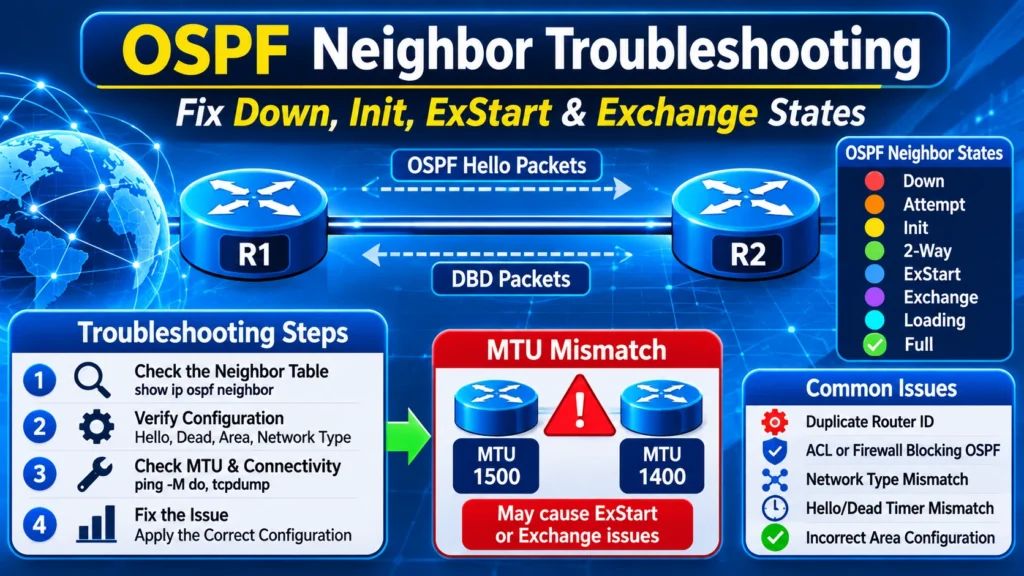
OSPF Neighbor Troubleshooting: Fix Down, Init, ExStart & Exchange States
Introduction
When two routers run Open Shortest Path First (OSPF), they must discover each other, establish a neighbor relationship, and synchronize their link-state databases before they can exchange routing information correctly.
However, OSPF neighbors do not always reach the expected FULL state.
A router might show a neighbor stuck in INIT, EXSTART, or EXCHANGE. In other situations, the neighbor appears as FULL, but the expected routes are missing from the routing table.
These symptoms can have different causes. A router stuck in INIT may indicate one-way Hello communication, while an EXSTART or EXCHANGE problem often involves Database Description (DBD) packet negotiation, an MTU mismatch, or another communication issue.
Effective OSPF neighbor troubleshooting requires identifying the exact neighbor state before changing the configuration.
This guide explains every OSPF neighbor state, how adjacency formation works, how to diagnose common failures using Cisco IOS, Linux FRRouting (FRR), and Juniper Junos commands, and how to resolve the underlying problems safely.
1. What Is an OSPF Neighbor?
OSPF is a link-state interior gateway protocol (IGP) used by routers to exchange information about network topology.
Unlike distance-vector protocols, OSPF routers build a link-state database (LSDB) that represents the topology of an OSPF area. They use this information to calculate the shortest paths using the Shortest Path First (SPF) algorithm.
Two OSPF routers that discover each other and exchange Hello packets become neighbors.
However, being neighbors does not always mean that they have formed a complete adjacency.
An OSPF adjacency is the relationship through which routers synchronize link-state information and maintain the appropriate database exchange process.
The distinction matters because not every OSPF neighbor is expected to reach FULL on every network type.
OSPF neighbor discovery process
A simplified OSPF adjacency process looks like this:
+----------------------+
| OSPF Interface Up    |
+----------------------+
           |
           v
+----------------------+
| Send and Receive     |
| Hello Packets        |
+----------------------+
           |
           v
+----------------------+
| Discover Neighbors   |
+----------------------+
           |
           v
+----------------------+
| Establish Two-Way    |
| Communication        |
+----------------------+
           |
           v
+----------------------+
| ExStart              |
| Master/Slave         |
| Negotiation          |
+----------------------+
           |
           v
+----------------------+
| Exchange             |
| Database Descriptors |
+----------------------+
           |
           v
+----------------------+
| Loading              |
| Request Missing LSAs |
+----------------------+
           |
           v
+----------------------+
| FULL                 |
| Database Synchronized|
+----------------------+
The exact progression depends on the network type and whether an adjacency is required.
The protocol behavior is defined in RFC 2328 — OSPF Version 2.
2. OSPF Neighbor States Explained
The show ip ospf neighbor command is one of the most useful starting points when troubleshooting Cisco OSPF.
It reveals the state of each discovered neighbor and helps identify where the adjacency process is failing.
OSPFv2 uses the following states:
| State | Meaning |
|---|---|
| Down | No recent valid Hello information has been received |
| Attempt | NBMA-specific state while trying to contact a configured neighbor |
| Init | Hello received, but bidirectional communication is not confirmed |
| 2-Way | Bidirectional Hello communication established |
| ExStart | Master/slave negotiation and initial DBD exchange |
| Exchange | Database Description packets are exchanged |
| Loading | Missing LSAs are requested |
| Full | Required link-state database synchronization is complete |
Down
The DOWN state is the initial state of an OSPF neighbor relationship.
It indicates that the router has not received valid Hello packets from that neighbor within the required interval.
Possible causes include:
- OSPF is not enabled on the remote interface.
- The physical interface or link is down.
- The IP addresses or subnet configuration are incorrect.
- OSPF packets are blocked by an ACL or firewall.
- The interface is configured as passive.
- The routers are not connected to the same Layer 2 or Layer 3 network as expected.
Start by checking the physical interface and confirming that OSPF is enabled on both sides.
Attempt
The ATTEMPT state is specific to non-broadcast multi-access (NBMA) networks.
It indicates that a router is attempting to reach a manually configured neighbor by sending unicast Hello packets but has not received a response.
Investigate NBMA neighbor configuration, reachability, and any required static neighbor statements.
Init
The INIT state means that a router has received a Hello packet from its neighbor, but bidirectional communication has not been confirmed.
A router includes the Router IDs of known neighbors in its outgoing Hello packets.
If Router A receives a Hello from Router B but does not see its own Router ID listed in Router B’s Hello, Router A remains in INIT.
Common causes include:
- One-way communication.
- ACLs blocking Hello packets in one direction.
- Incorrect multicast handling.
- Layer 2 problems.
- Incorrect interface or network configuration.
This is different from an EXSTART problem: the routers have not yet successfully established bidirectional Hello communication.
Cisco explains this behavior in its OSPF Init-state troubleshooting guide.
2-Way
The 2-WAY state indicates that bidirectional Hello communication has been established.
Whether it is a problem depends on the OSPF network type and the roles of the routers.
On a broadcast network such as Ethernet, OSPF elects a Designated Router (DR) and Backup Designated Router (BDR).
Two routers that are both DROTHER routers may remain in 2-WAY with each other. They do not necessarily need a full adjacency.
For example:
Router A: DROTHER
Router B: DROTHER

Neighbor State: 2-WAY
This can be completely normal.
However, routers that should form an adjacency, such as a DR and a DROTHER, must progress beyond this state.
Do not try to force every OSPF neighbor on a broadcast network into FULL.
ExStart
The EXSTART state is where neighboring routers negotiate the master/slave relationship used during database synchronization.
They also establish the initial sequence number for Database Description packets.
The router with the higher Router ID normally becomes the master during this negotiation.
A neighbor repeatedly stuck in EXSTART should be investigated because the routers are not completing the expected database exchange process.
A frequent cause is an interface MTU mismatch.
Other possible causes include:
- Duplicate Router IDs.
- DBD packets being dropped.
- Broken unicast communication on applicable network types.
- Incorrect network configuration.
- Problems with sequence numbers or DBD negotiation.
Exchange
The EXCHANGE state follows successful initial negotiation.
Routers exchange Database Description (DBD) packets containing summaries of their link-state databases.
They use this information to determine which LSAs they need to request.
A neighbor stuck in EXCHANGE may indicate that DBD exchange is not completing correctly.
Investigate:
- MTU compatibility.
- DBD packet retransmissions.
- Packet loss.
- ACL or firewall behavior.
- Duplicate Router IDs.
- Unexpected DBD sequence numbers.
- LSDB synchronization problems.
Loading
During the LOADING state, a router requests missing or more recent Link-State Advertisements (LSAs) from its neighbor.
A prolonged LOADING state can indicate that LSA requests are not being satisfied.
Possible causes include:
- Missing or inconsistent LSA information.
- Lost Link-State Request packets.
- Lost Link-State Update packets.
- Database synchronization problems.
- Software or interoperability issues.
Inspect OSPF logs and packet captures if the neighbor repeatedly remains in this state.
Full
FULL indicates that the required link-state database synchronization has completed.
For neighbors expected to form an adjacency, this is the normal operational state.
However, FULL does not automatically guarantee that the expected routes are installed in the routing table.
If neighbors are fully adjacent but routes are missing, investigate:
- Whether the relevant network is advertised.
- OSPF area configuration.
- Route filtering.
- Route redistribution.
- Prefix reachability.
- Route selection and administrative distance.
- Whether the route is present in the LSDB but not installed in the routing table.
3. Start with the OSPF Neighbor Table
Before changing configuration, collect the neighbor output from both routers.
On Cisco IOS:
show ip ospf neighborA simplified example:
Neighbor ID     Pri   State           Dead Time   Address         Interface
2.2.2.2           1   FULL/DR         00:00:34    192.0.2.2       Gi0/0
3.3.3.3           1   EXSTART/DR      00:00:36    192.0.2.3       Gi0/0
4.4.4.4           1   2WAY/DROTHER    00:00:37    192.0.2.4       Gi0/0
Interpret the output carefully:
FULL/DRmeans the neighbor is fully adjacent and is the DR.EXSTART/DRindicates that an adjacency is still being negotiated with a neighbor identified as DR.2WAY/DROTHERmay be normal on a broadcast network.
The most important question is not simply whether the neighbor is FULL.
It is whether the observed state is appropriate for the network type and router roles.
Check the OSPF process
Run:
show ip ospfInspect:
- Router ID.
- OSPF process information.
- Area information.
- Number of interfaces.
- SPF calculations.
- Routing information.
Then check the OSPF interfaces:
show ip ospf interfaceFor a specific interface:
show ip ospf interface GigabitEthernet0/0Compare the interface settings on both routers.
4. OSPF Neighbor Stuck in Init: How to Fix It
An OSPF neighbor stuck in INIT usually indicates a problem with bidirectional Hello communication.
The router is receiving Hello packets, but the remote router is not confirming the local Router ID in its own Hello packets.
Step 1: Verify interface status
Run:
show ip interface briefConfirm that the interface is administratively enabled and operational.
Then inspect the interface:
show interfaces GigabitEthernet0/0Check for interface errors, drops, and unexpected link conditions.
Step 2: Verify OSPF configuration
Run:
show ip ospf interface GigabitEthernet0/0Check:
- OSPF process.
- Area ID.
- Network type.
- Hello interval.
- Dead interval.
- Authentication.
- Interface state.
Step 3: Check whether Hello packets reach both routers
OSPFv2 uses IP protocol number 89.
It does not use TCP port 89 or UDP port 89.
On Ethernet broadcast networks, common OSPF multicast destinations include:
224.0.0.5— AllSPFRouters.224.0.0.6— AllDRouters.
Check ACLs, security policies, and multicast handling on the path.
A firewall rule that blocks IP protocol 89 can prevent OSPF adjacency formation even when ordinary ping traffic works.
Step 4: Inspect Hello packets
Use Wireshark or tcpdump to determine whether Hello packets are visible in both directions.
On Linux:
sudo tcpdump -ni eth0 'ip proto 89'For packet analysis, see our Wireshark Explained guide.
5. OSPF Neighbor Stuck in ExStart or Exchange
A neighbor stuck in EXSTART or EXCHANGE deserves particular attention because the routers have progressed beyond basic Hello discovery.
They are attempting to synchronize their databases but are not completing the process.
One of the most important things to check is the interface MTU.
What causes an OSPF MTU mismatch?
The Maximum Transmission Unit (MTU) defines the maximum packet size that an interface can transmit or receive without fragmentation, subject to the underlying protocol and interface behavior.
During OSPF database synchronization, Database Description packets contain an Interface MTU field.
According to RFC 2328, a router rejects a DBD packet when the advertised interface MTU exceeds the maximum IP datagram size that the receiving interface can accept without fragmentation.
Consider this example:
| Router | Interface MTU |
|---|---|
| Router A | 1500 bytes |
| Router B | 1400 bytes |
Router A may advertise an MTU of 1500 bytes in its DBD packet.
Router B cannot accept a packet size exceeding its configured receive capability under the OSPF MTU check, so it rejects that DBD packet.
The routers may repeatedly retransmit DBD packets without completing synchronization.
This can result in:
Router A: EXCHANGE
Router B: EXSTART
The exact state displayed depends on the negotiation and packet exchange behavior.
Cisco documents this issue in Troubleshoot OSPF Neighbors Stuck in ExStart/Exchange State.
Step 1: Check the interface MTU on both routers
On Cisco IOS:
show interfaces GigabitEthernet0/0Look for the reported MTU.
Also inspect the interface configuration:
show running-config interface GigabitEthernet0/0Repeat the checks on the neighboring router.
Do not assume that both interfaces have identical MTU settings simply because they are connected through the same Ethernet switch.
Step 2: Test packet size with the Don’t Fragment flag
On a Linux system, test the path using IPv4 ping:
ping -M do -s 1472 192.0.2.2For a standard IPv4 path MTU of 1500 bytes:
- 1472 bytes of ICMP data.
- 8 bytes of ICMP header.
- 20 bytes of IPv4 header.
Total: 1500 bytes.
If the test fails, reduce the payload size gradually:
ping -M do -s 1400 192.0.2.2This helps identify a possible path MTU limitation.
Keep in mind that an unsuccessful ping can also result from ICMP filtering or other policy restrictions. A packet-size test is one diagnostic clue, not definitive proof of an OSPF MTU mismatch.
For more network diagnostic commands, see Linux Network Tools.
Step 3: Correct the MTU mismatch
The preferred solution is to make the effective interface MTU compatible on both ends.
For example:
Router A: MTU 1500
Router B: MTU 1500
The appropriate interface configuration command depends on the vendor and platform.
On Cisco IOS platforms, ip mtu can be used to configure the IP MTU on supported interfaces, while mtu controls the interface MTU according to platform behavior.
Do not blindly change interface MTU on a live network. First check:
- Encapsulation overhead.
- VLAN tagging.
- MPLS labels.
- VPN tunnel overhead.
- Carrier Ethernet requirements.
- The actual maximum packet size supported across the path.
What about ip ospf mtu-ignore?
Cisco IOS supports the interface command:
ip ospf mtu-ignoreIt disables OSPF’s MTU mismatch check for the affected interface.
However, this is not the preferred solution for an ordinary MTU mismatch.
Ignoring the check does not increase the underlying path MTU or guarantee that larger packets can pass successfully.
Use it only when the network design legitimately requires different advertised and receive MTU behavior and you have confirmed that the complete data path can handle the resulting packets.
Where possible, correct the MTU configuration instead.
6. Other Causes of OSPF ExStart and Exchange Failures
MTU mismatch is a frequent cause, but it is not the only reason that database exchange can fail.
Duplicate Router IDs
Every OSPF router should use a unique Router ID within the OSPF routing domain.
If two routers use the same Router ID, neighbor formation and database synchronization can behave unpredictably.
Check the Router ID:
show ip ospfIf a duplicate is found, assign a unique Router ID to the affected router.
On Cisco IOS, this is configured under the OSPF process:
router ospf 10
 router-id 1.1.1.1
Use an address that is unique and follows your organization’s Router ID plan.
A Router ID change may require restarting the OSPF process or clearing the relevant process state. Plan that operation carefully because it can interrupt routing.
Access Lists or Firewalls Blocking OSPF
OSPF uses IP protocol 89.
An ACL or security policy that permits ICMP but blocks protocol 89 may allow ping tests to succeed while preventing OSPF database exchange.
Review access policies in both directions.
On applicable network types, also confirm that unicast packets used during database negotiation are not being blocked or translated unexpectedly.
Network Type Mismatch
OSPF interface network types influence neighbor discovery and adjacency behavior.
Common OSPF network types include:
- Broadcast.
- Non-broadcast multi-access (NBMA).
- Point-to-point.
- Point-to-multipoint.
A mismatch can create problems with Hello behavior, DR/BDR election, and adjacency expectations.
Check the interface configuration on both routers rather than assuming that identical physical media means identical OSPF network types.
Authentication Problems
OSPF authentication settings must be compatible between neighboring routers.
Depending on the OSPF version and platform, authentication may use different methods.
Verify:
- Authentication mode.
- Authentication key or key chain.
- Key identifiers where applicable.
- Key validity periods.
- Algorithm compatibility.
Authentication problems commonly prevent valid Hello processing rather than producing a clean EXSTART transition.
Incorrect Area Configuration
Routers forming an adjacency on the same link must agree on the relevant OSPF area configuration.
Also verify that area types are compatible.
For example, inconsistent stub-area configuration can prevent adjacency formation or produce inconsistent OSPF behavior.
Hello and Dead Timer Mismatch
Hello and Dead intervals control neighbor discovery and failure detection.
Common default values on traditional broadcast networks are 10 seconds for Hello and 40 seconds for Dead, but these are not universal defaults across every OSPF network type and platform.
Inspect the actual interface settings on both routers:
show ip ospf interface GigabitEthernet0/0The relevant timer settings must be compatible for adjacency formation.
7. Complete OSPF Neighbor Troubleshooting Command Checklist
The following commands provide a structured starting point for Cisco IOS troubleshooting.
| Command | Purpose |
|---|---|
show ip ospf neighbor | Check neighbor states |
show ip ospf | Inspect OSPF process and Router ID |
show ip ospf interface | Verify interface OSPF settings |
show ip interface brief | Check interface status and addresses |
show interfaces | Inspect MTU, errors and interface state |
show running-config | Review OSPF configuration |
show ip route ospf | Inspect installed OSPF routes |
show ip protocols | Review routing protocol configuration |
Use OSPF debug commands carefully
On supported Cisco IOS platforms:
debug ip ospf adjThis provides information about adjacency formation.
For a more detailed investigation, platform-specific debugging may expose Hello and DBD exchange behavior.
However, debug output can generate a substantial amount of CPU and console activity on busy routers.
Use it carefully, preferably during a controlled maintenance or troubleshooting window.
Stop debugging when finished:
undebug allNever leave extensive debugging enabled unnecessarily on a production router.
8. Troubleshooting OSPF on Linux FRRouting
Linux routers running FRRouting (FRR) can also participate in OSPF networks.
FRR provides commands for examining neighbors, interfaces, and the OSPF process.
Enter the FRR management interface:
sudo vtyshDisplay OSPF neighbors:
show ip ospf neighborInspect OSPF interfaces:
show ip ospf interfaceDisplay the OSPF routing information:
show ip route ospfOn the Linux host, inspect interface status and MTU:
ip link showCheck address configuration:
ip addr showInspect routing:
ip route showCapture OSPF packets:
sudo tcpdump -ni eth0 'ip proto 89'This combination helps separate FRR configuration problems from Linux interface, routing, and packet-delivery problems.
For advanced Linux routing environments, our Linux VRF Explained guide provides useful background on isolated routing tables and interfaces.
9. Troubleshooting OSPF on Juniper Junos
On Juniper devices running Junos OS, use the following commands to examine OSPF neighbor formation.
Display OSPF neighbors:
show ospf neighborDisplay detailed neighbor information:
show ospf neighbor detailInspect OSPF interfaces:
show ospf interfaceInspect interface details:
show interfaces extensiveReview the OSPF configuration:
show configuration protocols ospfThese commands help identify:
- Neighbor state.
- Interface participation.
- OSPF network configuration.
- MTU differences.
- Routing protocol configuration.
The exact command availability and output can vary by Junos release and platform.
For vendor-specific guidance, see the Juniper OSPF documentation.
10. OSPF Neighbor Is Full but Routes Are Missing
A neighbor state of FULL indicates that the expected database synchronization has completed.
It does not mean that every network route must automatically appear in the routing table.
If OSPF neighbors are full but a destination is unreachable, investigate the route advertisement and installation process.
Start with:
show ip route ospfThen inspect the OSPF database:
show ip ospf databaseCheck whether the expected LSA exists.
Possible causes include:
- The network is not being advertised.
- An interface is configured as passive.
- The relevant prefix belongs to another area.
- Route filtering is applied.
- Redistribution is missing or incorrect.
- The route is present in the LSDB but not selected for installation.
- A more preferred route already exists.
- The prefix has been summarized or filtered.
Use packet capture and the OSPF database together to understand whether the failure is in adjacency formation, route advertisement, or route installation.
11. OSPF Troubleshooting Decision Table
Use the current neighbor state to choose your next diagnostic step.
| Observed State | Likely Investigation |
|---|---|
| No neighbor entry | Physical link, IP configuration, OSPF interface, Hello packets and protocol 89 |
| Down | Hello delivery, interface status, passive interface and network reachability |
| Attempt | NBMA neighbor configuration and unicast reachability |
| Init | Bidirectional Hello communication, ACLs and multicast |
| 2-Way | Confirm DR/BDR roles and whether full adjacency is expected |
| ExStart | MTU, Router ID uniqueness and DBD negotiation |
| Exchange | MTU, DBD retransmissions, packet loss and LSDB exchange |
| Loading | LSA requests, updates and database synchronization |
| Full, but routes missing | LSDB, advertisements, filtering and route selection |
This approach prevents administrators from treating every OSPF neighbor failure as an MTU problem.
12. Best Practices for Stable OSPF Adjacencies
A reliable OSPF design starts with consistent interface configuration and predictable network behavior.
Follow these practices:
Use unique Router IDs. Maintain a central Router ID allocation plan to avoid duplicate identifiers.
Document OSPF areas. Keep area assignments consistent across neighboring routers.
Standardize Hello and Dead intervals. Use a consistent configuration based on network type and platform requirements.
Verify MTU across the path. Include VLAN, VPN, MPLS, and tunneling overhead when designing MTU values.
Use appropriate OSPF network types. Do not change network types simply to force an adjacency without understanding the effect on DR/BDR behavior.
Protect OSPF traffic. Permit the required IP protocol and multicast traffic only where needed.
Monitor neighbor state changes. Frequent transitions between FULL and other states can indicate instability even when the adjacency eventually recovers.
Avoid using MTU-ignore as a shortcut. Fix the actual path limitation whenever possible.
Capture packets during difficult incidents. Wireshark and tcpdump can reveal whether Hello, DBD, LSR, LSU, or LSAck packets are missing.
Change one variable at a time. This makes it easier to identify the real cause and avoid introducing new routing problems.
13. Frequently Asked Questions
Why is my OSPF neighbor stuck in ExStart?
A frequent reason is an MTU mismatch between neighboring interfaces. Other causes include duplicate Router IDs, DBD packet loss, broken unicast communication, and database negotiation problems. Compare both routers’ interface MTU and inspect DBD exchanges.
How do I fix an OSPF neighbor stuck in Init?
Check whether the remote router receives your Hello packets and includes your Router ID in its own Hello packets. Investigate one-way packet delivery, ACLs, multicast handling, interface status, and OSPF configuration.
Is an OSPF neighbor stuck in 2-Way always a problem?
No. On broadcast networks, two DROTHER routers may correctly remain in the 2-WAY state. An adjacency is normally required between routers with roles such as DR and DROTHER, but not necessarily between every pair of routers.
What is the difference between an OSPF neighbor and an adjacency?
A neighbor is an OSPF-speaking router discovered through Hello communication. An adjacency is the relationship through which routers synchronize link-state information. Some OSPF neighbors do not need to form full adjacencies.
Does OSPF use TCP or UDP port 89?
No. OSPFv2 uses IP protocol number 89 directly. It does not use TCP port 89 or UDP port 89.
What does the OSPF MTU mismatch do?
During database synchronization, an OSPF router can reject a Database Description packet when its advertised Interface MTU exceeds the maximum IP datagram size the receiving interface can accept without fragmentation. This can prevent the neighbor from progressing beyond EXSTART or EXCHANGE.
Should I use ip ospf mtu-ignore to fix ExStart?
Not as the first solution. The preferred approach is to correct the effective MTU configuration. The ip ospf mtu-ignore command disables the OSPF MTU check but does not increase the real packet size that the network path can carry.
Can OSPF neighbors be Full while routes are missing?
Yes. Full adjacency confirms that the required database synchronization has completed, but a prefix may still be absent because it was not advertised, was filtered, belongs to another area, or was not selected for installation in the routing table.
How do I check OSPF neighbor status on Cisco?
Use:
show ip ospf neighborFor additional information, inspect:
show ip ospf
show ip ospf interface
show ip ospf database
Conclusion
OSPF neighbor troubleshooting becomes much easier when the current state is treated as a diagnostic clue rather than simply a status indicator.
A neighbor in INIT points toward bidirectional Hello communication. An unexpected 2-WAY state requires checking the network type and DR/BDR roles. A neighbor stuck in EXSTART or EXCHANGE requires closer inspection of DBD negotiation, MTU compatibility, Router IDs, and packet delivery.
Start with the neighbor table, compare both routers’ interface settings, inspect the relevant OSPF packets, and correct the underlying configuration instead of applying workarounds blindly.
A systematic troubleshooting process helps restore stable OSPF adjacencies while reducing unnecessary changes to production routing infrastructure.
References
- RFC 2328 — OSPF Version 2
- Cisco — Troubleshoot OSPF Neighbors Stuck in Exstart/Exchange State
- Cisco — Troubleshoot OSPF Neighbor Problems
- Cisco — Understand OSPF Neighbor States
- Fortinet — OSPF MTU Mismatch Troubleshooting
- Huawei — OSPF Neighbor State Troubleshooting
- Juniper — OSPF Documentation
FAQ Schema (JSON-LD)
{
  "@context": "https://schema.org",
  "@type": "FAQPage",
  "mainEntity": [
    {
      "@type": "Question",
      "name": "Why is my OSPF neighbor stuck in ExStart?",
      "acceptedAnswer": {
        "@type": "Answer",
        "text": "A frequent reason is an MTU mismatch between neighboring interfaces. Other causes include duplicate Router IDs, DBD packet loss, broken unicast communication, and database negotiation problems."
      }
    },
    {
      "@type": "Question",
      "name": "How do I fix an OSPF neighbor stuck in Init?",
      "acceptedAnswer": {
        "@type": "Answer",
        "text": "Check whether the remote router receives your Hello packets and includes your Router ID in its own Hello packets. Investigate one-way packet delivery, ACLs, multicast handling, interface status, and OSPF configuration."
      }
    },
    {
      "@type": "Question",
      "name": "Is an OSPF neighbor stuck in 2-Way always a problem?",
      "acceptedAnswer": {
        "@type": "Answer",
        "text": "No. On broadcast networks, two DROTHER routers may correctly remain in the 2-WAY state. A full adjacency is not required between every pair of OSPF neighbors."
      }
    },
    {
      "@type": "Question",
      "name": "Does OSPF use TCP or UDP port 89?",
      "acceptedAnswer": {
        "@type": "Answer",
        "text": "No. OSPFv2 uses IP protocol number 89 directly. It does not use TCP port 89 or UDP port 89."
      }
    },
    {
      "@type": "Question",
      "name": "What does the OSPF MTU mismatch do?",
      "acceptedAnswer": {
        "@type": "Answer",
        "text": "During database synchronization, a router can reject a Database Description packet when its advertised Interface MTU exceeds the maximum IP datagram size the receiving interface can accept without fragmentation. This can prevent adjacency formation."
      }
    },
    {
      "@type": "Question",
      "name": "Should I use ip ospf mtu-ignore to fix ExStart?",
      "acceptedAnswer": {
        "@type": "Answer",
        "text": "Not as the first solution. Correct the effective MTU configuration whenever possible. The ip ospf mtu-ignore command disables the OSPF MTU check but does not increase the packet size the network path can carry."
      }
    },
    {
      "@type": "Question",
      "name": "Can OSPF neighbors be Full while routes are missing?",
      "acceptedAnswer": {
        "@type": "Answer",
        "text": "Yes. Full adjacency confirms database synchronization, but a prefix may still be absent because it was not advertised, was filtered, belongs to another area, or was not selected for installation in the routing table."
      }
    }
  ]
}