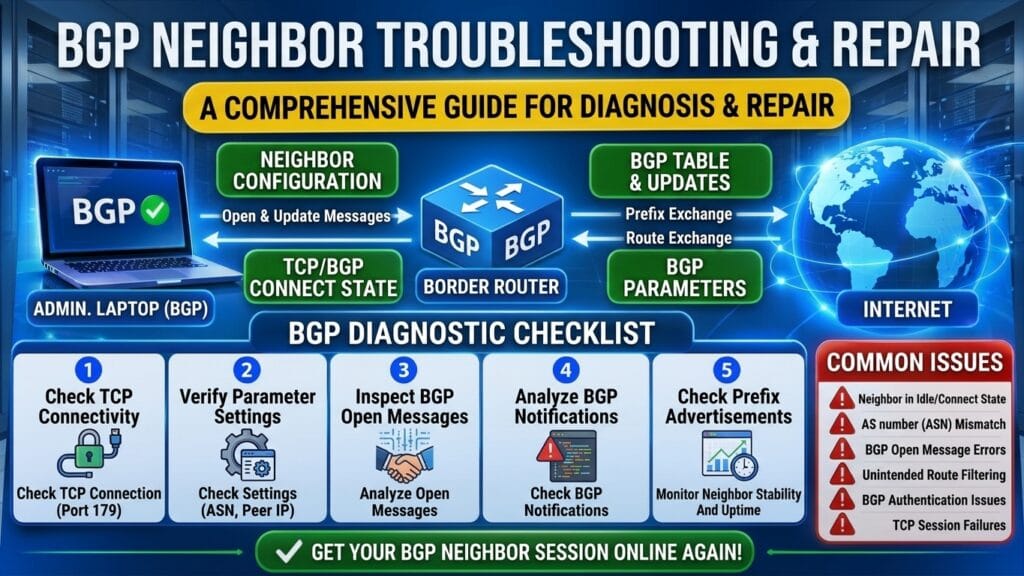
BGP Neighbor Troubleshooting: Fix Idle, Active, Connect & OpenSent States
Introduction
Border Gateway Protocol (BGP) is responsible for exchanging routing information between autonomous systems and is widely used in enterprise networks, internet service provider infrastructure, cloud connectivity, and large-scale data centers.
However, a BGP configuration can look correct while the neighbor session remains down.
You might see a peer repeatedly switching between Connect and Active, remaining in Idle, or reaching OpenSent before returning to Idle.
These states indicate different stages of the BGP session establishment process. A neighbor stuck in Active often points to a TCP connectivity problem, while a session that reaches OpenSent may be encountering an issue during the exchange of BGP OPEN messages.
Common causes include:
- TCP port 179 being blocked.
- Incorrect neighbor IP addresses.
- Mismatched autonomous system numbers.
- Missing routes to peer addresses.
- Incorrect
update-sourceconfiguration. - Missing
ebgp-multihopconfiguration. - BGP authentication mismatches.
- Incorrect address-family activation.
- Unstable interfaces or routing paths.
This BGP neighbor troubleshooting guide explains the BGP Finite State Machine (FSM), provides practical Cisco IOS, Linux FRRouting (FRR), and Juniper Junos commands, and shows how to diagnose common session failures step by step.
The primary objective is to establish a stable BGP session before investigating route advertisement and path-selection problems.
1. How BGP Neighbor Establishment Works
BGP uses a client-server-style TCP connection between neighboring routers.
Unlike OSPF, which discovers neighboring routers through Hello packets, BGP peers are normally configured explicitly.
The two routers must be able to reach each other’s configured peer addresses and establish a TCP connection before exchanging BGP OPEN messages.
BGP uses TCP port 179.
A simplified connection process looks like this:
+----------------------+             +----------------------+
|      Router A        |             |      Router B        |
|                      |             |                      |
| Local AS: 65001      |             | Local AS: 65002      |
| Peer: 192.0.2.2      |             | Peer: 192.0.2.1      |
|                      |             |                      |
|       TCP SYN        |------------>|                      |
|                      |<------------|      TCP SYN-ACK     |
|       TCP ACK        |------------>|                      |
|                      |             |                      |
|      BGP OPEN        |------------>|                      |
|      BGP OPEN        |<------------|                      |
|      KEEPALIVE       |------------>|                      |
|      KEEPALIVE       |<------------|                      |
|                      |             |                      |
|     ESTABLISHED      |<----------->|     ESTABLISHED      |
+----------------------+             +----------------------+
After the TCP session is established, the routers exchange BGP OPEN messages.
These messages contain important information, including:
- BGP version.
- Autonomous System (AS) number.
- Hold Time.
- BGP Identifier.
- Optional parameters and capabilities.
If the session parameters are acceptable, the routers exchange KEEPALIVE messages and enter the Established state.
They can then exchange UPDATE messages containing routing information.
The protocol is defined in RFC 4271 — A Border Gateway Protocol 4 (BGP-4).
2. BGP Neighbor States Explained
BGP uses a Finite State Machine to manage each configured peer relationship.
Understanding these states is the fastest way to identify where session establishment is failing.
| BGP State | Meaning | What to Investigate |
|---|---|---|
| Idle | BGP is waiting for a start event or recovering from an error | Configuration, administrative state and notifications |
| Connect | Waiting for the TCP connection to complete | Peer reachability and TCP 179 |
| Active | Attempting to establish or re-establish TCP connectivity | Firewall, routing and remote peer |
| OpenSent | OPEN message has been sent; waiting for the peer’s OPEN | AS number and OPEN parameters |
| OpenConfirm | Waiting for KEEPALIVE or NOTIFICATION | Session parameters and peer response |
| Established | BGP session is operational | Prefix advertisements and routing policies |
Idle
The Idle state is the initial state of a BGP session.
The BGP process waits for a start event, such as the activation of a configured neighbor.
A router may also return to Idle after receiving a BGP NOTIFICATION message or detecting a session error.
Possible causes include:
- Incorrect BGP configuration.
- Administrative shutdown of the neighbor.
- A remote peer sending a NOTIFICATION.
- Repeated session failures.
- Resource or process problems.
- An explicit session reset.
Check the neighbor configuration and inspect logs before repeatedly clearing the session.
On Cisco IOS:
show ip bgp summaryThen inspect the affected neighbor:
show ip bgp neighbors 192.0.2.2Connect
The Connect state means that BGP is waiting for the TCP connection to complete.
The router has attempted to establish a TCP session with the configured peer.
If the TCP handshake succeeds, BGP normally moves to OpenSent.
If the connection fails, the session may move to Active.
Investigate:
- Whether the peer address is reachable.
- Whether TCP port 179 is open.
- Whether the remote BGP process is listening.
- Whether firewalls block the TCP connection.
- Whether the configured source interface is correct.
Active
The Active state does not mean that the BGP session is successfully established.
It means that the router is trying to acquire the peer by initiating a TCP connection and listening for an incoming connection.
A peer repeatedly moving between Connect and Active commonly indicates a TCP transport problem.
For example:
BGP Neighbor: 192.0.2.2

Connect
   |
   v
TCP connection fails
   |
   v
Active
   |
   v
ConnectRetry expires
   |
   v
Connect
   |
   v
TCP connection fails
Possible causes include:
- TCP port 179 blocked.
- Incorrect routing to the neighbor.
- Wrong source IP address.
- Remote router not running BGP.
- ACL or firewall restrictions.
- Incorrect NAT configuration.
- Missing eBGP multihop configuration.
Do not assume that Active means the router is successfully communicating with its peer. It is a troubleshooting state that requires checking transport connectivity.
OpenSent
In the OpenSent state, the local router has sent a BGP OPEN message and is waiting for the remote peer’s OPEN message.
At this point, the TCP connection has progressed beyond basic transport establishment.
Potential problems include:
- Incorrect remote AS number.
- Unsupported or incompatible BGP capabilities.
- Invalid OPEN message parameters.
- BGP identifier problems.
- Authentication or session-policy issues.
Check the BGP logs and inspect the session details to determine whether the remote peer rejected the OPEN message.
OpenConfirm
The OpenConfirm state indicates that the BGP router is waiting for a KEEPALIVE or NOTIFICATION message from its peer.
A session that remains in this state or repeatedly returns to Idle may indicate:
- Session negotiation problems.
- Packet loss.
- Unexpected remote peer behavior.
- TCP interruptions.
- Hold-time expiration.
Established
The Established state indicates that the BGP session has been successfully established.
The routers can exchange routing information using UPDATE messages and maintain the relationship using KEEPALIVE messages.
However, an established session does not automatically mean that the router is receiving the expected routes.
For that, you must separately investigate address families, prefix advertisements, route policies, and BGP path selection.
3. Start with the BGP Summary Command
Before modifying the configuration, inspect the complete BGP neighbor table.
On Cisco IOS and IOS XE:
show ip bgp summaryOn platforms using the newer address-family syntax:
show bgp ipv4 unicast summaryExample:
BGP router identifier 192.0.2.1, local AS number 65001

Neighbor        V    AS      MsgRcvd  MsgSent  Up/Down   State/PfxRcd
192.0.2.2       4    65002   150      148      01:25:40  12
192.0.2.3       4    65003   0        0        never     Active
192.0.2.4       4    65004   0        0        never     Idle
Interpret the output:
12means the peer is Established and 12 prefixes are received in this address family.Activemeans the session is not established and is attempting to establish connectivity.Idlemeans the session is not currently established.Up/Downindicates how long the session has been up or how long it has been down.
An important detail: Cisco displays a numeric prefix count in the State/PfxRcd column when the session is established. A textual state such as Active or Idle indicates that the session has not reached Established.
Start with the affected neighbor and avoid clearing all BGP sessions unnecessarily.
4. BGP Neighbor Stuck in Idle: How to Fix It
A neighbor stuck in Idle may indicate an administrative or configuration issue.
Step 1: Verify the BGP process
On Cisco IOS:
show running-config | section router bgpCheck whether the correct local AS number is configured.
Example:
router bgp 65001
 neighbor 192.0.2.2 remote-as 65002
Confirm that the peer is configured under the correct BGP process.
Step 2: Check whether the neighbor is administratively shut down
Inspect the configuration:
show running-config | include neighborLook for a command similar to:
neighbor 192.0.2.2 shutdownIf the neighbor is intentionally configured as shutdown, it will not establish a normal session.
To enable it:
router bgp 65001
 no neighbor 192.0.2.2 shutdown
Only apply this change when the neighbor is supposed to be operational.
Step 3: Inspect BGP notifications
Check system logs:
show loggingLook for BGP messages indicating:
- Neighbor shutdown.
- Remote peer reset.
- Bad peer AS.
- Hold timer expiration.
- Authentication failure.
- Connection reset.
These messages can narrow down the exact cause without unnecessarily changing the configuration.
Step 4: Verify the BGP neighbor definition
Check:
show ip bgp neighbors 192.0.2.2Confirm that:
- The remote AS number is correct.
- The neighbor address is correct.
- The peer is configured in the intended address family.
- The session is not administratively disabled.
If the neighbor is in Idle, do not immediately assume that TCP 179 is blocked. Verify the session configuration and logs first.
5. BGP Neighbor Stuck in Active: Troubleshoot TCP Port 179
A BGP session repeatedly stuck in Active is one of the most common neighbor establishment problems.
Because BGP uses TCP, connectivity must exist between the two configured peer addresses.
Step 1: Test IP reachability
From Router A, test Router B’s peer address:
ping 192.0.2.2If the peer is reached through a particular source interface, test using that source when supported:
ping 192.0.2.2 source 192.0.2.1A successful ping provides useful evidence of IP reachability.
However, ping success alone does not prove that TCP port 179 is reachable.
Step 2: Test TCP port 179
On a Linux router or diagnostic host:
nc -vz 192.0.2.2 179This checks whether a TCP connection can be established to port 179.
Possible results:
| Result | Meaning |
|---|---|
| Connection succeeds | TCP connection reached the listening service |
| Connection refused | Destination is reachable but the TCP connection was rejected |
| Connection times out | Packets may be blocked, dropped, or not reaching the peer |
| No route to host | Routing or local network reachability problem |
A successful TCP test does not guarantee that the BGP OPEN negotiation will succeed.
It only confirms that the transport connection can be established.
Cisco also documents testing TCP port 179 as part of BGP session troubleshooting in its BGP basic troubleshooting guide.
Step 3: Check firewall and ACL rules
BGP uses TCP port 179.
Inspect ACLs and firewall policies on both sides of the connection.
On Cisco:
show access-listsCheck whether the policy permits the required TCP traffic between the peer addresses.
A basic extended ACL example for permitting a connection from one known peer is:
access-list 110 permit tcp host 192.0.2.1 host 192.0.2.2 eq 179The actual direction and placement depend on where the ACL is applied.
On Linux, inspect firewall rules using the appropriate system firewall:
sudo nft list rulesetOr, where iptables is used:
sudo iptables -L -n -vRemember that a stateful firewall normally permits return traffic for an allowed connection, while stateless ACLs may require explicit rules for both directions.
Do not open TCP port 179 to the entire internet. Restrict BGP access to the intended peer addresses.
Step 4: Verify that the remote router is listening
On Linux:
sudo ss -lntp | grep ':179'The output should show a BGP daemon listening on the expected address and port.
If there is no listener, check the BGP process and configuration on the remote router.
Step 5: Capture BGP TCP traffic
When the problem remains unclear, use tcpdump:
sudo tcpdump -ni eth0 'tcp port 179'Look for the TCP handshake:
SYN
SYN-ACK
ACK
Interpret common patterns:
- Repeated SYN packets without a response may indicate filtering or an unreachable destination.
- SYN followed by RST may indicate that the destination is refusing the connection.
- A completed handshake followed by immediate closure requires examination of the BGP negotiation and logs.
- Repeated retransmissions may indicate packet loss or a transport problem.
For more advanced packet-analysis techniques, see our Wireshark Explained guide.
6. Fix an Incorrect BGP Remote AS Number
One of the most common configuration mistakes is using the wrong remote autonomous system number.
Consider the following topology:
Router A                         Router B

Local AS: 65001                  Local AS: 65002
Peer IP: 192.0.2.2               Peer IP: 192.0.2.1

neighbor 192.0.2.2              neighbor 192.0.2.1
remote-as 65002                 remote-as 65001
Both routers must agree on the other’s AS number.
A correct Cisco configuration on Router A is:
router bgp 65001
 neighbor 192.0.2.2 remote-as 65002
On Router B:
router bgp 65002
 neighbor 192.0.2.1 remote-as 65001
How to verify the AS number
Run:
show ip bgp neighbors 192.0.2.2Check the remote AS information.
Also review:
show running-config | section router bgpLook for:
- Incorrect remote AS.
- Wrong neighbor IP.
- Neighbor configured under the wrong process.
- Unexpected local AS configuration.
- Differences between the actual peer and the configured peer.
In external BGP, the remote AS should match the peer’s expected AS number.
In internal BGP, both peers normally belong to the same AS.
7. Fix Missing Update-Source Configuration
The update-source command controls the local interface address used when establishing a BGP session.
This is especially important when using loopback interfaces for iBGP or eBGP sessions.
Consider:
Router A                         Router B

Loopback0: 10.1.1.1/32          Loopback0: 10.2.2.2/32

       <------- Routed Network ------->
Router A expects the BGP neighbor to be 10.2.2.2, and Router B expects 10.1.1.1.
The local router must use the intended loopback as the source address.
Example configuration on Router A
router bgp 65001
 neighbor 10.2.2.2 remote-as 65001
 neighbor 10.2.2.2 update-source Loopback0
Example configuration on Router B
router bgp 65001
 neighbor 10.1.1.1 remote-as 65001
 neighbor 10.1.1.1 update-source Loopback0
Both routers also need IP reachability to the remote loopback.
For example, the underlying IGP or static routing must provide a route to the peer address.
Verify the source address
On Linux, inspect active TCP connections:
ss -ntp | grep ':179'For deeper diagnosis, capture traffic and inspect the source and destination IP addresses.
If the router is sourcing BGP traffic from the wrong interface, the peer may receive packets from an address that is not configured as a valid neighbor.
Cisco explains this issue in its BGP Neighborship Connection Troubleshooting Guide.
8. Fix eBGP Multihop Problems
External BGP normally expects directly connected neighbors.
By default, the TTL behavior for ordinary eBGP peering is designed for directly connected peers.
If the routers establish a session using loopbacks or through one or more intermediate routers, the default TTL may be insufficient.
This can prevent the TCP session from reaching the remote BGP peer.
Example topology
Router A              Intermediate Router             Router B
   |                          |                           |
   |--------------------------|---------------------------|
   |                                                       |
Loopback0                                             Loopback0
10.1.1.1                                              10.2.2.2

AS 65001                                              AS 65002
The routers need:
- A route to the remote loopback.
- An appropriate update-source.
- An eBGP multihop configuration that allows the expected path distance.
Cisco configuration on Router A
router bgp 65001
 neighbor 10.2.2.2 remote-as 65002
 neighbor 10.2.2.2 update-source Loopback0
 neighbor 10.2.2.2 ebgp-multihop 2
Cisco configuration on Router B
router bgp 65002
 neighbor 10.1.1.1 remote-as 65001
 neighbor 10.1.1.1 update-source Loopback0
 neighbor 10.1.1.1 ebgp-multihop 2
The value 2 is an illustrative TTL setting for a suitable topology. Choose the value based on the actual number of hops and the intended network design.
Also make sure that the remote loopback is reachable through an appropriate route.
Do not enable eBGP multihop automatically for directly connected eBGP peers.
Use it only when the peer is not directly connected and the routing design requires it.
See Cisco’s eBGP Multihop Troubleshooting Example.
9. Troubleshoot BGP Authentication Problems
BGP sessions can use TCP MD5 authentication to protect the TCP connection between configured peers.
If the authentication password does not match, the TCP connection may fail even when routing and firewall configuration appear correct.
Common problems include:
- Different passwords on the two peers.
- Authentication configured on one side only.
- Incorrect key configuration.
- Unexpected authentication behavior after a configuration change.
Check the BGP neighbor configuration on both routers.
Example Cisco configuration:
router bgp 65001
 neighbor 192.0.2.2 password MySecureBGPKey
The remote peer must be configured with the corresponding secret.
For production environments, use a secure secret-management process rather than placing passwords in shared documents or scripts.
Cisco documents authentication-related TCP errors such as BADAUTH in its BGP Troubleshooting Guide.
10. Troubleshoot BGP Sessions Stuck in OpenSent or OpenConfirm
When a BGP session successfully establishes TCP connectivity but does not progress to Established, examine the OPEN and KEEPALIVE exchange.
OpenSent troubleshooting
A router in OpenSent has sent a BGP OPEN message and is waiting for the remote peer’s OPEN message.
Investigate:
- Local and remote AS numbers.
- BGP version compatibility.
- BGP identifiers.
- OPEN message validation.
- Authentication and remote peer logs.
- Session negotiation errors.
A mismatched AS number can result in a BGP NOTIFICATION and a return to Idle.
Inspect the received NOTIFICATION code and subcode when the platform exposes them.
OpenConfirm troubleshooting
A router in OpenConfirm waits for a KEEPALIVE or NOTIFICATION message.
If the session does not progress, investigate:
- Whether KEEPALIVE packets are being exchanged.
- TCP resets.
- Packet loss.
- Remote peer state.
- Hold-time negotiation.
- Authentication or compatibility issues.
Capture the BGP session
On Linux:
sudo tcpdump -ni eth0 'tcp port 179'In Wireshark:
tcp.port == 179Look for:
- BGP OPEN messages.
- KEEPALIVE messages.
- UPDATE messages.
- NOTIFICATION messages.
- TCP resets and retransmissions.
This helps separate transport failures from BGP protocol negotiation failures.
11. Troubleshoot BGP Hold Timer Expiration and Session Flapping
A BGP session may establish successfully but then repeatedly disconnect.
One common notification is:
%BGP-3-NOTIFICATION:
sent to neighbor 192.0.2.2 4/0
(hold time expired)
This means the router did not receive or process a valid KEEPALIVE or UPDATE message before the Hold Timer expired.
Possible causes include:
- Packet loss.
- Congestion.
- Unstable WAN connectivity.
- Interface flapping.
- Firewall interruptions.
- High CPU utilization.
- Remote router overload.
- Control-plane policing.
- A failed transport path.
Step 1: Check interface errors
On Cisco:
show interfacesLook for:
- Input errors.
- CRC errors.
- Output drops.
- Interface resets.
- Carrier transitions.
Step 2: Inspect BGP neighbor uptime
show ip bgp summaryA short or frequently resetting Up/Down timer may indicate session instability.
Step 3: Check CPU utilization
show processes cpu sortedHigh CPU utilization can affect the ability to process BGP control-plane traffic and maintain session timers.
Step 4: Inspect routing and transport stability
Check the route to the peer:
show ip route 192.0.2.2On platforms that support it, inspect the TCP connection and BGP event logs.
Step 5: Review Hold Time configuration
Inspect the negotiated Hold Time:
show ip bgp neighbors 192.0.2.2Both peers negotiate compatible timer values during session establishment.
Do not simply increase the Hold Time to hide a persistent packet loss or control-plane issue. Identify the underlying cause first.
12. BGP Session Is Established but No Routes Are Received
An established BGP session does not guarantee that any prefixes will be exchanged.
A neighbor may be fully operational but display zero received prefixes.
Example:
Neighbor        AS      State/PfxRcd
192.0.2.2       65002   0
Investigate the address family and route policies.
Step 1: Check address-family activation
On Cisco IOS:
show running-config | section router bgpWith address-family-based configuration, a neighbor may be configured globally but not activated under the intended address family.
Example:
router bgp 65001
 neighbor 192.0.2.2 remote-as 65002

 address-family ipv4 unicast
  neighbor 192.0.2.2 activate
The required configuration depends on the Cisco platform and software version.
Step 2: Check advertised routes
On Cisco, inspect:
show ip bgp neighbors 192.0.2.2 advertised-routesThis shows routes advertised to the peer, subject to platform behavior and configuration.
Step 3: Check received routes
Where supported:
show ip bgp neighbors 192.0.2.2 routesCheck whether routes are received but filtered or rejected before being installed in the routing table.
Step 4: Inspect prefix lists and route maps
show running-config | section router bgpLook for:
- Inbound prefix lists.
- Outbound prefix lists.
- Route maps.
- AS-path filters.
- Community-based policies.
- Maximum-prefix configuration.
A BGP session can remain Established even when routing policy rejects every received route.
Step 5: Verify network advertisement
A Cisco network statement normally requires the corresponding prefix to exist in the local routing table with a matching prefix.
Example:
router bgp 65001
 address-family ipv4 unicast
  network 10.10.10.0 mask 255.255.255.0
If the specified prefix does not exist in the routing table as required, the network may not be originated into BGP.
13. BGP Troubleshooting Commands for Network Engineers
These commands provide a practical starting point for diagnosing neighbor problems.
Cisco IOS and IOS XE
| Command | Purpose |
|---|---|
show ip bgp summary | Inspect BGP neighbor states |
show ip bgp neighbors | Detailed peer information |
show ip bgp | Inspect the BGP table |
show ip route | Verify routes to peers and prefixes |
show ip interface brief | Check interface status |
show running-config | Inspect BGP configuration |
show logging | Review BGP errors and notifications |
show access-lists | Inspect ACL behavior |
show processes cpu sorted | Review CPU utilization |
Linux and FRRouting
Enter the FRR virtual terminal:
sudo vtyshCheck BGP neighbors:
show bgp summaryInspect neighbor details:
show bgp neighbors 192.0.2.2Inspect the BGP routing table:
show bgp ipv4 unicastCheck Linux routes:
ip route showInspect TCP connections:
ss -ntp | grep ':179'Inspect packet traffic:
sudo tcpdump -ni eth0 'tcp port 179'Juniper Junos
Check BGP sessions:
show bgp summaryInspect a specific peer:
show bgp neighbor 192.0.2.2Review the configuration:
show configuration protocols bgpCheck routes advertised to a peer:
show route advertising-protocol bgp 192.0.2.2Inspect routes received from a peer:
show route receive-protocol bgp 192.0.2.2The exact command syntax and available output vary by platform and software release.
14. BGP Troubleshooting Decision Table
Use the observed state or symptom to select the next diagnostic step.
| Symptom | First Investigation |
|---|---|
| Neighbor remains Idle | Administrative shutdown, configuration and BGP logs |
| Neighbor remains Connect | TCP handshake, route to peer and port 179 |
| Neighbor remains Active | Firewall, TCP connectivity, source address and multihop |
| Neighbor reaches OpenSent then fails | OPEN message, AS number and peer parameters |
| Neighbor remains OpenConfirm | KEEPALIVE exchange and session stability |
| Neighbor repeatedly disconnects | Hold Timer, packet loss, CPU and interface errors |
| Session Established with zero prefixes | Address-family activation and route policies |
| Routes received but not installed | BGP best-path selection and routing table |
| eBGP over loopbacks fails | Update-source, peer reachability and eBGP multihop |
| Authentication errors | TCP authentication configuration |
15. BGP Neighbor Troubleshooting Best Practices
Stable BGP sessions depend on consistent peer configuration and reliable transport connectivity.
Follow these practices:
Use explicit peer addresses. Make sure both routers use the correct neighbor IP.
Verify AS numbers on both sides. An incorrect remote AS can prevent OPEN negotiation.
Check routing before BGP. A router must be able to reach its configured peer address before the BGP session can establish.
Protect TCP port 179. Restrict BGP connections to authorized peer addresses instead of exposing the service broadly.
Use update-source consistently. When peering through loopbacks, configure the intended source interface on both routers.
Configure eBGP multihop only when necessary. Use it when eBGP peers are not directly connected and the topology requires it.
Keep authentication consistent. Make sure both peers use compatible authentication settings.
Monitor session uptime. Frequent BGP resets can indicate transport instability or control-plane problems.
Separate session problems from route problems. An Established session with no prefixes requires policy and address-family investigation, not TCP troubleshooting.
Avoid unnecessary resets. Repeatedly clearing BGP sessions can interrupt routing and make troubleshooting harder.
Document peer parameters. Maintain a record of peer IP, local AS, remote AS, source interface, address families, timers, and authentication policy.
16. Frequently Asked Questions
Why is my BGP neighbor stuck in Active?
A BGP neighbor stuck in Active is frequently experiencing a TCP connectivity problem. Check whether the remote peer is reachable, TCP port 179 is permitted, the correct source address is used, and the remote BGP process is listening.
What is the difference between BGP Active and Established?
Active means the router is attempting to establish the TCP connection with its peer. Established means the BGP session is operational and the routers can exchange routing updates.
Does BGP use TCP or UDP?
BGP uses TCP, not UDP. The standard BGP listening port is TCP 179, as specified in RFC 4271.
Why does a BGP session remain in Connect?
The Connect state means BGP is waiting for the TCP connection to complete. Investigate peer reachability, TCP port 179, routing, firewall policy, and the configured source address.
What causes a BGP AS mismatch?
An AS mismatch occurs when a router’s configured remote AS does not match the AS number presented by its peer in the BGP OPEN message. Correct the neighbor configuration on the affected router.
What does update-source do in BGP?
The update-source command specifies which local interface address is used to establish the BGP session. It is commonly used with loopback-based iBGP and eBGP peering.
When should I use eBGP multihop?
Use eBGP multihop when external BGP peers are not directly connected and the connection must traverse intermediate routers. The peer addresses must also be reachable through appropriate routes.
Can BGP be Established without receiving any routes?
Yes. A BGP session can be Established while receiving zero prefixes. Check address-family activation, inbound filtering, route advertisements, and remote routing policy.
How do I check BGP neighbor status on Cisco?
Use:
show ip bgp summaryFor more information about an individual neighbor:
show ip bgp neighbors 192.0.2.2What is the default BGP port?
BGP uses TCP port 179 for incoming connections. Firewalls and ACLs must allow the intended peer connections while restricting access to authorized routers.
Conclusion
BGP neighbor troubleshooting is much easier when the session state is used to identify the failing stage of the connection process.
An Active neighbor often requires investigation of TCP connectivity. A session stuck in Connect needs routing and transport checks. An OpenSent failure requires closer inspection of the BGP OPEN exchange, including AS numbers and negotiated parameters.
Once the session reaches Established, troubleshooting should move to address families, prefix advertisements, route filtering, and path selection.
Start with show ip bgp summary, verify reachability to the peer, test TCP port 179, and compare the BGP configuration on both routers.
This structured approach helps identify the actual cause of BGP session failures without introducing unnecessary changes to production routing infrastructure.
References
- RFC 4271 — Border Gateway Protocol 4
- Cisco — Understand Basic BGP Troubleshooting
- Cisco — Troubleshoot BGP Neighborship Connection Issues
- Cisco — Troubleshoot Border Gateway Protocol Basic Issues
- Juniper — Troubleshooting BGP Sessions
- FRRouting Documentation
FAQ Schema (JSON-LD)
{
  "@context": "https://schema.org",
  "@type": "FAQPage",
  "mainEntity": [
    {
      "@type": "Question",
      "name": "Why is my BGP neighbor stuck in Active?",
      "acceptedAnswer": {
        "@type": "Answer",
        "text": "A BGP neighbor stuck in Active is frequently experiencing a TCP connectivity problem. Check whether the remote peer is reachable, TCP port 179 is permitted, the correct source address is used, and the remote BGP process is listening."
      }
    },
    {
      "@type": "Question",
      "name": "Does BGP use TCP or UDP?",
      "acceptedAnswer": {
        "@type": "Answer",
        "text": "BGP uses TCP, not UDP. The standard BGP listening port is TCP 179, as specified in RFC 4271."
      }
    },
    {
      "@type": "Question",
      "name": "Why does a BGP session remain in Connect?",
      "acceptedAnswer": {
        "@type": "Answer",
        "text": "The Connect state means BGP is waiting for the TCP connection to complete. Investigate peer reachability, TCP port 179, routing, firewall policy, and the configured source address."
      }
    },
    {
      "@type": "Question",
      "name": "What causes a BGP AS mismatch?",
      "acceptedAnswer": {
        "@type": "Answer",
        "text": "An AS mismatch occurs when a router's configured remote AS does not match the AS number presented by its peer in the BGP OPEN message."
      }
    },
    {
      "@type": "Question",
      "name": "What does update-source do in BGP?",
      "acceptedAnswer": {
        "@type": "Answer",
        "text": "The update-source command specifies which local interface address is used to establish the BGP session. It is commonly used with loopback-based iBGP and eBGP peering."
      }
    },
    {
      "@type": "Question",
      "name": "When should I use eBGP multihop?",
      "acceptedAnswer": {
        "@type": "Answer",
        "text": "Use eBGP multihop when external BGP peers are not directly connected and the connection must traverse intermediate routers. The peer addresses must also be reachable through appropriate routes."
      }
    },
    {
      "@type": "Question",
      "name": "Can BGP be Established without receiving any routes?",
      "acceptedAnswer": {
        "@type": "Answer",
        "text": "Yes. A BGP session can be Established while receiving zero prefixes. Check address-family activation, inbound filtering, route advertisements, and remote routing policy."
      }
    }
  ]
}
One Comment