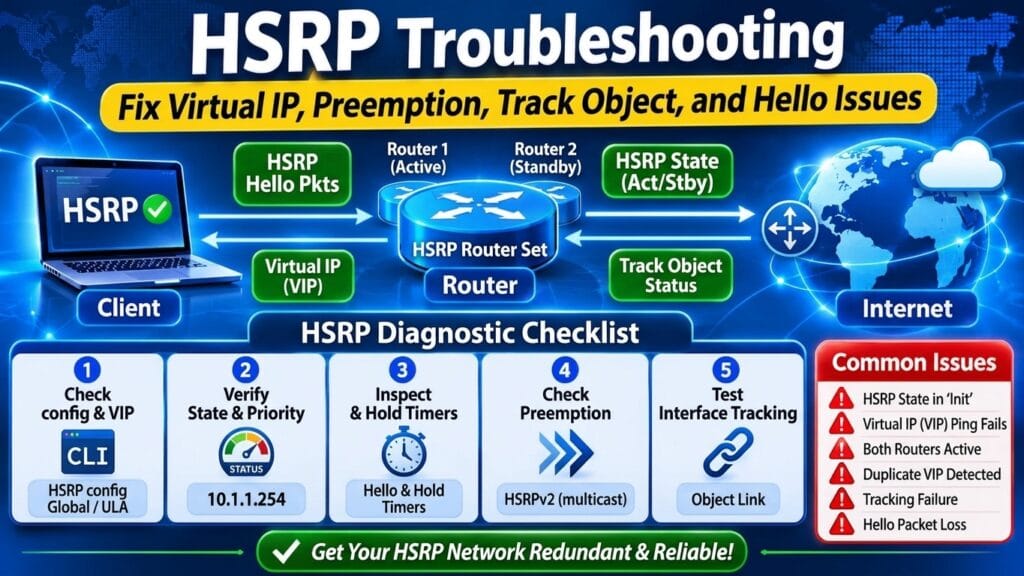
HSRP Troubleshooting: Fix Active/Standby, Duplicate IP & Failover Problems
Introduction
A network can have two redundant routers, correctly configured interfaces, and a shared virtual default gateway, yet still experience unexpected gateway failures.
One router may remain in the Active state while the other never becomes Standby. Both routers may become Active simultaneously, or the HSRP group may repeatedly switch between Active, Speak, and Standby.
In other situations, the redundancy protocol appears healthy, but users lose connectivity when the primary router or an upstream link fails.
These problems can result from incorrect HSRP group configuration, mismatched protocol versions, blocked Hello messages, VLAN or Spanning Tree problems, duplicate IP addresses, incorrect priority settings, or missing interface tracking.
HSRP troubleshooting requires examining both the protocol configuration and the Layer 2 and Layer 3 paths used by the participating routers.
This guide explains how HSRP works, how to interpret its states, and how to diagnose common problems using Cisco IOS and IOS XE commands. It also provides practical configuration examples for Active/Standby redundancy, priority and preemption, object tracking, and failover verification.
The goal is to restore reliable default gateway redundancy without introducing unnecessary interruptions to production traffic.
1. What Is HSRP?
Hot Standby Router Protocol (HSRP) is a First Hop Redundancy Protocol (FHRP) developed by Cisco.
It allows two or more routers or Layer 3 switches to operate as a virtual default gateway for devices on a LAN.
Instead of configuring every client with the physical address of one router, network administrators configure clients to use an HSRP virtual IP address.
The HSRP group elects:
- Active router: The device currently forwarding packets for the virtual gateway.
- Standby router: The backup device that can take over when the Active router fails.
- Listen routers: Other participating devices that monitor HSRP messages but are neither Active nor Standby.
Consider this network:
                  VLAN 10
              192.0.2.0/24

             +-------------+
             |   Clients   |
             |             |
             | Gateway:    |
             | 192.0.2.1   |
             +------+------+
                    |
             +------+------+
             |   Switch    |
             +------+------+
                    |
           +--------+--------+
           |                 |
     +-----+------+    +-----+------+
     |  Router A  |    |  Router B  |
     |            |    |            |
     | .2         |    | .3         |
     | Priority   |    | Priority   |
     | 110        |    | 100        |
     |            |    |            |
     | ACTIVE     |    | STANDBY    |
     +------------+    +------------+
           \                 /
            \               /
             +-------------+
              Virtual IP
               192.0.2.1
The clients continue to use 192.0.2.1 as their default gateway.
If Router A fails, Router B can become Active and start forwarding traffic for the same virtual gateway.
The clients do not need to change their configured default gateway.
For broader network redundancy concepts, see our High Availability Explained guide.
2. How HSRP Communication Works
HSRP routers exchange control messages to announce their state, priority, and availability.
These messages are called HSRP Hello packets.
The participating devices use them to identify the Active router, elect the Standby router, and detect failures.
HSRP communication details
HSRP uses the following IPv4 communication parameters:
| Parameter | HSRPv1 | HSRPv2 |
|---|---|---|
| IP multicast address | 224.0.0.2 | 224.0.0.102 |
| UDP destination port | 1985 | 1985 |
| Group number range | 0–255 | 0–4095 |
| Virtual MAC range | 0000.0c07.acXX | 0000.0c9f.f000–0000.0c9f.ffff |
HSRPv2 was introduced to overcome some HSRPv1 limitations.
It supports more group numbers, uses a different multicast address, and provides an improved packet format for identifying participating routers.
Important: HSRPv1 and HSRPv2 use different multicast destinations and virtual MAC address ranges. Configure participating routers with compatible HSRP versions.
Cisco documents these differences in its HSRP Version 2 configuration guide.
HSRP Hello packets
HSRP routers exchange Hello messages that include information such as:
- HSRP group number.
- Current HSRP state.
- Priority.
- Virtual IP address.
- Hello interval.
- Hold interval.
- Authentication information, when configured.
If an Active router stops sending Hello messages, the Standby router uses the advertised Hold Time to determine when the Active router is no longer reachable.
The Standby router can then take over the Active role.
This is why blocked multicast traffic, VLAN problems, and packet loss can cause HSRP failures even when ordinary IP connectivity appears operational.
3. HSRP States Explained
HSRP uses a state machine to determine the role of each participating router.
The main HSRP states are:
| State | Meaning |
|---|---|
| Initial | HSRP is not running on the interface or group has just been initialized |
| Learn | The router is waiting to learn the virtual IP address and receive appropriate Hello information |
| Listen | The router knows the virtual IP but is neither Active nor Standby |
| Speak | The router sends Hello messages and participates in the election |
| Standby | The router is the backup candidate for the Active role |
| Active | The router currently forwards traffic for the virtual gateway |
Initial
The Initial state indicates that HSRP has not started normally on the interface.
Possible reasons include:
- HSRP configuration is missing.
- The interface is disabled.
- The interface is not operational.
- The HSRP group has been reset.
- A configuration change has reinitialized the group.
Start by checking the interface status and HSRP configuration.
show ip interface briefThen inspect the relevant interface:
show running-config interface Vlan10Learn
A router enters Learn when it has not yet learned the virtual IP address and has not received the required Hello information from the Active router.
If the router remains in this state, check:
- Virtual IP configuration.
- Hello packet delivery.
- HSRP group configuration.
- HSRP authentication.
- Whether another group member is operational.
Listen
A router in Listen knows the virtual gateway address but is neither Active nor Standby.
Additional HSRP routers can normally remain in this state.
A Listen state is not necessarily an error.
However, if a router that is expected to be Standby remains in Listen, investigate whether it receives Hello messages from the current Active router and whether the group election is functioning correctly.
Speak
A router in Speak sends periodic Hello messages and participates in the election process.
A router can remain in Speak when the Active and Standby roles have not yet been completely established or when the group is undergoing a transition.
Persistent or repeated Speak transitions can indicate:
- Missing Hello messages.
- Incorrect group parameters.
- Authentication mismatch.
- Network instability.
- Another router repeatedly taking over the Active role.
Standby
The Standby router is the backup for the Active router.
It listens for the Active router’s Hello messages and monitors its availability.
If the Active router stops sending the expected messages and the Hold Timer expires, the Standby router can become Active.
If no device becomes Standby when expected, verify the group membership and communication between the routers.
Active
The Active router forwards traffic sent to the HSRP virtual MAC address.
It sends Hello messages to announce that it is operating as the Active gateway.
Normally, only one router should be Active for a given HSRP group on a connected LAN.
Two Active routers in the same group can indicate a split-brain condition caused by lost Hello communication or a Layer 2 network partition.
Cisco’s HSRP troubleshooting documentation provides detailed descriptions of these states.
4. Start with the HSRP Status Commands
Before changing configuration, collect the status information from every router participating in the affected HSRP group.
Check all HSRP groups
show standby briefThis command provides a concise view of:
- Interface.
- HSRP group.
- Priority.
- Preemption status.
- Current state.
- Active router.
- Standby router.
- Virtual IP address.
Example:
Interface   Grp  Pri P State   Active    Standby    Virtual IP
Vl10        10   110 P Active  local     192.0.2.3 192.0.2.1
Vl10        10   100   Standby 192.0.2.2 local     192.0.2.1
The precise output format varies by Cisco platform and software version.
Inspect a specific HSRP group
show standby Vlan10Or inspect all information:
show standbyReview:
- Current state.
- State change count.
- Virtual IP address.
- Virtual MAC address.
- Active router.
- Standby router.
- Hello and Hold Times.
- Local priority.
- Whether preemption is enabled.
- Tracking status, where supported.
Check the interface
show interfaces Vlan10Look for:
- Interface and line protocol state.
- Input errors.
- Output errors.
- Drops.
- Interface resets.
- Unexpected link transitions.
Check configuration
show running-config interface Vlan10Compare the output with the other participating router.
A useful troubleshooting rule is to collect the same commands from both devices before applying any configuration change.
5. HSRP Neighbors Are Not Recognizing Each Other
One of the most common problems occurs when two routers are correctly configured with HSRP but do not appear to recognize each other as members of the same group.
For example:
Router A:
Group 10
Virtual IP: 192.0.2.1
State: Active

Router B:
Group 10
Virtual IP: 192.0.2.1
State: Active
Both routers may become Active because they do not receive the expected Hello packets from each other.
This is often called an HSRP split-brain condition.
Step 1: Check the HSRP version
Inspect the interface configuration on both devices.
show running-config interface Vlan10If one device uses HSRPv1 and the other uses HSRPv2, they use different multicast destinations and cannot exchange the expected HSRP messages normally.
Example HSRPv2 configuration:
interface Vlan10
 standby version 2
Use a compatible version on all participating routers.
Step 2: Verify the group number
Both routers must participate in the same HSRP group.
For example:
standby 10 ip 192.0.2.1A group mismatch can result in separate virtual router groups instead of one coordinated redundancy group.
Step 3: Verify the virtual IP
The participating devices should use the same intended virtual IP address.
Example:
Router A:
standby 10 ip 192.0.2.1

Router B:
standby 10 ip 192.0.2.1
The physical interface addresses must remain unique.
Step 4: Check the HSRP multicast traffic
For HSRPv1, check traffic sent to:
224.0.0.2 UDP 1985For HSRPv2:
224.0.0.102 UDP 1985Inspect ACLs and security policies to verify that the required traffic is not being blocked.
Step 5: Verify VLAN connectivity
Both routers must participate in the intended Layer 2 network.
Check the switch trunks:
show interfaces trunkConfirm that the HSRP VLAN is allowed and active on the trunk links connecting the routers.
Also verify Spanning Tree:
show spanning-tree vlan 10A VLAN that is missing from a trunk or blocked unexpectedly by STP can prevent HSRP messages from reaching the other router.
For more information, see our guides:
6. Troubleshoot Both Routers Becoming Active
When two routers simultaneously become Active for the same intended group, they may both believe that the other router has failed.
This can cause gateway instability, duplicate virtual MAC movement, and intermittent connectivity.
Common causes of HSRP Active/Active
- HSRP Hello messages are blocked.
- Routers are connected to different VLAN segments.
- A trunk does not carry the required VLAN.
- HSRPv1 and HSRPv2 are mixed.
- Group numbers do not match.
- ACLs filter HSRP packets.
- Multicast traffic is not forwarded correctly.
- A Layer 2 loop or switching problem disrupts packet delivery.
Inspect the Active router on both devices
Run:
show standby Vlan10Compare the output.
If both routers report that the Active router is local, investigate whether the routers can receive each other’s HSRP messages.
Check the MAC address table
On the connected switch:
show mac address-table dynamicLook for the HSRP virtual MAC address.
An HSRPv1 virtual MAC address for group 10 is:
0000.0c07.ac0aA virtual MAC address moving repeatedly between unexpected switch ports may indicate:
- Both routers are acting as Active.
- A Layer 2 loop exists.
- The network is learning the same MAC from different paths.
- EtherChannel configuration is inconsistent.
Check the forwarding entry:
show mac address-table address 0000.0c07.ac0aAlso review the switch logs:
show loggingDo not solve an Active/Active problem by manually shutting down one router until the reason for the split-brain condition is understood.
7. Fix HSRP Active and Standby State Flapping
A router may repeatedly change between Active, Standby, and Speak.
Example:
Vlan10 state Standby -> Active
Vlan10 state Active -> Speak
Vlan10 state Speak -> Standby
This can indicate that HSRP Hello messages are not being received reliably.
Cisco documents several possible reasons for this behavior, including physical connectivity problems, excessive network traffic, Spanning Tree problems, and high CPU utilization.
Step 1: Check HSRP state change logs
show loggingLook for messages similar to:
%STANDBY-6-STATECHANGE:
Standby: 10: Vlan10 state Standby -> Active
Record:
- Time of transition.
- Interface.
- HSRP group.
- Previous state.
- New state.
Compare the timestamps with interface events and CPU spikes.
Step 2: Inspect physical interface errors
show interfaces GigabitEthernet0/0Review:
- CRC errors.
- Input errors.
- Output drops.
- Interface resets.
- Link state changes.
- Queue drops.
Step 3: Check CPU utilization
show processes cpu sortedHigh CPU utilization can delay the processing of HSRP Hello messages.
This can cause the Standby router to believe that the Active router has failed even though the physical router remains operational.
Step 4: Investigate Spanning Tree
show spanning-tree vlan 10Check for:
- Unexpected topology changes.
- Ports moving between forwarding and blocking.
- Possible Layer 2 loops.
- Inconsistent trunk configuration.
Step 5: Check EtherChannel
show etherchannel summaryVerify that member interfaces are correctly bundled.
An inconsistent EtherChannel can cause packet loss or MAC address movement that affects HSRP communication.
Step 6: Inspect HSRP Hello and Hold timers
The common default HSRP timer values are:
| Timer | Default |
|---|---|
| Hello | 3 seconds |
| Hold | 10 seconds |
The Hello timer controls how often HSRP messages are sent.
The Hold Timer determines how long a router waits before deciding that an HSRP peer is no longer operational.
For troubleshooting, inspect:
show standby Vlan10Avoid reducing the timers aggressively just to make failover appear faster.
Very short intervals can increase CPU load and contribute to unnecessary state changes. Cisco’s current troubleshooting guidance recommends avoiding Hello intervals below one second and Hold intervals below four seconds unless the platform and design specifically support the intended configuration.
8. Fix Duplicate HSRP Virtual IP Address Problems
A duplicate IP warning may appear when a device detects that the HSRP virtual IP address is already being used by another device.
For example:
%IP-4-DUPADDR:
Duplicate address 192.0.2.1 on Vlan10
Possible causes include:
- Another router using the virtual IP as a physical interface address.
- A host configured with the virtual IP.
- Multiple independent HSRP groups using the same unintended virtual IP.
- Incorrect group or VLAN configuration.
- A network device forwarding unexpected ARP messages.
Step 1: Check the HSRP virtual IP
show standby Vlan10Confirm the expected virtual IP.
Step 2: Check the physical interface addresses
show ip interface briefEach router must have a unique physical IP address.
For example:
Router A: 192.0.2.2/24
Router B: 192.0.2.3/24
HSRP VIP: 192.0.2.1
The virtual IP is shared between group members, but it should not also be assigned to an unrelated host or physical interface.
Step 3: Inspect the ARP table
show ip arp 192.0.2.1Check whether the MAC address associated with the virtual IP matches the expected HSRP virtual MAC address.
If the entry changes unexpectedly, investigate the connected switch and other devices that may be using the same IP address.
Step 4: Check for duplicate virtual IP configuration
Compare the HSRP configuration across all routers and across all VLANs.
Remember that HSRP groups can operate independently on multiple interfaces, so make sure that group and virtual IP assignments follow the network design.
9. Fix HSRP Preemption Problems
Preemption determines whether a router with a higher priority can take over the Active role from an existing Active router.
Consider:
Router A:
Priority 110

Router B:
Priority 100
Router A has the higher priority.
However, if preemption is disabled, Router A may remain Standby after recovering while Router B continues as Active.
This is not necessarily an HSRP failure. It may simply reflect the configured election behavior.
Enable preemption
On Router A:
interface Vlan10
 standby 10 priority 110
 standby 10 preempt
On Router B:
interface Vlan10
 standby 10 priority 100
The higher-priority router can reclaim the Active role when preemption is enabled and its priority exceeds that of the current Active router.
Add a preemption delay
A router may need time to restore routing adjacencies and populate its routing table after rebooting.
A preemption delay can reduce the risk of becoming Active before the upstream network is ready.
Example:
interface Vlan10
 standby 10 preempt delay minimum 60
The router waits for at least the specified delay before preempting.
Use the appropriate syntax and supported options for the platform.
Cisco explains this behavior in its HSRP priority and preemption documentation.
10. Configure HSRP Object Tracking for Reliable Failover
One common network design mistake is relying only on interface status to determine whether a router should remain Active.
A router’s LAN interface may remain up while its upstream connection to the internet or core network has failed.
Without tracking, the router may continue to forward traffic even though the actual upstream path is unavailable.
HSRP object tracking allows a router to reduce its priority when a tracked object changes state.
Example topology
                  LAN
                   |
           +-------+-------+
           |               |
       Router A         Router B
       Priority 110     Priority 100
           |               |
       WAN Link         Backup WAN
           |               |
        Internet        Internet
If Router A loses its upstream link, its HSRP priority should decrease so Router B can take over.
Step 1: Create a tracked object
On a supported Cisco IOS platform:
track 10 interface GigabitEthernet0/1 line-protocolThis example tracks the operational state of the upstream interface.
Step 2: Apply tracking to HSRP
interface Vlan10
 standby 10 track 10 decrement 30
If the tracked interface goes down, the HSRP priority is reduced by 30.
For example:
Router A:
Original priority: 110
Tracking decrement: 30
New priority: 80

Router B:
Priority: 100
If preemption is configured on Router B, it can become Active when its priority is higher than Router A’s reduced priority.
Step 3: Verify tracking
show track 10Check the HSRP group:
show standby Vlan10Confirm that the configured priority and the resulting priority reflect the tracked object’s state.
Important: Interface tracking only detects the interface condition being monitored. If the upstream path can fail while the interface remains up, consider tracking an IP route or using IP SLA with object tracking, where supported.
Also choose a decrement that actually changes the priority relationship between the Active and Standby routers.
For the official procedure, see Cisco HSRP Object Tracking Configuration.
11. Verify HSRP Version 1 and Version 2 Compatibility
HSRPv1 and HSRPv2 are different protocol versions.
Using different versions on devices that are expected to form the same HSRP group can prevent correct communication.
HSRPv1
Key characteristics:
- Group numbers from 0 to 255.
- Multicast address
224.0.0.2. - Virtual MAC format
0000.0c07.acXX.
HSRPv2
Key characteristics:
- Group numbers from 0 to 4095.
- Multicast address
224.0.0.102. - Virtual MAC range
0000.0c9f.f000through0000.0c9f.ffff. - Improved packet identification information.
Verify the version
On Cisco IOS:
show standby Vlan10Review the interface configuration:
show running-config interface Vlan10For HSRPv2, the configuration includes:
standby version 2Use the same intended HSRP version on all routers that participate in the group.
Be aware that changing the HSRP version reinitializes the group and changes its virtual MAC address.
Plan this change carefully because it can temporarily affect gateway availability.
12. Troubleshoot HSRP Authentication
HSRP authentication can help ensure that routers accept messages from trusted participating devices.
However, mismatched authentication settings can prevent the routers from processing each other’s Hello packets.
Possible causes include:
- Different authentication passwords.
- Authentication enabled on only one router.
- Different key chains.
- Incorrect authentication key identifiers.
- Unsupported authentication options.
- Configuration changes applied to only some group members.
On supported Cisco platforms, inspect the interface configuration:
show running-config interface Vlan10An MD5 key-string configuration can look like this:
interface Vlan10
 standby 10 authentication md5 key-string <SECRET>
The actual supported syntax depends on the software release.
Use the same compatible authentication configuration on all group members.
Avoid legacy plaintext authentication where a stronger supported method is available. Protect authentication secrets and do not expose them in shared logs or screenshots.
For configuration details, see Cisco HSRP Authentication.
13. HSRP Failover Is Not Working
HSRP can appear operational while actual gateway failover is unsuccessful.
For example, Router A may be Active and Router B Standby, but when Router A fails, users lose connectivity.
Possible causes include:
- HSRP not configured on the intended interface.
- Standby router cannot forward traffic upstream.
- Incorrect routing configuration.
- Missing object tracking.
- Incorrect virtual IP.
- Layer 2 connectivity problems.
- ARP or MAC address convergence problems.
- Firewall policies that depend on the physical router address.
Test failover in a controlled environment
Before testing production failover, confirm:
- Both routers are reachable through their physical IP addresses.
- The virtual IP is correct.
- The Active and Standby roles are correct.
- The Standby router has the necessary routes.
- HSRP tracking is configured as intended.
- No unexpected VLAN or STP condition is present.
Then perform the test under an approved maintenance window.
Monitor:
show standby briefAnd:
show loggingConfirm that the Standby router takes over as Active and that hosts can still reach their required destinations.
Do not rely only on a successful ping to the virtual gateway. Also test the upstream destinations and applications that depend on the gateway.
14. Troubleshoot HSRP with Wireshark
When the configuration looks correct but peers still fail to communicate, packet capture can reveal whether HSRP Hello packets are being exchanged.
Capture HSRP traffic
On a monitoring host connected to the relevant network segment, capture UDP port 1985.
sudo tcpdump -ni eth0 'udp port 1985'In Wireshark, use the display filter:
udp.port == 1985Review:
- Source IP address.
- Destination multicast address.
- HSRP version.
- Group number.
- State field.
- Priority.
- Hello time.
- Hold time.
- Virtual IP address.
What to look for
| Capture result | Possible issue |
|---|---|
| No Hello packets | HSRP not configured or interface problem |
| Only Router A sends Hello | Router B may have configuration or transmit issues |
| Different multicast addresses | Possible HSRP version mismatch |
| Different group numbers | Incorrect group configuration |
| Unexpected virtual IP values | Group configuration mismatch |
| Missing packets in one direction | VLAN, ACL, switching or multicast problem |
| Authentication failures | Incompatible authentication configuration |
When analyzing the packet capture, compare it with the show standby output from both routers.
For more packet analysis methods, see our Wireshark Explained guide.
15. Complete HSRP Troubleshooting Command Checklist
Use this list during a structured troubleshooting session.
| Command | Purpose |
|---|---|
show standby brief | View HSRP groups and states |
show standby | Inspect detailed HSRP information |
show standby Vlan10 | Inspect a specific HSRP interface |
show ip interface brief | Verify interface status |
show running-config interface Vlan10 | Check HSRP configuration |
show interfaces Vlan10 | Inspect errors and link state |
show ip arp | Inspect IP-to-MAC information |
show mac address-table | Inspect switch MAC learning |
show interfaces trunk | Verify trunk configuration |
show spanning-tree vlan 10 | Inspect STP topology |
show etherchannel summary | Verify EtherChannel status |
show access-lists | Inspect ACL restrictions |
show logging | Review HSRP state changes |
show processes cpu sorted | Check CPU utilization |
show track | Verify tracked objects |
Use HSRP debugging carefully
On supported Cisco platforms:
debug standby terseThis provides a more controlled view of HSRP errors, events, and packet-related activity.
For further investigation, platform-specific HSRP debugging commands may provide more detail.
Always consider CPU and logging impact before enabling debugging on a production router.
Stop debugging when finished:
undebug allUse the commands supported by your specific IOS or IOS XE release.
16. HSRP Troubleshooting Decision Table
Use the observed symptom to identify the next diagnostic step.
| Symptom | First Investigation |
|---|---|
| Router remains in Initial | Interface status and HSRP activation |
| Router remains in Learn | Virtual IP and Hello communication |
| Router remains in Listen | Active/Standby Hello messages and group settings |
| Router remains in Speak | Election process, priority and HSRP packets |
| No Standby router | Peer communication, VLAN and group configuration |
| Both routers Active | Split-brain, multicast and Layer 2 connectivity |
| Duplicate HSRP IP warning | Virtual IP conflicts and ARP/MAC tables |
| Active/Standby flapping | Lost Hellos, CPU, interface errors and STP |
| Higher-priority router does not take over | Preemption configuration |
| Failover does not occur after upstream failure | Object tracking and route reachability |
| HSRP packets missing | UDP 1985, multicast, ACL and VLAN |
| Hosts lose gateway connectivity | Virtual MAC, switching and ARP behavior |
17. HSRP Best Practices for Reliable Gateway Redundancy
A stable HSRP deployment requires consistent protocol configuration and a reliable underlying network.
Follow these practices:
Use a consistent HSRP version. Configure all members of a group with compatible HSRP versions.
Use the same group and virtual IP. Avoid accidental mismatches across participating interfaces.
Assign unique physical IP addresses. The virtual gateway address must not conflict with unrelated devices.
Choose priorities deliberately. Document which router should normally be Active.
Enable preemption when required. Understand the expected behavior when the preferred router recovers.
Use object tracking. Monitor relevant upstream paths rather than relying only on the LAN interface.
Keep Hello and Hold timers appropriate. Aggressive timer reductions can create instability.
Allow required HSRP traffic. Permit the correct multicast and UDP port 1985 traffic between group members.
Verify VLAN and STP configuration. The routers must be able to communicate through the correct Layer 2 network.
Monitor HSRP state changes. Repeated transitions may indicate an underlying switching, CPU, or link problem.
Validate failover under controlled conditions. Confirm that routing and application connectivity survive a role change.
Document redundancy behavior. Keep the virtual gateway, group number, version, priority, tracking and timer configuration documented.
Frequently Asked Questions
What causes HSRP Active/Active?
HSRP Active/Active commonly occurs when two routers cannot receive each other’s Hello packets. Investigate multicast delivery, UDP port 1985, HSRP version, group configuration, VLAN membership, ACLs, and Layer 2 connectivity.
Why is my HSRP router stuck in Speak?
A router can remain in Speak when the Active and Standby election process is not completing correctly. Check the virtual IP address, group number, Hello messages, authentication and priority settings.
What is the default HSRP Hello and Hold time?
The commonly documented default Hello Time is 3 seconds and the default Hold Time is 10 seconds. Actual supported timer behavior and configuration options depend on the platform and software release.
Does HSRP use TCP or UDP?
HSRP uses UDP port 1985 for its control messages. HSRPv1 uses multicast address 224.0.0.2, while HSRPv2 uses 224.0.0.102.
What is the difference between HSRPv1 and HSRPv2?
HSRPv1 supports group numbers from 0 to 255 and uses multicast address 224.0.0.2. HSRPv2 supports group numbers from 0 to 4095, uses 224.0.0.102, and has a different virtual MAC address range.
Why does HSRP preemption not work?
Preemption may be disabled, or the router may not have a higher effective priority than the current Active router. Check the configured priority, tracked objects, and standby preempt settings.
Can HSRP track an upstream interface?
Yes. HSRP can use object tracking to reduce priority or change group state when a tracked interface or route fails. This helps avoid keeping a router Active when its upstream path is unavailable.
How do I check the HSRP Active router?
Run:
show standby briefOr inspect the specific interface:
show standby Vlan10The output identifies the current Active and Standby routers.
Can two routers have the same HSRP virtual IP?
Yes. All intended members of the same HSRP group share the same virtual IP address. However, physical interface addresses must be unique, and unrelated devices must not use the virtual IP.
How do I test HSRP failover?
First verify the Active and Standby roles. Then perform a controlled failure test during an approved maintenance window and confirm that the Standby device becomes Active and continues forwarding traffic.
Conclusion
HSRP troubleshooting is easier when the protocol state and the underlying network are investigated together.
Two routers becoming Active may indicate that Hello packets are not reaching each other. Repeated state changes may reveal a physical link, switching, Spanning Tree, or CPU problem. A router that does not preempt may simply have a higher configured priority without preemption enabled.
Begin with show standby brief, compare the configuration on both routers, verify UDP 1985 and multicast delivery, and inspect the VLAN, STP, and MAC address tables.
For reliable failover, configure priorities carefully, use object tracking where appropriate, and test the actual forwarding path after a role change.
A consistent troubleshooting process helps maintain a stable virtual gateway and reduces unnecessary disruptions to network users.
References
- Cisco — Troubleshoot HSRP Common Issues (Updated October 1, 2026)
- Cisco — Network Services Configuration Guide: Configuring HSRP
- Cisco — HSRP Version 2 Configuration Guide
- Cisco — HSRP Object Tracking
- Cisco — First Hop Redundancy Protocols
FAQ Schema (JSON-LD)
{
  "@context": "https://schema.org",
  "@type": "FAQPage",
  "mainEntity": [
    {
      "@type": "Question",
      "name": "What causes HSRP Active/Active?",
      "acceptedAnswer": {
        "@type": "Answer",
        "text": "HSRP Active/Active commonly occurs when two routers cannot receive each other's Hello packets. Investigate multicast delivery, UDP port 1985, HSRP version, group configuration, VLAN membership, ACLs, and Layer 2 connectivity."
      }
    },
    {
      "@type": "Question",
      "name": "Why is my HSRP router stuck in Speak?",
      "acceptedAnswer": {
        "@type": "Answer",
        "text": "A router can remain in Speak when the Active and Standby election process is not completing correctly. Check the virtual IP address, group number, Hello messages, authentication and priority settings."
      }
    },
    {
      "@type": "Question",
      "name": "What is the default HSRP Hello and Hold time?",
      "acceptedAnswer": {
        "@type": "Answer",
        "text": "The commonly documented default Hello Time is 3 seconds and the default Hold Time is 10 seconds. Actual supported timer behavior depends on the platform and software release."
      }
    },
    {
      "@type": "Question",
      "name": "Does HSRP use TCP or UDP?",
      "acceptedAnswer": {
        "@type": "Answer",
        "text": "HSRP uses UDP port 1985 for its control messages. HSRPv1 uses multicast address 224.0.0.2, while HSRPv2 uses 224.0.0.102."
      }
    },
    {
      "@type": "Question",
      "name": "What is the difference between HSRPv1 and HSRPv2?",
      "acceptedAnswer": {
        "@type": "Answer",
        "text": "HSRPv1 supports group numbers from 0 to 255 and uses multicast address 224.0.0.2. HSRPv2 supports group numbers from 0 to 4095, uses 224.0.0.102, and has a different virtual MAC address range."
      }
    },
    {
      "@type": "Question",
      "name": "Why does HSRP preemption not work?",
      "acceptedAnswer": {
        "@type": "Answer",
        "text": "Preemption may be disabled, or the router may not have a higher effective priority than the current Active router. Check the configured priority, tracked objects, and standby preempt settings."
      }
    },
    {
      "@type": "Question",
      "name": "Can HSRP track an upstream interface?",
      "acceptedAnswer": {
        "@type": "Answer",
        "text": "Yes. HSRP can use object tracking to reduce priority or change group state when a tracked interface or route fails. This helps avoid keeping a router Active when its upstream path is unavailable."
      }
    },
    {
      "@type": "Question",
      "name": "How do I check the HSRP Active router?",
      "acceptedAnswer": {
        "@type": "Answer",
        "text": "Run show standby brief or show standby Vlan10 to identify the current Active and Standby routers."
      }
    },
    {
      "@type": "Question",
      "name": "Can two routers have the same HSRP virtual IP?",
      "acceptedAnswer": {
        "@type": "Answer",
        "text": "Yes. All intended members of the same HSRP group share the same virtual IP address. Physical interface addresses must remain unique, and unrelated devices must not use the virtual IP."
      }
    }
  ]
}