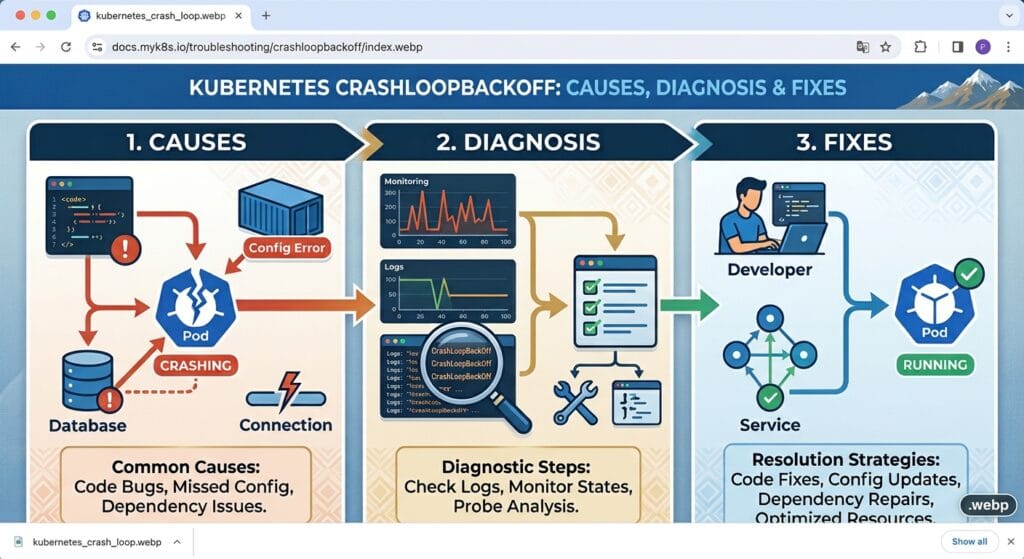
A Kubernetes application can be deployed successfully, its container image can be downloaded, and its Pod can be scheduled onto a node, yet the application may still fail to remain running.
One common symptom is CrashLoopBackOff.
This status appears when a container repeatedly starts, exits, and gets restarted by Kubernetes. The underlying problem may be an application crash, an incorrect startup command, insufficient memory, a failed liveness probe, missing configuration, or an unavailable dependency.
Unlike an image pull failure, a CrashLoopBackOff problem usually occurs after Kubernetes has obtained the container image and attempted to start the application.
If you are troubleshooting an image download problem instead, see our previous guide on Kubernetes ImagePullBackOff: Causes, Diagnosis and Fixes.
This article explains how to identify why a Kubernetes container keeps restarting, interpret its exit code, inspect previous logs, and apply the correct fix without repeatedly deleting Pods or making unnecessary changes to the cluster.
What Is Kubernetes CrashLoopBackOff?
CrashLoopBackOff is a container waiting state that indicates Kubernetes is delaying another restart after repeated container failures.
The typical sequence is:
- Kubernetes schedules a Pod onto a node.
- The container runtime starts the container.
- The application exits or is terminated.
- Kubernetes observes the failed container.
- The kubelet attempts another restart according to the Pod’s restart policy.
- Repeated failures trigger an increasing back-off delay.
For many workloads, the default restart policy is Always. This means Kubernetes keeps restarting the container whenever it terminates, including when its process exits successfully.
The delay between failed restart attempts increases to prevent continuous restart activity.
The maximum back-off delay is five minutes under the standard Kubernetes behavior.
CrashLoopBackOff vs ImagePullBackOff
These statuses describe different failure stages.
| Status | What happens |
|---|---|
ImagePullBackOff | Kubernetes cannot retrieve the required container image. |
ErrImagePull | An image download attempt failed. |
CrashLoopBackOff | A container repeatedly starts and then terminates. |
OOMKilled | A container was terminated because of an out-of-memory condition. |
The exact reason for a CrashLoopBackOff is not contained in the status name. You must inspect the container’s previous logs, termination information, and Kubernetes events.
The official Kubernetes Pod Lifecycle documentation explains container restarts and the back-off mechanism.
How to Diagnose a CrashLoopBackOff Pod
Start by identifying the affected workload and collecting information before changing its configuration.
1. List Pods in the affected namespace
Run:
kubectl get pods -n productionExample output:
NAME                   READY   STATUS             RESTARTS   AGE
web-7d8f9b6c4f-abc12   0/1     CrashLoopBackOff   8          12m
api-6d7f4c8c9b-x7k2p   1/1     Running            0          12m
The RESTARTS column indicates how many times the container has restarted.
To inspect all namespaces:
kubectl get pods -A2. Describe the affected Pod
Run:
kubectl describe pod POD_NAME -n productionReplace POD_NAME with the actual Pod name.
Pay particular attention to these sections:
- Containers
- State
- Last State
- Restart Count
- Exit Code
- Events
For example:
Last State:     Terminated
Reason:         Error
Exit Code:      1

Restart Count:  8

Events:
  Warning  BackOff  Back-off restarting failed container
This tells you that the container terminated with an error and Kubernetes is attempting to restart it.
A different output may show:
Last State:     Terminated
Reason:         OOMKilled
Exit Code:      137
This points toward a possible memory-related failure and requires further investigation.
3. Inspect recent Kubernetes events
Run:
kubectl get events -n production \
  --sort-by='.metadata.creationTimestamp'
Events can reveal:
- Failed liveness probes.
- Container termination.
- Configuration problems.
- Scheduling or node resource issues.
- Repeated restart attempts.
Do not rely only on the Pod status. The event message often provides a much more useful explanation.
Inspect Previous Container Logs
One of the most useful commands when diagnosing a CrashLoopBackOff is:
kubectl logs POD_NAME -n production --previousThe --previous option retrieves logs from the previous terminated container instance.
This matters because the current container may have restarted and may not contain the error messages generated by the previous attempt.
For a Pod with multiple containers, specify the affected container:
kubectl logs POD_NAME \
  -c CONTAINER_NAME \
  -n production \
  --previous
To inspect the current container logs:
kubectl logs POD_NAME -n production --tail=100Look for messages such as:
Error: database connection refusedMissing required environment variablePermission deniedCannot find moduleThese errors can identify the application-level failure directly.
For workloads based on Docker, excessive application logging can also make troubleshooting and storage management more difficult. Our guide on Docker Logs Taking Too Much Disk Space explains how to investigate container log growth and configure rotation.
Understand Container Exit Codes
Exit codes help narrow down the type of container failure.
You can retrieve the last termination reason and exit code with:
kubectl get pod POD_NAME -n production \
  -o jsonpath='{range .status.containerStatuses[*]}{.name}{" reason="}{.lastState.terminated.reason}{" exitCode="}{.lastState.terminated.exitCode}{" restarts="}{.restartCount}{"\n"}{end}'
Common exit-code clues include:
| Exit code | Possible meaning |
|---|---|
0 | Process exited successfully, but the workload may expect a continuously running service. |
1 | General application error. |
126 | Command found but could not be executed. |
127 | Command or executable not found. |
137 | Process received SIGKILL; investigate OOMKilled and other termination causes. |
143 | Process received SIGTERM, often during a termination or shutdown sequence. |
These values are diagnostic clues, not definitive explanations.
For example, exit code 137 does not prove that the container was killed by an out-of-memory condition. Check the termination reason and node events before concluding that memory is the problem.
Similarly, exit code 0 may still lead to repeated restarts when a long-running workload uses the Always restart policy.
Fix OOMKilled and Memory Limit Problems
One important cause of CrashLoopBackOff is insufficient memory.
When a container exceeds its memory limit, Kubernetes and the Linux kernel may terminate the process. The container may then enter a restart cycle.
1. Confirm whether the container was OOMKilled
Run:
kubectl describe pod POD_NAME -n productionLook for:
Last State:
  Terminated:
    Reason: OOMKilled
You should also inspect the Pod’s resource configuration:
kubectl get pod POD_NAME -n production -o yamlFind the container’s resource requests and limits.
2. Check memory consumption
When the Metrics Server is available, run:
kubectl top pod POD_NAME -n productionFor node-level resource usage:
kubectl top nodesThese commands can help reveal whether the workload is approaching its available memory capacity.
For deeper Linux-level resource analysis, see our Linux Server Administration Complete Guide.
3. Configure appropriate memory requests and limits
For example:
resources:
  requests:
    memory: "256Mi"
    cpu: "250m"

  limits:
    memory: "512Mi"
    cpu: "500m"
These are illustrative values, not universal recommendations.
Choose resource settings based on actual workload measurements, application startup requirements, expected traffic, and node capacity.
Increasing the memory limit without investigating the application’s memory behavior may only delay the next failure.
Also review application memory leaks, sudden traffic spikes, and other Pods competing for resources.
Fix Liveness and Startup Probe Failures
A container can enter a restart loop even when its application process is not crashing independently.
A misconfigured liveness probe may repeatedly tell Kubernetes that the application is unhealthy, causing the container to be restarted.
Understand the different Kubernetes probes
| Probe | Purpose | Restarts the container when it fails? |
|---|---|---|
| Liveness | Determines whether the container should be restarted. | Yes, after the configured failure threshold. |
| Readiness | Determines whether the container should receive traffic. | No. |
| Startup | Determines whether the application has finished starting. | A failed startup probe can eventually cause a container restart. |
A common mistake is configuring a liveness probe with a very short initial delay for an application that needs more time to initialize.
Example of a startup and liveness probe configuration
startupProbe:
  httpGet:
    path: /health
    port: 8080
  periodSeconds: 10
  failureThreshold: 30

livenessProbe:
  httpGet:
    path: /health
    port: 8080
  periodSeconds: 10
  timeoutSeconds: 3
  failureThreshold: 3
The startup probe allows additional initialization time before Kubernetes begins applying the liveness probe.
The HTTP path, port, and timing values must match the actual application.
How to diagnose probe failures
Run:
kubectl describe pod POD_NAME -n productionLook for events such as:
Warning Unhealthy Liveness probe failedReview:
- Probe endpoint and port.
- Application startup time.
- Timeout settings.
- Failure thresholds.
- Whether the endpoint is available inside the container.
Do not use a readiness probe as a substitute for a liveness probe. A readiness failure should normally remove the Pod from service endpoints rather than restart the container.
For details, see the official Kubernetes Liveness, Readiness and Startup Probes documentation.
Check Commands, Environment Variables and Configuration
A container may start and immediately exit because its command, arguments, or application configuration is incorrect.
1. Inspect the container command
Review the Pod or Deployment specification:
kubectl get deployment web -n production -o yamlCheck the container’s:
command:
args:
An incorrect executable path, missing script, or invalid argument can prevent the application from starting.
2. Check environment variables
Inspect the Deployment configuration for required environment variables:
kubectl describe deployment web -n productionCheck whether the application requires values supplied through:
- Environment variables.
- ConfigMaps.
- Secrets.
- Mounted configuration files.
Do not expose Secret values in terminal output, screenshots, or published configuration files.
3. Verify ConfigMaps and Secrets
List ConfigMaps:
kubectl get configmaps -n productionList Secrets without displaying their data:
kubectl get secrets -n productionConfirm that the names and keys referenced by the Pod exist in the correct namespace.
A missing configuration file, invalid connection string, or incorrect environment variable can cause an application to exit immediately.
4. Verify file permissions
A container may fail because its startup executable or configuration file does not have the required permissions.
Inspect the Docker image, mounted volumes, security context, and the user under which the application runs.
Do not solve permission problems by automatically running every container as root. Use the least privilege required by the application.
Investigate Application Dependencies
Some applications start correctly only when external services are available.
For example, a web API may terminate because it cannot connect to:
- A PostgreSQL database.
- A Redis service.
- An internal API.
- A message queue.
- A required external endpoint.
The application logs may contain connection errors immediately before the process exits.
Inspect the relevant Service and Endpoint information:
kubectl get services -n productionkubectl get endpointslices -n productionCheck the application’s connection settings, DNS names, network policies, credentials, and dependency readiness.
If the application should wait for another component, use an appropriate application retry strategy or an initialization mechanism rather than relying on repeated container crashes.
Also distinguish a temporary dependency failure from an incorrect service name, invalid credentials, or blocked network connection.
Verify That the Container Is Stable
After correcting the root cause, monitor the Pod and its owning workload.
1. Watch Pod status
kubectl get pods -n production -wLook for the Pod to reach Running and eventually become ready.
2. Check restart counts
kubectl get pods -n productionThe restart count should stop increasing.
A container may remain running for a short time and still fail later, so continue monitoring rather than treating one successful start as proof of a permanent fix.
3. Inspect the Deployment rollout
kubectl rollout status deployment/web -n productionConfirm that the expected replicas become available.
4. Review application logs
kubectl logs POD_NAME -n production --tail=100Check that the application starts without the previous error messages.
5. Review recent events
kubectl get events -n production \
  --sort-by='.metadata.creationTimestamp'
Ensure that repeated restart, OOMKilled, or probe failure events are no longer occurring.
If a Deployment configuration was changed, make sure the new revision contains the intended command, resource settings, and probe configuration.
Common Troubleshooting Mistakes
Repeatedly deleting the Pod
A Deployment or StatefulSet may create another Pod with the same faulty configuration. Deleting the Pod does not fix the application crash.
Ignoring previous container logs
The current container may have restarted and lost the immediate context of the previous failure. Use kubectl logs --previous to inspect the terminated instance.
Increasing memory limits without checking usage
An OOMKilled event requires investigation. A higher memory limit is not always the correct solution, particularly when an application has a memory leak or the node lacks sufficient capacity.
Misconfiguring liveness probes
A probe that runs too early or uses the wrong endpoint can cause healthy applications to be restarted repeatedly.
Treating readiness failures as container crashes
Readiness probes control whether a Pod receives traffic. They do not directly restart the container.
Ignoring configuration and dependencies
Missing environment variables, invalid Secrets, incorrect commands, and unavailable databases can all cause applications to exit during startup.
Frequently Asked Questions
What does CrashLoopBackOff mean in Kubernetes?
It means a container is repeatedly terminating and Kubernetes is delaying another restart attempt according to its restart behavior.
How do I check why a Pod keeps restarting?
Use:
kubectl describe pod POD_NAME -n NAMESPACEThen inspect previous container logs:
kubectl logs POD_NAME -n NAMESPACE --previousReview the termination reason, exit code, restart count, and recent events.
What causes OOMKilled in Kubernetes?
OOMKilled indicates that a process was terminated because of an out-of-memory condition. Common contributing factors include excessive memory consumption, insufficient memory limits, leaks, and node-level resource pressure.
Can a liveness probe cause CrashLoopBackOff?
Yes. If a liveness probe repeatedly fails beyond its configured threshold, Kubernetes can restart the container. A startup probe can help protect applications that need additional initialization time.
What is the difference between CrashLoopBackOff and ImagePullBackOff?
CrashLoopBackOff occurs when a container repeatedly starts and terminates. ImagePullBackOff occurs when Kubernetes cannot retrieve the required container image. They require different troubleshooting steps.
Does restarting a Deployment fix CrashLoopBackOff?
Restarting a Deployment may recreate its Pods, but the problem will usually return if the underlying application, resource, probe, or configuration issue remains unresolved.
Conclusion
Kubernetes CrashLoopBackOff is a symptom of repeated container termination, not a complete diagnosis.
The most effective troubleshooting process starts with Pod events and previous container logs, followed by an examination of exit codes, memory usage, health probes, commands, environment variables, and application dependencies.
Once the actual cause is identified, correct the relevant configuration and monitor the workload until its restart count stabilizes and its replicas become ready.
Understanding the difference between an image pull failure and a container runtime failure helps Kubernetes administrators diagnose problems faster and avoid unnecessary deployment changes.