Introduction
Windows computers normally use a default gateway to reach networks outside their local subnet. This works well for standard network configurations, but more complex environments often require additional routing rules.
For example, a Windows Server may need to reach a remote subnet through a secondary router, a VPN connection, or a dedicated network interface. In these situations, a static route allows an administrator to specify exactly where traffic destined for a particular network should be sent.
Windows supports static routing through Command Prompt and PowerShell. Administrators can create temporary routes, configure persistent routes that survive restarts, and inspect the routing table to identify connectivity problems.
This guide explains how to configure Windows static routes in Windows 11 and Windows Server, using both the route command and PowerShell networking cmdlets.
What Is a Static Route in Windows?
A static route is a manually configured network path that tells a computer how to reach a specific destination network.
Instead of relying entirely on the default gateway, Windows can use a more specific routing entry to forward traffic through another gateway.
Consider this example:
                 Windows Server
                 192.168.1.10
                       |
                       |
                 192.168.1.1
                 Main Router
                       |
                192.168.1.254
                 Secondary Router
                       |
                       |
                 10.20.0.0/24
                 Remote Network
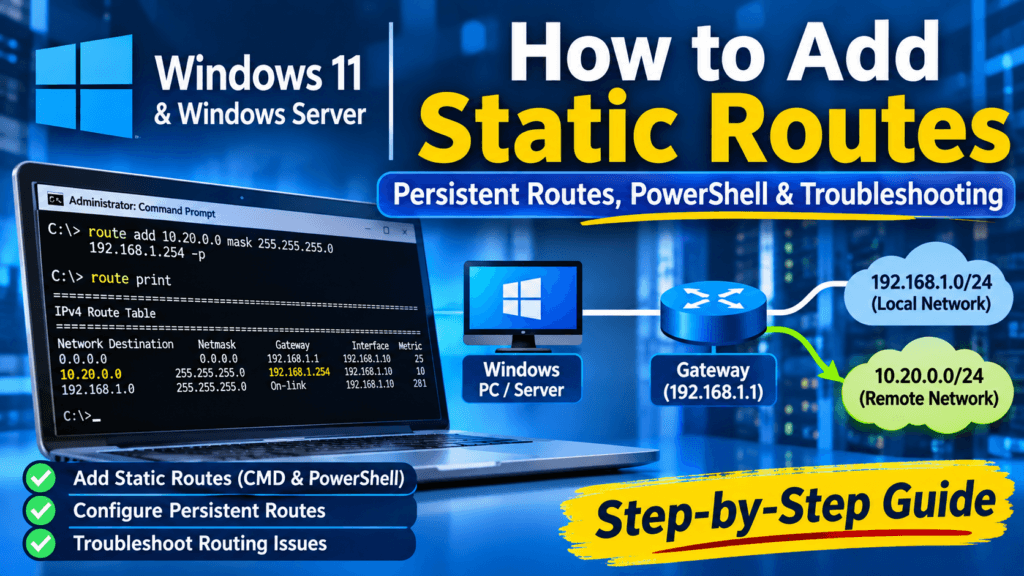
The Windows Server uses 192.168.1.1 as its default gateway, but the remote network 10.20.0.0/24 is reachable through another router at 192.168.1.254.
A static route can tell Windows to use that secondary router for the destination network.
For more background, see Microsoft’s documentation for the Windows route command:
https://learn.microsoft.com/en-us/windows-server/administration/windows-commands/route_ws2008
When Should You Use Static Routes?
Static routes are useful in several networking scenarios.
1. Multiple Network Interfaces
A Windows Server may have multiple network adapters connected to different networks.
A static route can direct specific destination networks through the appropriate interface.
2. VPN Connectivity
Some VPN configurations require traffic for particular remote subnets to use a specific gateway or VPN interface.
Static routes can help define the intended path when the VPN configuration supports this approach.
3. Multi-Subnet Networks
Enterprise environments often contain multiple VLANs and IP subnets.
A static route can provide a path to a remote subnet through an intermediate router.
4. Network Labs
Network engineers and students can use static routes to test routing behavior in virtual machines and isolated lab environments.
5. Windows Server Infrastructure
Servers hosting applications, databases, or internal services may require specific routes to reach remote network segments.
Static routes should be configured carefully, especially when multiple gateways or network adapters are involved.
Step 1: Display the Windows Routing Table
Before adding a route, inspect the existing routing table.
Open Command Prompt and run:
route printThis displays the current IPv4 and IPv6 routing information, including:
- Network destinations.
- Subnet masks.
- Gateways.
- Network interfaces.
- Route metrics.
- Persistent routes.
To display only IPv4 routes:
route print -4To display IPv6 routes:
route print -6The routing table helps identify existing routes and avoid creating unnecessary or conflicting entries.
Understanding Route Entries
A simplified routing table may look like this:
| Network Destination | Netmask | Gateway |
|---|---|---|
| 192.168.1.0 | 255.255.255.0 | On-link |
| 10.20.0.0 | 255.255.255.0 | 192.168.1.254 |
| 0.0.0.0 | 0.0.0.0 | 192.168.1.1 |
The default route uses 0.0.0.0/0. It handles destinations for which no more specific route is available.
The entry for 10.20.0.0/24 directs matching traffic through 192.168.1.254.
Step 2: Identify the Network Interface
When a computer has multiple network adapters, identifying the correct interface is important.
Run:
ipconfig /allThis displays the IP configuration of each adapter.
You can also inspect interface indexes using PowerShell:
Get-NetIPInterfaceFor a more focused view:
Get-NetIPInterface -AddressFamily IPv4 |
Format-Table InterfaceIndex, InterfaceAlias, AddressFamily, ConnectionState
Example:
InterfaceIndex InterfaceAlias       AddressFamily ConnectionState
-------------- --------------       ------------- ---------------
12             Ethernet             IPv4          Connected
15             Ethernet 2           IPv4          Connected
The interface index can be used when adding a route that must use a particular network adapter.
Always confirm that the selected interface can reach the intended next-hop gateway.
Step 3: Add a Static Route Using CMD
Windows provides the route add command for creating static routing entries.
The general syntax is:
route add <destination> mask <netmask> <gateway>For example:
route add 10.20.0.0 mask 255.255.255.0 192.168.1.254This adds a route for the 10.20.0.0/24 network through the gateway 192.168.1.254.
The command should be executed from an elevated Command Prompt.
Add a Route With a Specific Metric
A route metric helps determine preference between routes with otherwise comparable destinations.
Example:
route add 10.20.0.0 mask 255.255.255.0 192.168.1.254 metric 10A lower metric can make a route more preferred when the relevant route-selection criteria are otherwise comparable.
However, route selection also depends on destination prefix length and interface-related metrics. Do not assume that the lowest metric always wins across different destination prefixes.
Add a Route Through a Specific Interface
When multiple network adapters exist, specify the interface index:
route add 10.20.0.0 mask 255.255.255.0 192.168.1.254 if 12This associates the route with interface index 12.
Microsoft documents the syntax and supported parameters in its official route command reference:
https://learn.microsoft.com/en-us/windows-server/administration/windows-commands/route_ws2008
Step 4: Create a Persistent Static Route
A normal route added with route add is not necessarily preserved after a TCP/IP restart.
To create a persistent IPv4 route, use the /p parameter:
route -p add 10.20.0.0 mask 255.255.255.0 192.168.1.254The route is stored persistently and used to initialize the routing table when TCP/IP starts.
To display the routing table, including persistent entries:
route printPersistent routes are useful for servers and workstations that must retain specific routing paths after a restart.
Important: Before adding a persistent route on a production server, verify the gateway, destination subnet, interface, and existing routes. An incorrect persistent route can affect connectivity after a restart.
Step 5: Configure Static Routes Using PowerShell
PowerShell provides modern networking cmdlets for managing routes.
The New-NetRoute cmdlet creates a route in the Windows networking configuration.
Example:
New-NetRoute `
-DestinationPrefix "10.20.0.0/24" `
-InterfaceIndex 12 `
-NextHop "192.168.1.254" `
-RouteMetric 10
This creates a route to 10.20.0.0/24 through the specified next hop and interface.
View Existing Routes
Use:
Get-NetRouteFor IPv4 routes only:
Get-NetRoute -AddressFamily IPv4To display the destination, gateway, interface, and metric:
Get-NetRoute -AddressFamily IPv4 |
Format-Table DestinationPrefix, NextHop, InterfaceIndex, RouteMetric
Inspect Persistent Routes
Windows maintains different route stores.
To inspect persistent IPv4 routes:
Get-NetRoute -AddressFamily IPv4 -PolicyStore PersistentStoreTo inspect active IPv4 routes:
Get-NetRoute -AddressFamily IPv4 -PolicyStore ActiveStoreThis distinction is particularly useful when diagnosing routes that appear in configuration but are not active.
Microsoft recommends using Get-NetRoute when more detail about the active and persistent route stores is needed:
Step 6: Add an IPv6 Static Route
Windows also supports IPv6 routing.
For example, use PowerShell to create an IPv6 route:
New-NetRoute `
-DestinationPrefix "2001:db8:20::/64" `
-InterfaceIndex 12 `
-NextHop "2001:db8:1::1"
The destination prefix represents the remote IPv6 network, while the next hop identifies the router used to reach it.
The example uses documentation-only IPv6 addresses and should be adapted to the actual network.
To inspect IPv6 routes:
Get-NetRoute -AddressFamily IPv6IPv6 route configuration requires the correct interface and a valid reachable next hop.
Step 7: Change or Delete a Static Route
Sometimes a route needs to be modified or removed.
Change a Route Using CMD
The route change command modifies an existing route.
Example:
route change 10.20.0.0 mask 255.255.255.0 192.168.1.253This changes the next-hop gateway for the specified destination route.
Delete a Route Using CMD
To remove a route:
route delete 10.20.0.0When multiple entries exist for the same destination, inspect the routing table first and use the appropriate parameters to identify the intended route.
Remove a Route Using PowerShell
First identify the route:
Get-NetRoute -DestinationPrefix "10.20.0.0/24"Then remove the matching entry using its interface and next-hop details:
Remove-NetRoute `
-DestinationPrefix "10.20.0.0/24" `
-InterfaceIndex 12 `
-NextHop "192.168.1.254" `
-Confirm:$true
Review the result before confirming removal, especially on a remote server.
Step 8: Troubleshoot Windows Static Route Problems
A route can exist in the routing table and still fail to provide connectivity.
The problem may involve an incorrect gateway, interface selection, firewall policy, missing return routes, or an unreachable destination.
Problem 1: Static Route Disappears After Restart
Possible cause: The route was created without the persistent option.
For example:
route add 10.20.0.0 mask 255.255.255.0 192.168.1.254Solution: If persistence is required, create the route using:
route -p add 10.20.0.0 mask 255.255.255.0 192.168.1.254Verify it using:
route printProblem 2: Destination Network Is Unreachable
Possible causes:
- Incorrect gateway address.
- Wrong subnet mask.
- Gateway is unreachable.
- The remote router has no return route.
- The selected interface is disconnected.
Start by checking:
ipconfig /all
route print
ping 192.168.1.254
A successful ping to the gateway does not guarantee that the remote destination is reachable, but it helps verify the local next-hop path.
Problem 3: Windows Uses the Wrong Network Interface
This can occur when multiple adapters or default gateways exist.
Inspect the interface configuration:
Get-NetIPInterface -AddressFamily IPv4Then inspect the routes:
Get-NetRoute -AddressFamily IPv4Verify that the intended route uses the correct interface index and next-hop gateway.
Problem 4: Route Exists but Traffic Still Fails
Possible causes include:
- Missing return route on the remote network.
- Firewall restrictions.
- Incorrect destination subnet.
- Remote host unavailable.
- VPN routing conflicts.
- Network address translation or security policy issues.
Use:
tracert 10.20.0.10You can also test the path using:
pathping 10.20.0.10These commands help identify where traffic stops or experiences packet loss.
Problem 5: Multiple Default Gateways Cause Unexpected Routing
A system with multiple network adapters may have more than one default gateway.
This can cause unexpected route selection and asymmetric connectivity.
Inspect:
route print -4Then examine interface metrics:
Get-NetIPInterface -AddressFamily IPv4 |
Format-Table InterfaceAlias, InterfaceIndex, InterfaceMetric
Do not remove a default gateway or change interface metrics without understanding the network design.
Microsoft documents an example involving additional persistent default gateways when using LBFO:
Step 9: Verify Static Route Connectivity
After creating a route, verify both the routing entry and actual network connectivity.
Use:
route printThen test the next hop:
ping 192.168.1.254Test the remote destination:
ping 10.20.0.10Trace the path:
tracert 10.20.0.10For PowerShell, inspect the route:
Get-NetRoute -DestinationPrefix "10.20.0.0/24"A successful configuration should meet these conditions:
- The intended route exists.
- The correct interface is selected.
- The next-hop gateway is reachable.
- The destination network is reachable.
- Return traffic has a valid path.
- Persistent routes remain configured when required.
Remember that ICMP traffic may be blocked by a firewall. A failed ping alone does not prove that the routing entry is incorrect.
CMD vs PowerShell: Which Method Should You Use?
Both methods are useful, but they suit different administration tasks.
| Feature | CMD route command | PowerShell |
|---|---|---|
| Display routes | route print | Get-NetRoute |
| Add IPv4 route | route add | New-NetRoute |
| Persistent IPv4 route | route -p add | Configure route in the persistent store |
| Interface selection | if parameter | InterfaceIndex |
| Route metrics | metric parameter | RouteMetric |
| Remove route | route delete | Remove-NetRoute |
| Automation | Batch scripts | PowerShell scripts |
For quick manual changes, CMD is straightforward.
For repeatable administration, detailed route inspection, and automation, PowerShell provides more structured networking cmdlets.
When persistence matters, verify the actual route store rather than assuming that a route has survived a restart.
Best Practices for Windows Static Routing
Use these practices when managing static routes on Windows workstations and servers:
- Inspect the routing table before adding routes.
- Confirm that the gateway is reachable from the selected interface.
- Use persistent routes only when necessary.
- Avoid unnecessary default gateway entries.
- Document route destinations and their purposes.
- Verify route metrics and interface indexes.
- Check the return path on remote routers.
- Test connectivity after every routing change.
- Use PowerShell for repeatable network administration.
- Keep a record of changes made to production systems.
Incorrect static routes can interrupt remote administration, VPN access, and server connectivity. Always review changes before applying them to production systems.
Frequently Asked Questions
How do I add a static route in Windows 11?
Open Command Prompt as Administrator and run:
route add 10.20.0.0 mask 255.255.255.0 192.168.1.254Replace the destination and gateway with the values used in your network.
How do I make a Windows static route permanent?
Use the -p parameter:
route -p add 10.20.0.0 mask 255.255.255.0 192.168.1.254How do I display the Windows routing table?
Run:
route printHow do I add a static route using PowerShell?
Use New-NetRoute with the destination prefix, interface index, and next-hop gateway.
What is the difference between a static route and a default route?
A static route defines a path to a specific destination network. A default route is used when no more specific matching route is available.
Why does my static route disappear after reboot?
A route created without persistence may not survive a TCP/IP restart. Use route -p add for a persistent IPv4 route.
How do I delete a persistent route in Windows?
Use the route delete command with the appropriate destination and, where necessary, additional route parameters. Verify the result using route print.
Can Windows use static routes for IPv6?
Yes. Windows supports IPv6 routes, and administrators can manage them using PowerShell networking cmdlets.
How do I check which interface Windows uses for a route?
Use:
Get-NetRoute -AddressFamily IPv4Inspect the InterfaceIndex field and compare it with:
Get-NetIPInterfaceWhy is my static route not working even though it appears in the routing table?
The gateway may be unreachable, the remote network may lack a return route, or a firewall may block traffic. Check the interface, next hop, remote routing, and connectivity path.
Conclusion
Windows static routes provide administrators with precise control over how traffic reaches remote networks.
Whether you use the traditional route command or PowerShell networking cmdlets, understanding destination prefixes, gateways, interface indexes, and route metrics is essential.
For Windows 11 and Windows Server environments, a reliable approach is to inspect the routing table first, add only the necessary routes, verify connectivity, and configure persistence when required.
With these practices, administrators can manage multi-subnet environments, troubleshoot routing problems, and maintain predictable network connectivity.