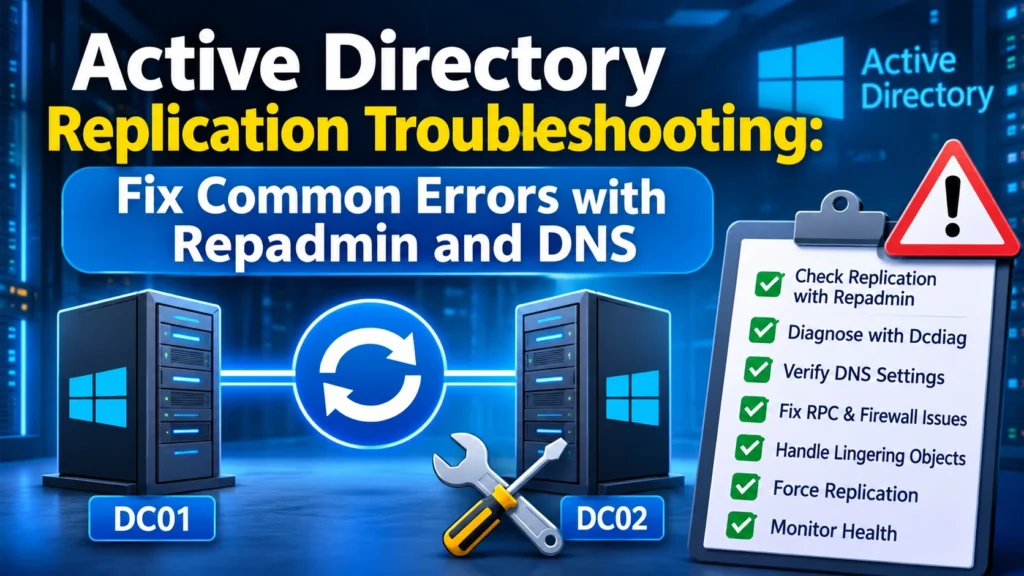
Active Directory replication is essential for keeping domain controllers synchronized across a Windows Server environment. When replication fails, changes to user accounts, passwords, security groups, computer objects, Group Policy settings, and other directory data might not reach every domain controller.
These failures can cause authentication problems, inconsistent login behavior, Group Policy processing issues, and difficulties managing domain resources.
The good news is that most Active Directory replication problems can be diagnosed systematically. By using tools such as Repadmin, Dcdiag, PowerShell, and Event Viewer, administrators can identify whether the problem is related to DNS, network connectivity, RPC communication, authentication, replication topology, or directory consistency.
This guide explains how to troubleshoot Active Directory replication step by step, interpret common error messages, and restore healthy replication without introducing unnecessary risks.
Important: Run administrative commands from an elevated Command Prompt or PowerShell session. Before making changes to domain controllers, review the environment, confirm that you have appropriate backups, and understand the potential impact of the operation.
1. What Is Active Directory Replication?
Active Directory replication is the process through which domain controllers exchange directory changes.
For example, when an administrator creates a user account on DC01, that change must eventually be replicated to the other domain controllers in the domain. This allows users and applications to access consistent directory information regardless of which domain controller handles their requests.
Active Directory uses a multi-master replication model. This means that changes can generally be made on any writable domain controller and replicated to its replication partners.
Replication occurs in two main environments:
- Intrasite replication: Occurs between domain controllers within the same Active Directory site. It is designed for reliable, high-speed network connections.
- Intersite replication: Occurs between domain controllers in different sites, often across WAN or VPN connections. Site links, schedules, and replication costs influence how replication occurs.
The Knowledge Consistency Checker (KCC) automatically creates and maintains the replication topology based on the Active Directory site configuration.
For replication to work correctly, domain controllers depend on several services and technologies, including:
- DNS name resolution.
- Network connectivity.
- Remote Procedure Call (RPC).
- Kerberos authentication.
- Active Directory database consistency.
- Correct site and replication topology configuration.
A failure in any of these areas can interrupt replication.
2. Common Symptoms of Active Directory Replication Failures
Replication problems do not always produce an immediate, obvious failure. In some environments, replication can remain broken for hours or days before administrators notice inconsistent directory information.
Common symptoms include:
- New user accounts appear on one domain controller but not another.
- Password changes do not work consistently across the domain.
- Group Policy changes are not applied as expected.
- Users experience intermittent authentication failures.
- Domain controllers report replication errors in Event Viewer.
- Replication partners are missing from Repadmin output.
- Active Directory Sites and Services displays connection or topology problems.
- Replication attempts fail with DNS, RPC, or access-denied errors.
For example, assume an organization has two domain controllers:
| Domain Controller | IP Address | Site |
|---|---|---|
| DC01 | 192.168.10.10 | Headquarters |
| DC02 | 192.168.20.10 | Branch |
An administrator creates a new user account on DC01. However, the account does not appear when users authenticate against DC02.
This may indicate that inbound replication on DC02 is failing, although the actual cause could be DNS, connectivity, authentication, or replication topology.
The first step is to determine exactly which replication connections are failing.
3. Check Active Directory Replication Health with Repadmin
Repadmin.exe is one of the most important tools for diagnosing Active Directory replication. It allows administrators to inspect replication partners, identify failures, review replication status, and initiate synchronization when appropriate.
It is included with Windows Server and is also available through the appropriate Remote Server Administration Tools (RSAT) components.
3.1 Check the Overall Replication Status
Start with:
repadmin /replsummaryThis command provides a summary of replication activity across domain controllers.
Pay attention to the following information:
- Source DSA: The domain controller sending changes.
- Destination DSA: The domain controller receiving changes.
- Largest Delta: The longest reported time since successful replication.
- Fails: The number of failed replication attempts.
- Total: The number of replication attempts included in the summary.
- Error: The reported replication error, when present.
A result showing zero failures is a good sign, but it does not replace a detailed examination of individual replication partners.
If the report contains failures, identify the affected domain controllers and continue with the next checks.
3.2 Examine Replication Partners
Run:
repadmin /showreplTo inspect a specific domain controller:
repadmin /showrepl DC01For more detailed information:
repadmin /showrepl DC01 /all /verboseThis command displays inbound replication information for the selected domain controller.
Look for:
- The naming contexts being replicated.
- The source domain controller for each connection.
- The last successful replication time.
- The last failed replication attempt.
- The error code and message.
- Missing or unexpected replication partners.
For example, an output containing:
Last attempt @ 2026-11-25 10:15:00 failed, result 1722:

The RPC server is unavailable.
indicates that replication failed because the RPC communication path could not be established successfully.
Do not assume that the destination domain controller is necessarily the source of the problem. Check both ends of the connection.
3.3 Check the Replication Queue
Run:
repadmin /queue DC01This displays pending replication requests on the selected domain controller.
A persistent queue can indicate that replication operations are not completing as expected. Investigate network availability, RPC communication, partner health, and the reported replication errors before taking further action.
3.4 Inspect Replication Connection Objects
Run:
repadmin /showconn DC01This displays replication connection objects for the domain controller.
Use it when you suspect that the KCC has not created the expected connections or that the replication topology does not reflect the actual network design.
For additional guidance, see Microsoft’s documentation on Troubleshooting Active Directory Replication Problems.
4. Diagnose Domain Controller Health with Dcdiag
Repadmin helps inspect replication relationships, while Dcdiag.exe checks several aspects of domain controller health.
It is useful for identifying problems that may affect Active Directory replication indirectly.
4.1 Run a General Domain Controller Diagnostic
Open an elevated Command Prompt and run:
dcdiag /vThe verbose output includes diagnostic tests and details about potential failures.
Review the results for warnings or failures involving DNS, advertising, connectivity, services, and directory replication.
4.2 Test Replication
To focus on replication:
dcdiag /test:replications /vTo test replication across domain controllers in the environment:
dcdiag /test:replications /e /vThe /e option expands the test scope to enterprise domain controllers.
4.3 Test DNS
DNS is particularly important in Active Directory environments. Run:
dcdiag /test:dns /vTo include enterprise-wide DNS testing:
dcdiag /test:dns /e /vReview failures involving DNS registration, name resolution, delegation, and required Active Directory service records.
A domain controller may have working IP connectivity while still being unable to locate its replication partner because DNS records are missing or incorrect.
5. Fix DNS Problems Affecting Active Directory Replication
DNS is one of the most common areas to investigate when replication fails.
Active Directory uses DNS to locate domain controllers and discover services through records such as LDAP and Kerberos SRV records.
If a domain controller cannot resolve its replication partner correctly, replication may fail even when both servers are online.
For a broader explanation of name resolution, see CorgiNetwork’s guides on How DNS Resolution Works and DNS Explained.
5.1 Verify the DNS Client Configuration
On each affected domain controller, run:
ipconfig /allCheck the DNS server addresses configured on the network adapter.
Domain controllers that belong to an Active Directory domain should normally use DNS servers that host or can resolve the organization’s Active Directory DNS zones.
Avoid configuring a public DNS resolver directly as the DNS server on a domain controller’s network adapter. External name resolution should be handled through the organization’s internal DNS design, such as DNS forwarders.
Also check that:
- The DNS suffix is correct.
- DNS server addresses are reachable.
- The internal Active Directory DNS zone is available.
- The domain controller’s host records are correct.
- No obsolete DNS records point to an incorrect server address.
5.2 Verify Active Directory SRV Records
Use the following command, replacing contoso.com with your actual domain:
nslookup -type=SRV _ldap._tcp.dc._msdcs.contoso.comYou can also check the Kerberos service records:
nslookup -type=SRV _kerberos._tcp.dc._msdcs.contoso.comThese records help clients and domain controllers locate the appropriate services.
Check that the returned records identify valid domain controllers and that the corresponding hostnames resolve to the correct IP addresses.
For example:
nslookup DC02.contoso.comIf the server name does not resolve correctly, investigate the DNS zone, host records, and registration process.
5.3 Re-register DNS Records When Necessary
If DNS records are missing or outdated, first identify and correct the underlying DNS configuration.
You can then request DNS registration using:
ipconfig /registerdnsFor a domain controller, you can also request registration of its domain controller locator records:
nltest /dsregdnsAfter registration, verify the relevant records again using nslookup and repeat the DNS diagnostic tests.
Do not delete DNS records indiscriminately. Confirm that each record is obsolete before removing it, especially in environments with multiple domain controllers or manually managed DNS records.
6. Troubleshoot RPC Connectivity and Firewall Issues
Active Directory replication relies on RPC communication between domain controllers.
A firewall that blocks the required RPC traffic can prevent replication even when basic network connectivity works.
6.1 Test Basic Network Connectivity
Start by checking whether the replication partner resolves correctly:
ping DC02.contoso.comA failed ping does not necessarily prove that replication is unavailable because ICMP traffic may be blocked by the firewall.
Next, test important TCP ports from PowerShell:
Test-NetConnection DC02.contoso.com -Port 135You can also test LDAP and SMB connectivity:
Test-NetConnection DC02.contoso.com -Port 389
Test-NetConnection DC02.contoso.com -Port 445
A successful TCP 135 test confirms connectivity to the RPC Endpoint Mapper, but it does not prove that the complete RPC replication connection will work.
6.2 Verify Required Firewall Ports
Active Directory communication can require several ports, depending on the services and configuration involved.
Common ports include:
| Port | Protocol | Purpose |
|---|---|---|
| 53 | TCP/UDP | DNS |
| 88 | TCP/UDP | Kerberos authentication |
| 135 | TCP | RPC Endpoint Mapper |
| 389 | TCP/UDP | LDAP |
| 445 | TCP | SMB |
| 3268 | TCP | Global Catalog |
| 3269 | TCP | Global Catalog over SSL |
| 49152–65535 | TCP | Default dynamic RPC port range on modern Windows versions |
The required ports depend on the specific Active Directory services and network design. Additional services, such as DFS Replication for SYSVOL, may require further connectivity.
For modern Windows Server environments, the default dynamic TCP port range is generally 49152–65535. Older systems or customized configurations may use different ranges.
Do not open every port without understanding the requirement. Configure firewall rules according to Microsoft’s Active Directory domain and trust firewall requirements.
If replication works inside one site but repeatedly fails between sites, pay particular attention to firewall policies, VPN routing, and intersite connectivity.
7. Fix Access Denied and Authentication Errors
Replication can fail even when DNS and network connectivity appear healthy.
Authentication and authorization problems may prevent domain controllers from establishing a valid replication session.
7.1 Investigate Access Denied Errors
A common Repadmin result is:
Last attempt failed, result 5:

Access is denied.
Error 5 indicates that the replication operation was denied.
Possible causes include:
- Incorrect permissions on directory partitions.
- Problems with domain controller computer accounts.
- Kerberos authentication failures.
- Secure channel or trust problems.
- Incorrect security configuration.
- Insufficient permissions for an administrator initiating a manual replication operation.
Start by checking the Directory Service and System event logs on both domain controllers.
Also verify that the domain controller computer accounts remain valid and that the directory replication permissions have not been modified unexpectedly.
Do not reset a domain controller’s computer account or modify replication permissions as a first response. Such changes require a clear diagnosis and an appropriate recovery procedure.
For more details, see Microsoft’s guide to Troubleshooting Active Directory Replication Error 5.
7.2 Verify Time Synchronization
Kerberos authentication is sensitive to time differences between computers.
Check the time configuration on the affected domain controllers:
w32tm /query /statusYou can also inspect the time configuration:
w32tm /query /configurationInvestigate unusual time sources, large time differences, and unexpected changes to the domain time hierarchy.
In a healthy Active Directory environment, domain members and domain controllers should follow the organization’s configured Windows Time hierarchy.
Avoid setting every domain controller to an unrelated external time source. Correct the domain time design instead.
7.3 Investigate the Target Account Name Error
Another possible replication error is:
The target account name is incorrect.This message can be associated with authentication, DNS, connectivity, or service principal name problems.
Check the following:
- Confirm that both domain controllers resolve each other’s correct DNS names.
- Verify that system clocks are synchronized.
- Review the domain controller computer accounts.
- Investigate duplicate or incorrect service principal names.
- Examine Kerberos and Netlogon events.
Do not assume that this error has a single cause. Correlate the Repadmin output with the event logs before changing account or SPN configuration.
8. Understand Common Active Directory Replication Error Codes
Correctly interpreting a replication error helps narrow the investigation.
The following table summarizes several errors that administrators frequently encounter.
| Error or Message | Possible Cause | Recommended Investigation |
|---|---|---|
| Error 5 – Access is denied | Authentication or authorization failure | Check permissions, computer accounts, Kerberos, and security events |
| Error 1722 – RPC server is unavailable | RPC connectivity problem | Check DNS, routing, firewalls, and dynamic RPC ports |
| Error 8453 – Replication access was denied | Replication permissions or security configuration | Investigate directory partition permissions and the replication security context |
| Error 8614 | Replication exceeded the tombstone lifetime restriction | Investigate stale replication partners and lingering objects |
| Error 8452 | Replication request does not match the current topology or naming context | Review topology changes and replication partner information |
| Target account name is incorrect | Possible DNS, authentication, or SPN problem | Check DNS records, Kerberos, computer accounts, and SPNs |
Do not treat an error code as a complete diagnosis. The same error can have different underlying causes depending on the environment.
Microsoft maintains a detailed reference for Common Active Directory Replication Errors.
9. Troubleshoot Important Active Directory Replication Event IDs
Event Viewer provides additional information about replication failures.
Open Event Viewer and navigate to:
Applications and Services Logs
    Microsoft
        Windows
            Directory Service
Also inspect the System log for related DNS, Netlogon, RPC, and time-service events.
The following events are particularly useful.
| Event ID | Source | Meaning |
|---|---|---|
| 1311 | NTDS KCC | Replication topology information may not accurately reflect the network |
| 1388 | NTDS Replication | A lingering object may have been replicated |
| 1925 | NTDS KCC | An attempt to establish a replication connection failed |
| 1988 | NTDS Replication | A lingering object was detected |
| 2042 | NTDS Replication | Replication has not occurred with a partner for longer than the tombstone lifetime |
| 2087 | NTDS Replication | DNS lookup failure prevented replication |
| 2088 | NTDS Replication | DNS lookup failed, but replication succeeded through an alternative resolution method |
| 5805 | Netlogon | A machine account authentication problem occurred |
Event ID 1311: Replication Topology Problem
Event 1311 can indicate that the Knowledge Consistency Checker cannot build the expected replication topology.
Investigate:
- Active Directory Sites and Services.
- Subnet-to-site assignments.
- Site links and their schedules.
- Site link costs.
- WAN and VPN connectivity.
- Available replication partners.
Confirm that the Active Directory site configuration reflects the actual network topology.
Event ID 1925: Replication Connection Failure
Event 1925 indicates that an attempt to establish a replication link failed.
The event may be associated with DNS, RPC connectivity, authentication, or topology configuration.
Use:
repadmin /showreplThen investigate the specific failure reported for the affected naming context and partner.
Event ID 2087: DNS Lookup Failure
Event 2087 indicates that Active Directory could not resolve the DNS name of a replication partner.
Check:
- The replication partner’s A or AAAA records, where applicable.
- The domain controller’s DNS registration.
- The
_msdcsDNS records. - The configured DNS servers.
- DNS connectivity between sites.
Correct DNS before attempting to force replication.
Event IDs 1388 and 1988: Lingering Objects
These events indicate that Active Directory has detected a lingering object.
This is a directory consistency problem and requires special care.
Do not attempt to bypass the protection or force replication immediately. Follow the safe procedure in the next section.
Event ID 2042: Tombstone Lifetime Exceeded
Event 2042 indicates that a domain controller has not replicated with a partner for longer than the configured tombstone lifetime.
This can create a risk of lingering objects because deletions may have been processed and garbage-collected on other domain controllers while the outdated server was disconnected.
The correct response is to investigate the stale domain controller and directory consistency before permitting replication to resume.
10. Detect and Handle Lingering Objects Safely
Lingering objects are directory objects that remain on a domain controller after they have been deleted and subsequently removed from other domain controllers through the normal deletion and garbage-collection process.
They can appear when a domain controller remains disconnected for an extended period and later returns to the replication topology.
The presence of lingering objects can lead to inconsistent directory information and security problems.
10.1 Identify the Replication Risk
Start by checking:
repadmin /showreplLook for replication errors such as:
The time since last replication with this server
has exceeded the tombstone lifetime.
Also review Event IDs 1388, 1988, and 2042.
At this stage:
- Do not blindly force replication.
- Do not delete directory objects manually.
- Do not re-enable divergent replication as a shortcut.
- Identify which domain controllers have the most reliable directory data.
A domain controller that has been offline beyond the tombstone lifetime must not simply be returned to normal replication without evaluating the risk.
10.2 Run a Lingering Object Check in Advisory Mode
Microsoft provides a Repadmin command that can identify lingering objects without removing them.
The syntax is:
repadmin /removelingeringobjects <DestinationDC> <SourceDC-GUID> "DC=contoso,DC=com" /advisory_modeReplace the placeholders as follows:
<DestinationDC>: The domain controller being checked for lingering objects.<SourceDC-GUID>: The DSA object GUID of a trusted source domain controller with a known-good directory replica.DC=contoso,DC=com: The naming context to examine./advisory_mode: Runs the check without removing the detected objects.
You can inspect the source domain controller’s replication information with:
repadmin /showrepl <SourceDC> /all /verboseUse the DSA object GUID shown for the intended source.
For example, in a domain named contoso.com, the naming context might be:
DC=contoso,DC=comA forest can also contain configuration, schema, and application directory partitions. Make sure that you use the correct naming context for the investigation.
10.3 Remove Lingering Objects Only After Reviewing the Results
If advisory mode reports lingering objects, do not immediately execute a removal command.
First:
- Confirm that the selected source domain controller contains the correct and current directory data.
- Identify the affected destination domain controller.
- Confirm the affected naming context.
- Review the advisory results and the relevant Microsoft recovery guidance.
- Ensure that a suitable backup and recovery plan exists.
Only after those checks should an administrator consider running the corresponding removal operation without /advisory_mode.
For detailed procedures, refer to Microsoft’s documentation on Active Directory Replication Event IDs 1388 and 1988 and Event ID 2042.
Critical warning: Do not disable strict replication consistency or enable divergent replication as a generic fix for Event 2042. Microsoft documents special recovery procedures for this situation. Follow those procedures only after the lingering object condition has been addressed and the source and destination domain controllers have been identified correctly.
If the affected domain controller is substantially outdated or its directory state cannot be trusted, demotion and rebuilding may be safer than attempting to restore normal replication.
11. Force Active Directory Replication with Repadmin
After resolving the underlying issue, an administrator may need to initiate replication manually.
For example, DNS records might have been corrected, a firewall rule restored, or a replication topology issue resolved.
Before forcing synchronization, confirm that:
- The source and destination domain controllers are healthy.
- DNS resolution works in both directions.
- RPC communication is available.
- Authentication and permissions are correct.
- There is no unresolved lingering object or tombstone lifetime issue.
11.1 Synchronize Replication Across Partners
Use:
repadmin /syncall DC01 /AdePThis requests synchronization for naming contexts held by DC01 and expands the operation across enterprise replication partners.
The options mean:
/A: Synchronize all naming contexts held by the home server./d: Display servers by distinguished name./e: Include servers across the enterprise./P: Push changes outward from the home server.
This is a broad operation. Use it when you understand the replication topology and have confirmed that the relevant partners are safe to synchronize.
11.2 Replicate a Specific Naming Context Between Two Domain Controllers
For a more targeted operation:
repadmin /replicate DC01 DC02 "DC=contoso,DC=com"In this syntax:
DC01is the destination domain controller.DC02is the source domain controller.DC=contoso,DC=comis the naming context.
This requests replication of the specified naming context from DC02 to DC01.
A targeted operation is often easier to control when only one replication relationship requires attention.
11.3 Recalculate the Replication Topology
If you have corrected the site configuration or network conditions and need the KCC to recalculate the connections, run:
repadmin /kcc DC01This triggers the Knowledge Consistency Checker on the specified domain controller.
It does not repair DNS, firewall, or authentication failures by itself. Address those problems first.
12. Verify Replication Health After Troubleshooting
After making the necessary corrections, confirm that replication is working.
Start with:
repadmin /replsummaryThen inspect the affected domain controller:
repadmin /showrepl DC01Run the replication diagnostic again:
dcdiag /test:replications /vYou can also use the Active Directory PowerShell module to review replication failures:
Get-ADReplicationFailure -Target * -Scope ForestTo inspect replication partners and their metadata:
Get-ADReplicationPartnerMetadata -Target * -Scope ForestReview the results for:
- Successful replication attempts.
- Correct replication partners.
- Updated last-successful replication times.
- No persistent replication failures.
- No new DNS or authentication errors.
- No unexpected replication topology problems.
Do not rely on a single successful manual synchronization as proof that the entire environment is healthy. Monitor the domain controllers again after their normal replication schedules have had time to operate.
13. Prevent Future Active Directory Replication Problems
Regular monitoring can help identify replication failures before they affect users and business applications.
Use the following practices:
Monitor replication regularly. Run Repadmin health checks and review the Directory Service event log. Persistent replication failures should be investigated promptly.
Maintain accurate DNS records. Ensure that domain controllers register their required records and that internal DNS zones are healthy and available.
Configure Active Directory Sites and Services correctly. Map network subnets to the appropriate sites and configure site links to reflect actual WAN connectivity.
Review firewall and network changes. Changes to routing, VPNs, NAT, and firewall rules can affect RPC communication between domain controllers.
Protect domain controller availability. Avoid leaving domain controllers disconnected for extended periods without a documented recovery plan.
Monitor time synchronization. Maintain the correct Windows Time hierarchy to support Kerberos authentication.
Maintain reliable backups. Use supported Active Directory backup and recovery procedures. Backups are especially important before directory cleanup or recovery operations.
Investigate errors early. Do not allow repeated replication failures to continue until they exceed the tombstone lifetime.
14. Active Directory Replication Troubleshooting Checklist
Use this checklist when investigating a replication failure.
Run
repadmin /replsummaryto identify failing domain controllers.Run
repadmin /showreplto inspect inbound replication partners.Review the Directory Service and System event logs.
Run
dcdiag /test:replications /v.Verify DNS client configuration on both domain controllers.
Check LDAP and Kerberos SRV records.
Test RPC Endpoint Mapper connectivity.
Review firewall rules and dynamic RPC port access.
Check Kerberos, time synchronization, and replication permissions.
Review Active Directory Sites and Services.
Investigate lingering objects and tombstone lifetime errors before forcing synchronization.
Verify successful replication after applying the correction.
Following this sequence helps administrators identify the root cause instead of repeatedly running synchronization commands without understanding why replication failed.
Conclusion
Active Directory replication is fundamental to maintaining a consistent and reliable Windows Server domain environment. When replication fails, the problem can affect authentication, password changes, Group Policy, and access to network resources.
A structured troubleshooting process is the most reliable approach.
Start with Repadmin to identify failing replication partners, use Dcdiag to check domain controller health, and investigate DNS, RPC connectivity, authentication, and replication topology. Pay particular attention to Event IDs 1988 and 2042 because lingering objects and tombstone lifetime problems require additional safeguards.
Once the underlying problem has been corrected, use Repadmin to initiate synchronization when necessary and verify that replication continues to work normally.
Regular monitoring, accurate DNS configuration, reliable network connectivity, and proper Active Directory backup procedures help prevent replication failures from becoming serious domain-wide problems.
Microsoft Documentation and Further Reading
The following Microsoft resources provide additional technical details and recovery procedures: