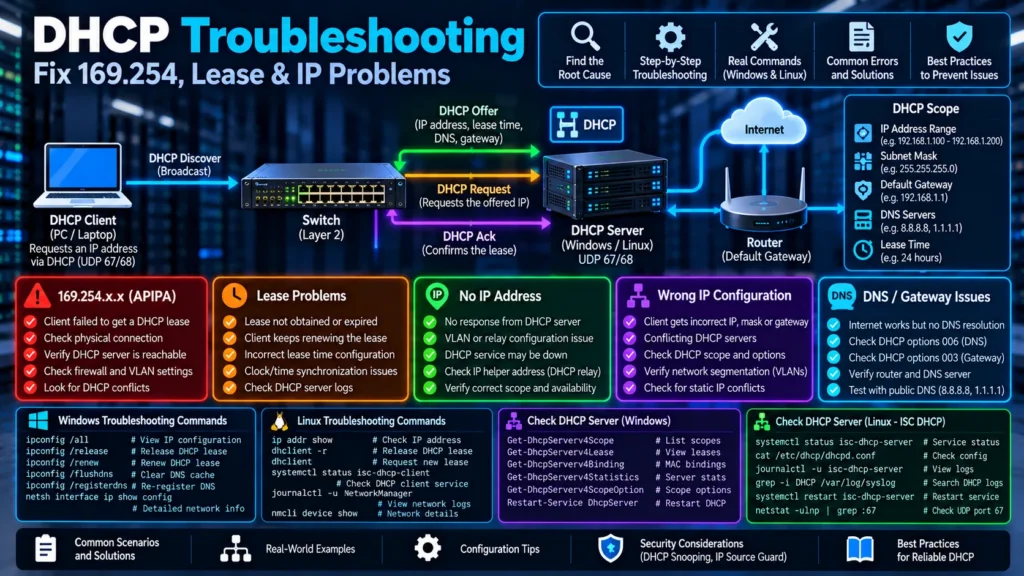
DHCP Troubleshooting Guide: Fix IP Address, Lease, APIPA, Gateway and DNS Problems
A computer connects to Wi-Fi or Ethernet, but there is no Internet access. You check its network configuration and discover an address such as:
169.254.47.21Or the device has a normal-looking address such as 192.168.1.50, yet it cannot reach the default gateway. Another client receives an IP address but gets the wrong DNS servers. In an enterprise network, an entire VLAN suddenly stops receiving addresses after a network change.
These symptoms often point toward DHCP troubleshooting.
The Dynamic Host Configuration Protocol automatically provides clients with critical network configuration such as an IP address, subnet mask, default gateway, DNS servers, and lease information. DHCP is formally specified by RFC 2131.
When DHCP fails, the correct solution is not simply to restart the router or repeatedly run ipconfig /renew.
A DHCP failure can occur at several different points:
Client
   |
   v
VLAN / Broadcast Domain
   |
   v
DHCP Relay
   |
   v
DHCP Server
   |
   v
Scope / Address Pool
   |
   v
DHCP Options
The fastest troubleshooting method is therefore to identify where the DHCP exchange stops.
This guide explains how to diagnose DHCP problems systematically, including DORA failures, 169.254 APIPA addresses, expired leases, DHCP scope exhaustion, DHCP relay problems, wrong gateways, incorrect DNS settings, VLAN issues, UDP ports 67/68, rogue DHCP servers, and packet-level troubleshooting.
For the networking foundation behind DHCP, see Computer Networking Explained and TCP/IP Explained.
What DHCP Troubleshooting Actually Means
DHCP troubleshooting is often oversimplified into:
The client cannot get an IP address.
But DHCP can fail in many different ways.
A client might receive:
No IP addressor:
169.254.x.xor even a valid-looking address such as:
192.168.20.45while receiving an incorrect:
Default Gateway
DNS Server
Subnet Mask
Domain Name
A more accurate DHCP troubleshooting model is:
| Problem | Possible Layer |
|---|---|
| No address | Client, relay, server, scope |
| 169.254.x.x | DHCP exchange failed |
| Wrong subnet | Wrong scope/VLAN |
| Wrong gateway | DHCP option configuration |
| Wrong DNS | DHCP DNS option |
| Some clients fail | Scope exhaustion, policy, VLAN |
| One VLAN fails | Relay/VLAN/routing |
| Intermittent addressing | Rogue DHCP or multiple servers |
| Renewal fails | Server/relay/path/state issue |
The first task is therefore not:
How do I restart DHCP?
It is:
At which stage did DHCP fail?
How DHCP Works: The DORA Process
The classic DHCPv4 address-acquisition process is often summarized as:
DORAmeaning:
Discover
Offer
Request
Acknowledgement
A simplified exchange is:
DHCP Client                      DHCP Server
     |                                |
     |------ DHCPDISCOVER ----------->|
     |                                |
     |<------- DHCPOFFER --------------|
     |                                |
     |------- DHCPREQUEST ------------>|
     |                                |
     |<-------- DHCPACK ---------------|
     |                                |
After the exchange succeeds, the client can configure the leased network parameters.
Understanding DORA is the single most useful concept for troubleshooting DHCP.
Instead of saying:
DHCP is broken.you can ask:
Did the client send DHCPDISCOVER?
Did the server receive it?
Did the server send DHCPOFFER?
Did the client receive the offer?
Did it send DHCPREQUEST?
Did the server return DHCPACK?
Each missing message narrows the problem dramatically.
Step 1: DHCPDISCOVER
When a DHCP client does not yet have usable IPv4 configuration, it must locate a DHCP server.
It sends:
DHCPDISCOVERBecause the client may not yet know:
Its own usable IP address
DHCP server IP address
Default gateway
initial DHCP communication relies heavily on broadcast behavior on the local network.
Conceptually:
Client
IP: 0.0.0.0
      |
      | DHCPDISCOVER
      v
Broadcast domain
      |
      +---- DHCP Server A
      |
      +---- DHCP Server B
If the client is not on the same broadcast domain as the DHCP server, a DHCP relay can forward the request.
This distinction becomes critical in VLAN-based enterprise networks.
Step 2: DHCPOFFER
A DHCP server that can serve the client may respond with:
DHCPOFFERThe offer can contain proposed configuration including:
IP address
Subnet mask
Lease duration
Default gateway
DNS servers
DHCP server identifier
The exact information depends on the DHCP configuration and requested options.
Conceptually:
Client
   |
   | DHCPDISCOVER
   v
Server
   |
   | DHCPOFFER
   v
Client
If packet capture shows:
DISCOVERbut no:
OFFERthe investigation should move toward the server, relay, scope, or network path.
Step 3: DHCPREQUEST
The client selects an offered configuration and sends:
DHCPREQUESTDuring initial allocation, this also helps indicate which offered server/configuration the client selected when multiple offers exist.
Conceptually:
Server A ---- OFFER A ----\
                           \
Client --------------------> REQUEST selected lease
                           /
Server B ---- OFFER B ----/
The details of DHCP client state and message fields are more nuanced than this diagram, but the model is useful for troubleshooting.
Step 4: DHCPACK
The selected DHCP server responds with:
DHCPACKconfirming the lease and configuration.
Now the client can configure the interface.
Conceptually:
DHCPACK
   |
   v
Client configures:

IP address
Subnet mask
Gateway
DNS
Lease timers
At this point, however, DHCP success does not guarantee Internet connectivity.
The assigned:
Gateway
DNS
Subnet mask
could still be wrong.
Therefore:
DHCP lease obtaineddoes not automatically mean:
Network configuration is correct.DHCP Uses UDP Ports 67 and 68
For DHCPv4, the familiar UDP ports are:
| Component | UDP Port |
|---|---|
| DHCP Server | 67 |
| DHCP Client | 68 |
A simplified path is:
Client UDP 68
      |
      v
Server UDP 67
Microsoft’s DHCP troubleshooting guidance likewise identifies UDP ports 67 and 68 for DHCP client/server communication.
Firewalls, ACLs, security appliances, virtualization filters, or network policies that interfere with these packets can prevent DHCP from working.
This differs from DNS, which primarily uses port 53. For DNS-specific failures after DHCP succeeds, see DNS Explained.
The Fastest DHCP Troubleshooting Method
When a device cannot connect, first inspect its actual configuration.
On Windows:
ipconfig /allLook for:
IPv4 Address
Subnet Mask
Default Gateway
DHCP Enabled
DHCP Server
DNS Servers
Lease Obtained
Lease Expires
Do not look only at the IPv4 address.
A device might receive:
IPv4: 192.168.10.40but:
Gateway: 192.168.20.1which would indicate a configuration problem.
A useful troubleshooting sequence is:
IP address
     |
     v
Subnet mask
     |
     v
Gateway
     |
     v
DHCP server
     |
     v
DNS servers
     |
     v
Lease timing
Then determine whether the failure is actually DHCP-related.
What Does a 169.254 IP Address Mean?
One of the most recognizable DHCP symptoms on Windows is:
169.254.x.xMicrosoft calls this Automatic Private IP Addressing, or APIPA.
Microsoft documents the APIPA range as:
169.254.0.0 – 169.254.255.255with the client using a link-local address when configured for automatic addressing but unable to obtain normal DHCP configuration.
In practical troubleshooting terms:
169.254.x.xis a strong signal that the client did not obtain the expected DHCP lease.
But there is an important nuance.
Do not treat every address beginning with 169.254 anywhere in every operating system or networking context as proof of the exact same Windows DHCP failure mechanism.
The useful troubleshooting question is:
Was this client expected to receive a normal DHCP lease, and did it instead self-configure a link-local address?
If yes, investigate the DHCP path.
What APIPA Can and Cannot Do
A Windows host using APIPA may communicate with appropriately configured hosts on the same local link.
It normally does not provide normal routed connectivity to remote networks through your intended default gateway.
Conceptually:
PC-A
169.254.10.20
      |
      | Local link
      v
PC-B
169.254.10.30
may have limited local communication.
But:
169.254.x.x
      |
      X
Router / Internet
does not provide the expected routed enterprise or home-network configuration.
Therefore, if a user says:
I have Wi-Fi but no Internet.
and ipconfig shows:
169.254.x.xstart with DHCP connectivity—not DNS.
APIPA Is Not a DNS Problem
This distinction prevents wasted troubleshooting.
If the client has:
169.254.x.xand no usable default gateway, changing DNS from:
192.168.1.1to:
8.8.8.8will not repair the underlying DHCP failure.
The client first needs valid IP-layer connectivity.
The correct troubleshooting order is:
Link
 ↓
IP configuration
 ↓
Gateway
 ↓
Routing
 ↓
DNS
 ↓
Application
This is one reason understanding TCP/IP is so valuable for troubleshooting.
How to Fix a 169.254 APIPA Address
Start by checking whether the client is actually configured for DHCP.
On Windows:
ipconfig /allVerify:
DHCP Enabled . . . . . . . : YesThen try renewing the lease:
ipconfig /release
ipconfig /renew
Afterward:
ipconfig /allIf the client still receives APIPA, do not repeatedly run the same commands.
Move to the next question:
Are DHCP messages reaching the server?
DHCPDISCOVER but No DHCPOFFER
This is one of the most useful packet-capture patterns:
Client → DHCPDISCOVER
Client → DHCPDISCOVER
Client → DHCPDISCOVER

No DHCPOFFER
This proves something important:
Client DHCP process is at least transmitting Discover messages.Now investigate why no offer returns.
Possible causes include:
- DHCP server unavailable
- DHCP service stopped
- Scope exhausted
- Wrong VLAN
- Missing DHCP relay
- Incorrect relay configuration
- ACL/firewall blocking DHCP
- Server not listening on expected interface
- DHCP server policy rejecting the client
- Network path problem
The next step depends heavily on whether the server is on the same subnet.
Same-Subnet DHCP Troubleshooting
Consider:
VLAN 10

Client
  |
  +--------- DHCP Server
Both devices share the same Layer 2 broadcast domain.
A DHCPDISCOVER should normally be able to reach the server without a router forwarding the broadcast.
If packet capture on the client shows Discover packets but the server never sees them, investigate:
VLAN membership
Switch configuration
Wireless isolation
Port security
Firewall
Virtual switch
Physical network
For the role of switches and routers in this path, see Routers, Switches and Network Devices.
DHCP Across Different Subnets
Now consider:
VLAN 10
Client
  |
  v
Router / L3 Switch
  |
  v
VLAN 100
DHCP Server
DHCP broadcast traffic from the client is not simply routed across subnets like ordinary unicast application traffic.
A DHCP/BOOTP relay function is commonly used.
Conceptually:
Client
   |
   | Broadcast DHCPDISCOVER
   v
Default-Gateway / Relay
   |
   | Relayed DHCP request
   v
DHCP Server
The DHCP server uses relay information to determine which client subnet needs an address.
This allows centralized DHCP servers to serve many VLANs.
DHCP Relay and IP Helper Problems
A classic enterprise incident looks like this:
VLAN 10 → DHCP works
VLAN 20 → DHCP works
VLAN 30 → DHCP fails
VLAN 40 → DHCP works
Do not immediately restart the DHCP server.
If the same server successfully serves three other VLANs, investigate the unique path for VLAN 30.
A common suspect is:
DHCP relay configurationsometimes configured on network platforms through an IP helper mechanism.
Conceptually:
VLAN 30 client
     |
     v
VLAN 30 gateway
     |
     X  relay missing/wrong
     |
DHCP Server
The client repeatedly broadcasts Discover messages locally, but they never reach the centralized DHCP server.
Troubleshooting DHCP Relay Step by Step
For the failing VLAN, verify:
1. Client is actually in the expected VLAN
2. VLAN interface/gateway is operational
3. DHCP relay is configured
4. Relay points to correct DHCP server
5. Route exists between relay and server
6. ACL/firewall permits the traffic
7. Server has a scope for that subnet
8. Return traffic can reach the relay/client
This isolates the issue far more effectively than simply asking whether:
DHCP service is running.Why the DHCP Relay Address Matters
A DHCP server serving multiple networks must know which subnet the requesting client belongs to.
The relay agent provides information that helps the server associate the request with the appropriate network.
Conceptually:
Client has no usable IP yet
        |
        v
DHCP Relay
        |
        | identifies client-side network
        v
DHCP Server
        |
        v
Select correct scope
If relay information points to a subnet for which the server has no usable scope, the server may not be able to offer an address.
DHCP Scope Exhaustion
A DHCP scope has a finite number of usable addresses.
Example:
Network:
192.168.10.0/24
Suppose the DHCP pool is:
192.168.10.100
through
192.168.10.199
That is a limited pool.
If all available leases are allocated and no reusable addresses remain, new clients may fail to receive an offer.
Conceptually:
DHCP Pool
192.168.10.100 ───────── 192.168.10.199

[used][used][used][used]...[used]

New Client
    |
    v
No available lease
This commonly occurs in:
Guest Wi-Fi
Schools
Hotels
Conference networks
Large offices
High-device-density environments
How to Diagnose DHCP Scope Exhaustion
On the DHCP server, inspect:
Total addresses
Active leases
Available addresses
Reservations
Exclusions
Lease duration
Declined/conflict addresses
Do not immediately enlarge the subnet.
First determine why the pool is exhausted.
Possible reasons include:
Legitimate growth
Very long lease duration
Large number of transient clients
Unexpected devices
Incorrect exclusions
Old/stale leases
Wrong scope design
If the subnet itself truly lacks sufficient capacity, subnet/VLAN redesign may eventually be required.
Lease Duration and Address Availability
Lease duration affects how long clients can retain assigned addresses.
Consider a guest network where thousands of transient devices connect but leases remain allocated for a long time.
Even after users leave, addresses may remain leased until they can be reclaimed according to the server’s lease behavior.
Reducing lease duration can sometimes help high-turnover networks, but it creates more DHCP renewal traffic.
Therefore:
Short leaseis not automatically better than:
Long leaseLease duration should reflect network behavior.
DHCP Lease Renewal: T1 and T2
DHCP does not normally wait until the lease expires before trying to renew it.
RFC 2131 defines client state transitions involving renewal and rebinding.
In the common default timing model:
T1 ≈ 50% of lease
T2 ≈ 87.5% of lease
Microsoft’s DHCP troubleshooting documentation likewise describes unicast renewal after 50% of the lease duration and rebinding after 87.5% when the directed renewal did not succeed.
A simplified timeline:
Lease begins
0%
 |
 | normal operation
 |
50% -------- T1
 |           |
 |           +--> Try to renew
 |
87.5% ------ T2
 |           |
 |           +--> Rebind more broadly
 |
100% ------- Lease expires
The exact values can be supplied by DHCP options rather than always being fixed at these defaults.
RENEWING State
At T1, the client enters the renewal process.
It normally tries to contact the DHCP server associated with its lease.
Conceptually:
Client
  |
  | DHCPREQUEST
  v
Original DHCP Server
If successful:
DHCPACKextends the lease.
The client does not need to perform a complete fresh DORA exchange every time half the lease passes.
REBINDING State
If renewal does not succeed and T2 is reached, the client moves toward rebinding.
Conceptually:
Original server
      X

Client
  |
  | DHCPREQUEST
  v
Available DHCP server
This allows the client to attempt to preserve valid configuration even when the original server is unavailable.
If no successful renewal/rebinding occurs before lease expiration, the client can no longer simply continue treating the expired lease as valid indefinitely.
Why DHCP Can Appear Healthy Until Leases Expire
Consider a DHCP server failure at:
09:00Clients already holding leases may continue operating normally for some time.
New clients may fail immediately.
Existing clients begin experiencing problems later as they need renewal.
This creates an incident pattern such as:
09:00 DHCP server fails

09:05 Existing PCs work
09:05 New PC fails

Later:
More clients begin renewal/rebinding attempts

Eventually:
More visible failures appear
Therefore:
Existing clients still work
does not prove the DHCP service is healthy.
DHCP Offer Received but Client Does Not Complete the Lease
Another packet pattern is:
DISCOVER
OFFER
but no successful completion.
Now we know:
Client can reach DHCP server
Server can generate an offer
Offer can reach client capture point
Investigate the next stages:
Does client send DHCPREQUEST?
Does server receive REQUEST?
Does server send ACK or NAK?
Does client receive ACK?
The troubleshooting scope is now much smaller than it was before packet capture.
DHCPNAK
A DHCP server can send:
DHCPNAKto indicate that the requested network configuration is not acceptable in the current context.
For example, a client may attempt to use configuration that is no longer valid for its network.
Conceptually:
Client
  |
  | REQUEST old/invalid configuration
  v
Server
  |
  | DHCPNAK
  v
Client
The client must then return to an appropriate initialization process rather than continuing to use invalid configuration.
Wrong Default Gateway from DHCP
DHCP may successfully assign:
IP: 192.168.10.50
Mask: 255.255.255.0
but incorrectly provide:
Gateway: 192.168.20.1The client has a lease.
Yet remote connectivity fails.
This is not:
DHCP server unreachable.It is:
DHCP option/configuration error.On Windows, inspect:
ipconfig /allThen test the expected gateway.
For example:
ping 192.168.10.1The gateway should normally be reachable according to the local subnet architecture.
No Default Gateway
A client might receive:
IP address ✓
Subnet mask ✓
DNS server ✓
Default gateway ✗
Local-subnet communication may work while remote networks fail.
Conceptually:
Client
  |
  +---- Same subnet ✓
  |
  X
Router / Internet
Check the DHCP scope/options.
Do not diagnose this as DNS simply because websites fail to load.
DHCP and DNS Problems
DHCP commonly supplies DNS resolver addresses to clients.
Suppose the client receives:
IP:      192.168.10.50
Gateway: 192.168.10.1
DNS:     192.168.50.53
but 192.168.50.53 is no longer a working resolver.
Now:
ping 1.1.1.1may work while:
nslookup example.comfails.
This indicates:
IP connectivity works
Routing works
DNS resolution fails
The root problem may be the DNS configuration distributed through DHCP.
For DNS-specific diagnostics, use the dedicated DNS Explained foundation and your DNS troubleshooting workflow rather than rebuilding the DHCP lease unnecessarily.
Test IP Connectivity Before DNS
A useful sequence is:
1. Check client IP
2. Check subnet mask
3. Check gateway
4. Ping/reach gateway
5. Test known IP destination
6. Test DNS resolution
7. Test application
For example:
ping 192.168.1.1then, where network policy allows ICMP:
ping 1.1.1.1then:
nslookup example.comInterpret the layers carefully.
If IP connectivity works but name resolution does not:
Investigate DNS.If the client never received a usable address:
Investigate DHCP first.DHCP and DNS Are Related but Different
DHCP can tell the client:
"Use DNS server 192.168.10.53"but DHCP does not itself perform the client’s DNS resolution.
Conceptually:
DHCP
 |
 +---- IP address
 +---- subnet
 +---- gateway
 +---- DNS server address
             |
             v
            DNS
             |
             v
        Name resolution
A successful DHCP transaction can therefore be followed by a DNS failure.
Keeping the protocols separate conceptually makes troubleshooting faster.
Duplicate IP Address Problems
A client can receive an address that conflicts with another device if network addressing is poorly managed.
A common cause is mixing:
DHCP poolwith manually assigned static addresses inside the same range without reservations or exclusions.
Example:
DHCP pool:
192.168.1.100 – 192.168.1.200
Administrator manually configures a printer:
192.168.1.120DHCP may later attempt to lease that same address to another client unless the address is appropriately excluded/reserved or conflict handling prevents it.
Better design:
Static infrastructure range
192.168.1.2 – 192.168.1.49

DHCP pool
192.168.1.100 – 192.168.1.200
or manage fixed devices using DHCP reservations where appropriate.
DHCP Reservation vs Static IP
These concepts are related but not identical.
A static IP is manually configured on the client.
A DHCP reservation instructs the DHCP system to consistently allocate a particular address to an identified client.
Simplified comparison:
| Method | Client Uses DHCP? | Central Management |
|---|---|---|
| Static IP | No | Limited |
| DHCP reservation | Yes | Yes |
| Dynamic DHCP lease | Yes | Yes |
Reservations are useful for devices that need predictable addresses while retaining centralized DHCP configuration.
Rogue DHCP Servers
A particularly dangerous network problem occurs when an unauthorized DHCP server begins answering clients.
Example:
Client
   |
   | DISCOVER
   |
   +------> Legitimate DHCP
   |
   +------> Rogue DHCP
The rogue server may offer:
Wrong gateway
Wrong DNS server
Wrong subnet
Unexpected routes/options
Users may experience intermittent failures because some clients accept legitimate offers while others receive configuration from the unauthorized server.
Symptoms of a Rogue DHCP Server
Look for clients receiving different:
DHCP Server
Default Gateway
DNS Server
Subnet
despite connecting to the same expected network.
On Windows:
ipconfig /allinspect:
DHCP ServerCompare several affected and unaffected machines.
If one group shows:
DHCP Server: 192.168.1.1and another:
DHCP Server: 192.168.1.200investigate immediately.
DHCP Snooping
Managed network switches may support:
DHCP Snoopingwhich can help control which switch ports are allowed to send DHCP server responses.
Conceptually:
Trusted Port
     |
     v
Legitimate DHCP Server


Untrusted Port
     |
     X
Unauthorized DHCP Offer
However, DHCP snooping itself can also break DHCP if configured incorrectly.
If a legitimate server’s path is treated incorrectly, valid DHCP replies can be dropped.
Therefore, when DHCP fails after a switch security change, inspect:
DHCP snooping
Trusted ports
VLAN configuration
Relay path
rather than assuming the DHCP server failed.
DHCP and VLAN Problems
Enterprise DHCP troubleshooting frequently becomes VLAN troubleshooting.
Consider:
Switch Port
   |
   v
VLAN 20
   |
   v
Gateway / Relay
   |
   v
DHCP Server
   |
   v
Scope for VLAN 20
All of these pieces must agree.
If the access port accidentally belongs to:
VLAN 30the client may receive:
VLAN 30 addressor fail to receive an address depending on the network design.
This is why an unexpected subnet can be just as important a symptom as no address at all.
Client Receives an IP from the Wrong Subnet
Suppose the expected network is:
10.20.0.0/24but the client receives:
10.30.0.54Investigate:
Switch access VLAN
SSID-to-VLAN mapping
802.1X assignment
DHCP relay
Server policy
Rogue DHCP
Virtual switch configuration
Do not simply replace the address manually with:
10.20.0.54because that hides the infrastructure problem.
Windows DHCP Troubleshooting
Start with:
ipconfig /allThen check:
DHCP Enabled
IPv4 Address
Subnet Mask
Default Gateway
DHCP Server
DNS Servers
Lease Obtained
Lease Expires
Release the lease:
ipconfig /releaseRequest new configuration:
ipconfig /renewThen verify again:
ipconfig /allIf the machine continues receiving:
169.254.x.xmove upstream instead of repeatedly renewing.
Check the Windows DHCP Client Service
On systems where DHCP client behavior appears locally broken, verify the relevant Windows networking services and adapter state.
You can inspect services using:
Get-Service DhcpThe goal is to determine whether the client-side DHCP mechanism is operational.
But remember:
DHCP Client service runningdoes not prove:
DHCP Server reachable.Both sides and the network path matter.
Check the Windows Routing Table
After obtaining a lease:
route printor:
Get-NetRoutecan help confirm whether the expected default route exists.
A DHCP configuration problem may manifest as:
Valid IP
+
No usable default route
which can make the client appear connected locally but unable to reach external networks.
Useful Windows PowerShell Commands
Inspect IPv4 configuration:
Get-NetIPConfigurationInspect addresses:
Get-NetIPAddressInspect adapters:
Get-NetAdapterInspect routes:
Get-NetRouteThese commands can help distinguish:
Adapter problem
Addressing problem
Gateway problem
Routing problem
before you move to server-side troubleshooting.
Linux DHCP Troubleshooting
Linux DHCP behavior depends on the distribution and network-management stack.
Modern systems may use:
NetworkManager
systemd-networkd
Other network managers
Start with:
ip addrThen:
ip routeCheck DNS configuration using the tools appropriate to the system, for example:
resolvectl statuson systems using systemd-resolved.
For broader Linux networking and administration, see Linux Server Administration.
NetworkManager Diagnostics
On systems using NetworkManager:
nmcli device statusshows device state.
Inspect a connection:
nmcli connection showInspect a device:
nmcli device showLook for:
IP address
Gateway
DNS
Connection state
Do not assume every Linux system uses the same DHCP client or network manager.
That is why troubleshooting instructions that blindly prescribe one legacy command can be misleading.
Packet Capture: The Best Way to See DHCP Failures
When basic troubleshooting fails, packet capture can show exactly where the DHCP exchange stops.
A healthy initial transaction should resemble:
Client        Server

DISCOVER  ----->
          <----- OFFER
REQUEST   ----->
          <----- ACK
If instead you see:
DISCOVER ----->
DISCOVER ----->
DISCOVER ----->
the question becomes:
Why is there no OFFER?
If you see:
DISCOVER ----->
         <----- OFFER
REQUEST  ----->
REQUEST  ----->
the question becomes:
Why is there no ACK?
This is dramatically more precise than saying:
DHCP doesn't work.Capture DHCP with tcpdump
On Linux, a useful capture filter is:
sudo tcpdump -ni any 'udp port 67 or udp port 68'You can then trigger a DHCP request and observe the exchange.
The exact interface can also be specified instead of any.
For example:
sudo tcpdump -ni eth0 'udp port 67 or udp port 68'Look for:
Discover
Offer
Request
ACK
NAK
and the source/destination path.
Wireshark DHCP Filtering
In Wireshark, DHCPv4 traffic can be inspected using the BOOTP/DHCP dissector.
A commonly useful display filter is:
bootpdepending on Wireshark version/protocol naming.
Packet details can reveal:
Client MAC
Transaction ID
Requested IP
Server identifier
Relay information
Subnet mask
Router option
DNS server option
Lease time
This is extremely useful when the client receives an address but the associated options are wrong.
Packet Capture at Multiple Points
For difficult enterprise failures, capture at:
Client VLAN
Relay interface
DHCP server
Then compare.
Example:
Client capture:
DISCOVER visible
       |
       v
Relay capture:
DISCOVER visible
       |
       v
Server capture:
Nothing
Now investigate:
Relay-to-server path
ACL
Routing
Firewall
Another scenario:
Server:
OFFER sent

Relay:
OFFER received

Client:
No OFFER
Now investigate the relay-to-client path.
This is how packet capture converts a vague network outage into a specific packet-delivery problem.
DHCP Server Has a Lease but Client Has No Address
Do not assume the server lease table tells the complete story.
The server may have processed:
DISCOVER
OFFER
REQUEST
ACK
while the final response failed to reach the client.
Conceptually:
DHCP Server
     |
     | ACK
     v
Relay
     |
     X
Client
The server may therefore record a lease even though the client never successfully configured it.
This is another reason to capture traffic at multiple points when necessary.
Firewall Troubleshooting
DHCP traffic can be affected by:
Host firewall
Router ACL
Cloud firewall
Switch security
Hypervisor networking
VPN filter
Endpoint security
For basic DHCPv4 client/server communication, investigate UDP 67 and 68.
But do not create broad firewall rules without understanding the topology.
A DHCP server should not automatically be exposed to every untrusted network.
Security policy should permit only the traffic required by the intended architecture.
For broader firewall architecture, see Firewalls Explained.
Virtual Machines and DHCP
Virtualization adds another layer.
A virtual machine may connect through:
Bridged networking
NAT
Host-only network
Virtual switch
Cloud virtual network
The DHCP server seen by the VM depends on that design.
For example:
VM
 |
 v
NAT Virtual Network
 |
 v
Hypervisor DHCP
may use a completely different DHCP service than:
VM
 |
 v
Bridged Interface
 |
 v
Physical LAN DHCP
Therefore, if the host receives a valid lease but the VM receives APIPA, investigate the virtual network rather than immediately blaming the physical DHCP server.
For virtualization fundamentals, see Virtualization Explained.
DHCP in Cloud Networks
Cloud networking abstracts some traditional DHCP infrastructure.
A virtual machine may receive configuration through mechanisms integrated into the cloud virtual network rather than from a DHCP server you directly administer.
The troubleshooting principles remain similar:
Does the interface have an address?
Is it from the correct subnet?
Is the expected route present?
Is DNS correct?
Are network policies correct?
But the control plane may be:
AWS
Azure
Google Cloud
rather than a traditional DHCP server appliance.
For the broader architecture, see Cloud Networking Explained.
DHCP Does Not Prove Layer 2 Is Healthy
A client receiving no lease could have a lower-layer connectivity problem.
Before investigating complex DHCP configuration, verify:
Ethernet link
Wi-Fi association
Switch port
VLAN
NIC state
Conceptually:
No Layer 2 connectivity
       |
       v
No DHCP packets
       |
       v
No IP lease
DHCP may merely be the first protocol that makes the underlying failure visible.
DHCP Does Not Prove Routing Is Healthy Either
The opposite is also true.
A client can successfully complete DHCP:
DISCOVER
OFFER
REQUEST
ACK
and still fail to access remote networks.
Possible reasons:
Wrong gateway
Router failure
Routing table
Firewall
NAT
Upstream outage
Therefore:
DHCP worksmeans:
DHCP works.It does not mean every higher network layer works.
Complete DHCP Troubleshooting Workflow
Use this sequence instead of random configuration changes.
Step 1 — Check Physical and Link Connectivity
Verify:
Ethernet link
Wi-Fi association
Adapter enabled
Switch port operational
Correct SSID
If the client cannot participate in the local network, DHCP cannot succeed.
Step 2 — Inspect Current IP Configuration
Windows:
ipconfig /allLinux:
ip addr
ip route
Determine whether the client has:
Expected IP
APIPA/link-local address
Wrong subnet
No address
Step 3 — Check DHCP Status
Verify that the interface is actually configured to obtain addressing automatically.
If it is manually configured with a static address, ipconfig /renew is not the solution.
Step 4 — Check for APIPA
If Windows shows:
169.254.x.xand a normal DHCP lease was expected, investigate why the DHCP exchange failed.
Step 5 — Trigger a New DHCP Exchange
Windows:
ipconfig /release
ipconfig /renew
Then inspect:
ipconfig /allIf the problem persists, stop repeating renew commands and inspect the packet path.
Step 6 — Capture DHCP Traffic
Determine which pattern exists:
DISCOVER onlyor:
DISCOVER → OFFERor:
DISCOVER → OFFER → REQUESTor:
DISCOVER → OFFER → REQUEST → ACKThis identifies the failing stage.
Step 7 — Verify DHCP Server Health
Check:
Service running
Correct interface
Correct network
Scope active
Available leases
Policies
Reservations
Exclusions
Logs
Step 8 — Check Scope Capacity
Determine:
Pool size
Used addresses
Available addresses
Lease duration
If the pool is exhausted, identify why before expanding it.
Step 9 — Check VLAN
Verify that the client is in the intended:
VLANA wrong VLAN can produce:
No DHCPor:
DHCP from wrong subnet.Step 10 — Check DHCP Relay
If the server is on another subnet, verify:
Relay enabled
Correct server destination
Correct client-facing interface
Routing
ACL
Return path
Step 11 — Verify DHCP Options
After a lease succeeds, verify:
IP
Mask
Gateway
DNS
Lease duration
A successful DORA exchange can still deliver incorrect configuration.
Step 12 — Test the Gateway
Verify local routing.
If the client cannot reach its expected gateway, investigate:
Subnet mismatch
VLAN
ARP
Gateway availability
Firewall
Step 13 — Test External IP Connectivity
If gateway connectivity works, test an appropriate remote IP destination.
This separates:
Routing/connectivityfrom:
DNS.Step 14 — Test DNS
Only after IP connectivity is confirmed should you focus on name resolution.
Check which DNS server DHCP supplied.
Then test:
nslookup example.comor:
dig example.comStep 15 — Check for Rogue DHCP
Compare the DHCP server identifier/configuration seen by multiple clients.
Unexpected differences can reveal an unauthorized DHCP service.
DHCP Troubleshooting Decision Tree
Client has no network
        |
        v
Check IP configuration
        |
   +----+------------------+
   |                       |
169.254.x.x           Valid-looking IP
   |                       |
   v                       v
DHCP likely failed      Check gateway
   |                       |
   v                  +----+----+
Capture DORA           |         |
   |                  FAIL      WORKS
   v                   |         |
DISCOVER?               v         v
 |     |             VLAN/      Test remote IP
NO    YES            subnet       |
 |     |             gateway      v
 v     v                       IP works?
Client  OFFER?                  |       |
NIC      |   |                 NO      YES
Link    NO  YES                 |       |
VLAN     |   |                  v       v
         v   v               Routing   Test DNS
      Server REQUEST?        firewall
      Relay    |   |
      Scope   NO  YES
               |   |
               v   v
            Client ACK?
                   |   |
                  NO  YES
                   |   |
                   v   v
              Server/path  Verify
                           DHCP options
This workflow keeps troubleshooting evidence-driven.
Common DHCP Problems and Likely Causes
| Symptom | Likely Areas to Investigate |
|---|---|
| 169.254.x.x | DHCP exchange/path failed |
| Discover, no Offer | Server, relay, scope, ACL |
| Offer, no Request | Client or return-path issue |
| Request, no ACK | Server/policy/path |
| One VLAN fails | Relay, VLAN, scope |
| All VLANs fail | DHCP server/common infrastructure |
| Wrong subnet | VLAN, rogue DHCP, server policy |
| Wrong gateway | DHCP options |
| Wrong DNS | DHCP DNS option |
| New devices fail | Scope exhaustion |
| Existing devices work, new fail | Server/scope issue |
| Intermittent config | Rogue DHCP/multiple paths |
| Lease renewal fails | Server/path/relay availability |
This table is a starting point, not a substitute for packet evidence.
DHCP Troubleshooting Checklist
When responding to a DHCP incident, collect:
Client MAC:
Interface:
VLAN:
Expected subnet:
Actual IP:
Subnet mask:
Default gateway:
DHCP server:
DNS servers:
Lease obtained:
Lease expires:
APIPA present:
DHCPDISCOVER seen:
DHCPOFFER seen:
DHCPREQUEST seen:
DHCPACK seen:
DHCPNAK seen:
Scope active:
Scope utilization:
Relay configured:
Relay destination:
UDP 67/68 permitted:
Recent VLAN changes:
Recent DHCP changes:
Recent firewall changes:
A report like this is much more useful than:
"Users have no Internet."Frequently Asked Questions
What is DHCP?
DHCP stands for Dynamic Host Configuration Protocol. It provides network configuration to clients and can automatically allocate reusable IP addresses.
What is DORA in DHCP?
DORA is a common shorthand for:
Discover
Offer
Request
Acknowledgement
representing the typical initial DHCPv4 lease process.
What does a 169.254 IP address mean?
On Windows, an address in the 169.254.0.0/16 APIPA range commonly indicates that a DHCP-configured interface could not obtain the expected DHCP lease and self-configured a link-local address.
Is 169.254 an Internet-routable address?
It is link-local addressing, not normal globally routed Internet addressing.
Does 169.254 mean DNS is broken?
No. It usually points to an addressing/DHCP problem when a normal DHCP lease was expected. Fix IP configuration before focusing on DNS.
How do I renew DHCP on Windows?
Use:
ipconfig /release
ipconfig /renew
Then verify using:
ipconfig /allWhy does ipconfig /renew keep failing?
Possible causes include an unavailable DHCP server, missing relay, wrong VLAN, exhausted scope, firewall/ACL issue, or client/network problem.
What ports does DHCP use?
DHCPv4 commonly uses UDP port 67 on the server side and UDP port 68 on the client side.
Why do I see DHCP Discover but no Offer?
The server may not receive the request, may not have a usable scope, may be unavailable, or the offer may be blocked on the return path.
What is a DHCP relay?
A DHCP relay forwards DHCP communication between clients and DHCP servers located on different IP networks.
Do I need a DHCP server in every VLAN?
Not necessarily. DHCP relay functionality allows centralized servers to serve clients on multiple subnets.
What is an IP helper?
On network platforms, an IP helper mechanism is commonly used to relay certain UDP broadcasts—including DHCP in typical configurations—to a server on another subnet. Exact behavior is platform-specific.
Why does DHCP work on one VLAN but not another?
Investigate the failing VLAN’s relay configuration, scope, VLAN membership, gateway, ACLs, and routing.
What is DHCP scope exhaustion?
It occurs when the DHCP server has no usable addresses remaining in the relevant allocation pool for new clients.
Can old leases cause scope exhaustion?
Lease duration and client turnover can contribute to pool pressure, but investigate actual server lease state before deleting leases indiscriminately.
What is T1 in DHCP?
T1 is the renewal timer. In the normal default model described by RFC 2131, it is 50% of the lease duration unless another value is specified.
What is T2?
T2 is the rebinding timer. Its common default is 87.5% of the lease duration unless another value is supplied.
Does the client wait until the lease expires before renewing?
No. DHCP clients normally attempt renewal before expiration.
Why do existing devices work while new devices cannot connect?
Possible causes include DHCP server failure or scope exhaustion. Existing clients may still have valid leases while new clients need immediate allocation.
Can DHCP assign the wrong gateway?
DHCP can distribute an incorrectly configured gateway option if the scope/server configuration is wrong.
Can DHCP cause DNS problems?
Yes. DHCP can distribute incorrect DNS resolver addresses even when the IP lease itself succeeds.
Can DHCP cause a wrong IP subnet?
A client can receive an unexpected subnet because of VLAN errors, rogue DHCP, server policy, or other DHCP/network configuration problems.
What is a rogue DHCP server?
It is an unauthorized or unintended DHCP server that responds to client requests and may distribute incorrect network configuration.
How can I detect a rogue DHCP server?
Compare DHCP server identifiers, gateways, DNS servers, and lease information across clients and capture DHCP Offer packets to identify responding servers.
What is DHCP snooping?
DHCP snooping is a switch security capability that can restrict DHCP server responses to trusted paths and help protect against rogue DHCP servers.
Can DHCP snooping break DHCP?
Yes. Incorrect trusted/untrusted port or VLAN configuration can cause legitimate DHCP messages to be dropped.
Why does a VM get 169.254 while the host works?
The VM may use a separate virtual switch, NAT network, VLAN, or virtual DHCP service. Troubleshoot the virtual networking path.
Does getting a DHCP address prove the Internet is working?
No. DHCP only provides network configuration. Routing, NAT, firewall, DNS, and application services can still fail.
Does getting an IP prove DHCP worked correctly?
Not completely. Verify the subnet mask, gateway, DNS servers, lease information, and whether the address came from the intended DHCP server.
What is the best tool for advanced DHCP troubleshooting?
Packet capture is extremely valuable because it reveals exactly where the Discover → Offer → Request → ACK sequence stops.
Conclusion
DHCP troubleshooting becomes much easier when the protocol is treated as a sequence rather than a black box.
Start with:
DHCPDISCOVER
      |
      v
DHCPOFFER
      |
      v
DHCPREQUEST
      |
      v
DHCPACK
If there is no Discover:
Investigate the client, interface, link, VLAN, or local networking stack.If there is Discover but no Offer:
Investigate the DHCP server, relay, scope, VLAN, ACL, and network path.If an Offer arrives but the transaction does not complete:
Investigate the Request/ACK path and client/server behavior.If DORA completes successfully but connectivity still fails:
Inspect the IP address
Subnet mask
Default gateway
DNS servers
Routing
Firewall
A Windows client unexpectedly using:
169.254.x.xshould lead you toward the DHCP/addressing path—not immediately toward DNS.
And when only one VLAN fails, investigate what is unique to that VLAN:
VLAN membership
       |
       v
Gateway
       |
       v
DHCP Relay
       |
       v
Routing / ACL
       |
       v
DHCP Scope
The most useful rule is:
Do not troubleshoot DHCP by repeatedly renewing the lease. Find the exact DHCP message or network layer where communication stops.
Once the client has a valid IP configuration, continue troubleshooting through TCP/IP, Computer Networking, Routers and Switches, Firewalls, and DNS according to the layer that actually fails.